How to OCR a PDF (Make It Searchable)
A step-by-step guide to making scanned PDFs searchable with OCR: pick document languages, text layer added locally in your browser, files never uploaded.
OCR your PDF nowA scanned PDF is a photograph of text: it looks readable, but as far as every search box, copy-paste, and text extractor is concerned, the pages are empty. OCR (optical character recognition) fixes that by recognizing the letters and adding an invisible text layer on top of the scan. This guide shows you how with AmiPDF's OCR PDF tool, which runs the entire recognition in your browser: the file never leaves your device, which matters for contracts, medical records, and ID documents. You pick one or more document languages, the tool recognizes each page, and the output is the same PDF, now searchable and copyable.
Running OCR, step by step
Open the OCR tool and add your scan
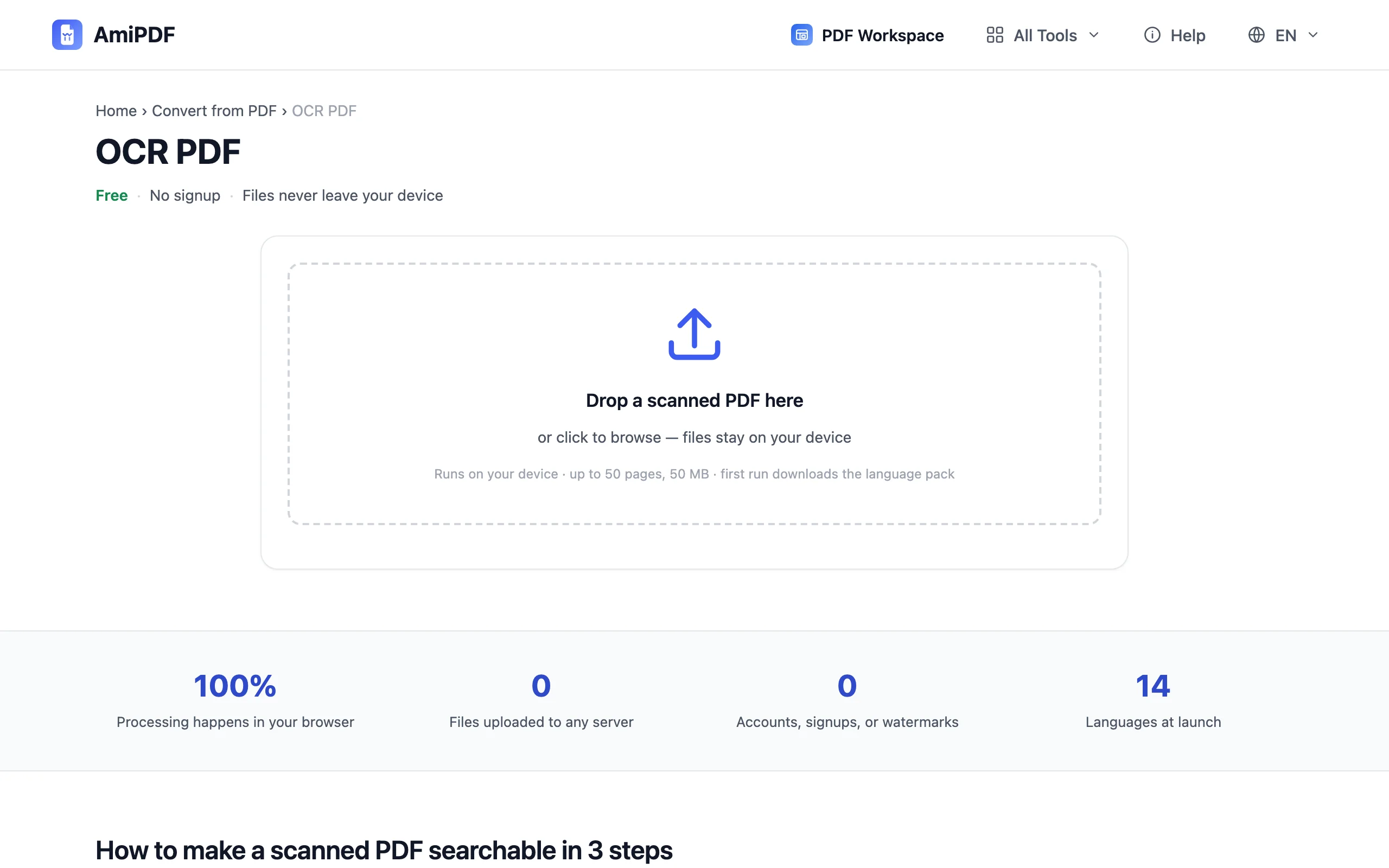
Go to the AmiPDF OCR PDF tool and drop your scanned PDF onto the upload area. Scanned documents up to the tool's page limit are accepted; if your scan is a long book, cut it into parts first with split PDF and process each chunk.
Pick the document languages
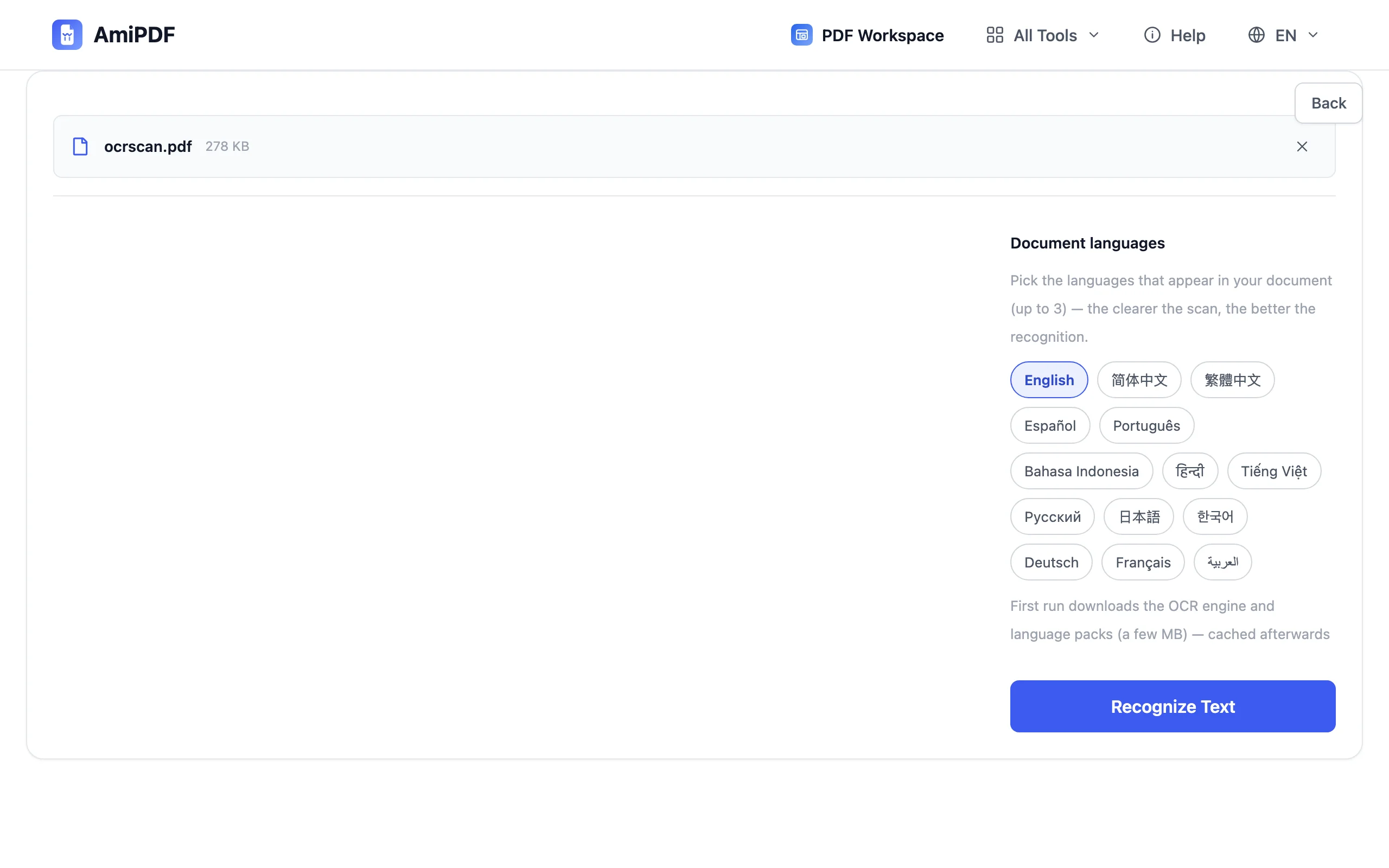
Select every language that appears in the document, up to the per-run limit. Choosing two or three languages when the text genuinely mixes them improves recognition; adding languages the document doesn't contain only slows the run. The engine and language packs download once on first use and are cached afterwards.
Run the recognition
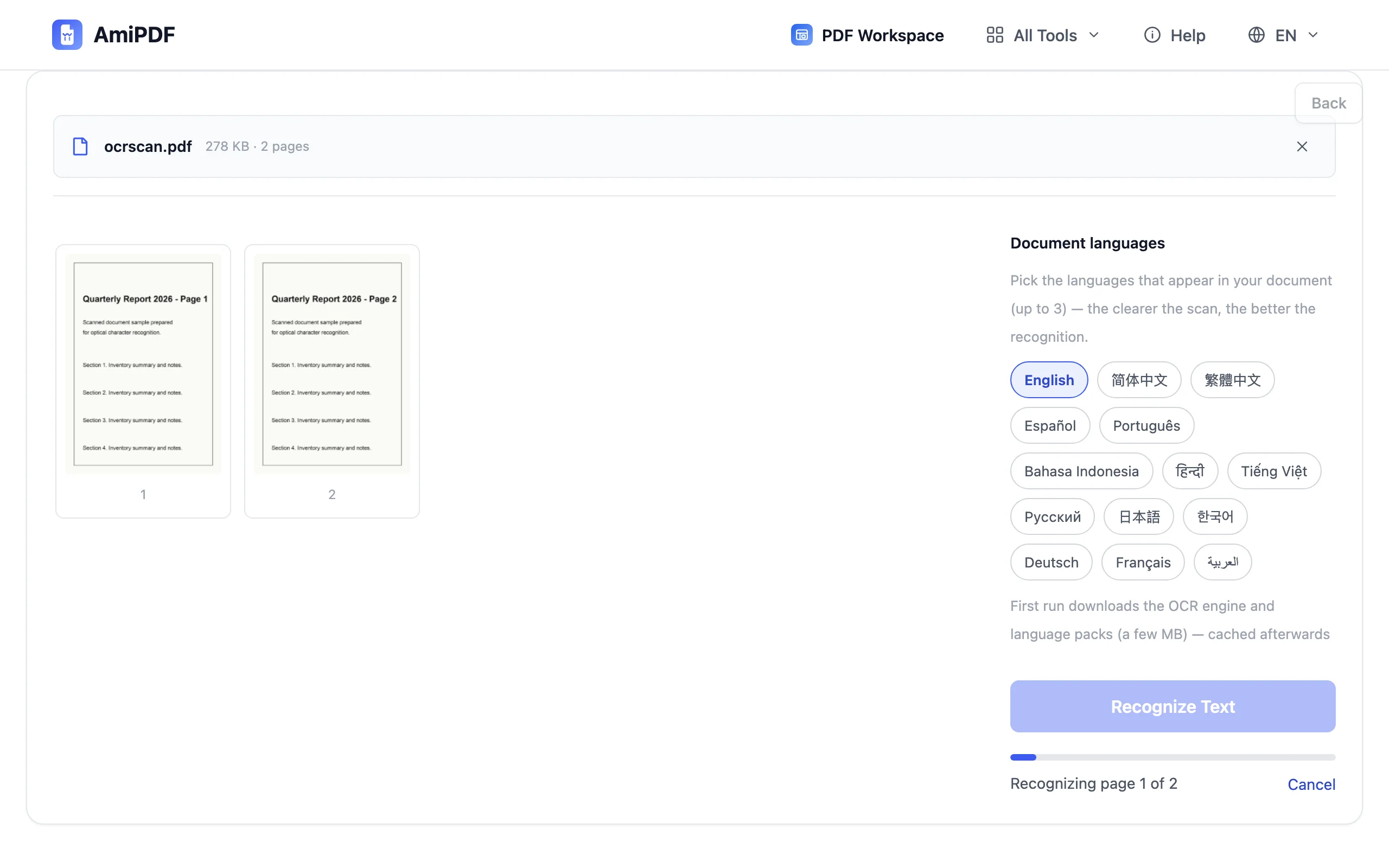
Click start and watch per-page progress. Recognition happens on your device with WebAssembly; a 10-page scan typically takes a few minutes depending on your machine. Keep the tab open until the run completes; the tool assembles the output automatically.
Download the searchable PDF
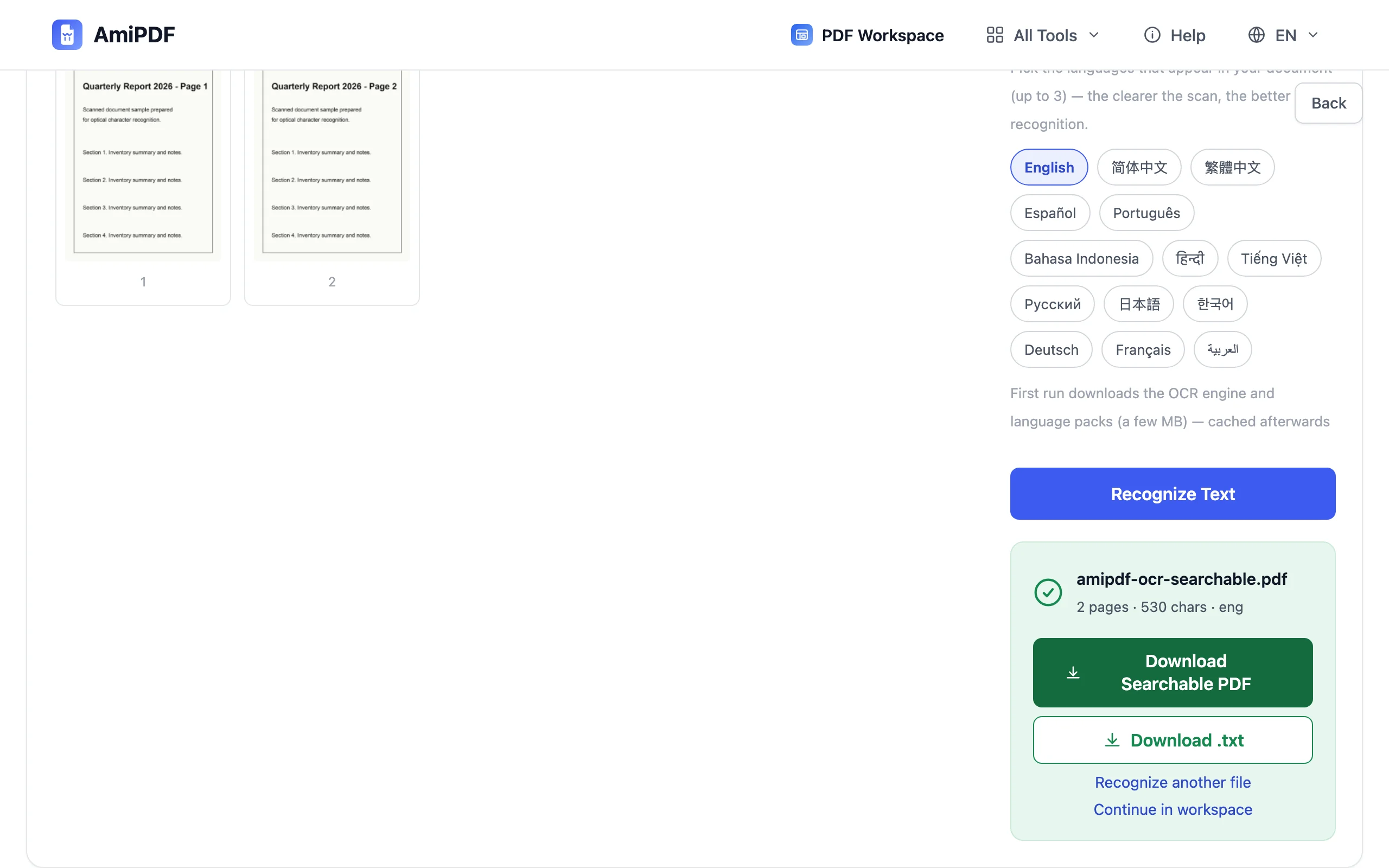
Save the result; it's the same visual document, now with an invisible text layer underneath. Search works in any PDF reader, copy-paste returns real text, and you can pull the content out later with PDF to Markdown. A button also offers the raw recognized text as a .txt file for quick checking.
Getting the best results
Clean scans recognize better
Straight, evenly lit, 300 DPI pages are the sweet spot. Skewed phone photos lose accuracy at the edges; if the source is a phone camera, straighten and crop first; the crop PDF tool can trim dark borders that confuse recognition.
Check the text preview
OCR is statistical: 100% accuracy isn't guaranteed, especially with unusual fonts or low contrast. Use the extracted-text view to spot-check a few paragraphs before relying on search, and re-run with adjusted languages if the output looks garbled.
Skip OCR for text-based PDFs
If the tool tells you the document already has a text layer, you don't need it; extraction tools like PDF to Word work directly and finish in seconds.
Frequently asked questions
Is my file really not uploaded anywhere?
Correct — recognition runs in your browser via WebAssembly. The only network traffic is the one-time download of the OCR engine and language packs, cached for future runs.
How many languages can I pick?
Up to the per-run limit shown on the page. Mix languages freely, for example English and Chinese in one bilingual contract, but skip languages that aren't in the document; they only slow the run down.
Will OCR change how my scan looks?
No. The pages keep their original appearance; the recognized text is added as an invisible layer positioned under the scan. You see the same document, but search and copy now work.