How to Merge PDF Files
A step-by-step guide to merging PDF files: combine documents in any order, mix pages from many files, runs privately in your browser. Free, no signup.
Merge your PDFs nowEmail attachments, scanned contracts, chapter exports. Sooner or later a pile of PDFs needs to become one document. Doing it by hand means printing, stacking, and rescanning; doing it right takes about a minute. This guide walks you through merging with AmiPDF's PDF merger: add as many files as you need, drag them into the exact order you want, and download a single combined PDF. The whole operation runs in your browser: nothing is uploaded, and the output keeps the pages, links, and form data exactly as they are in the originals.
Merging PDFs, step by step
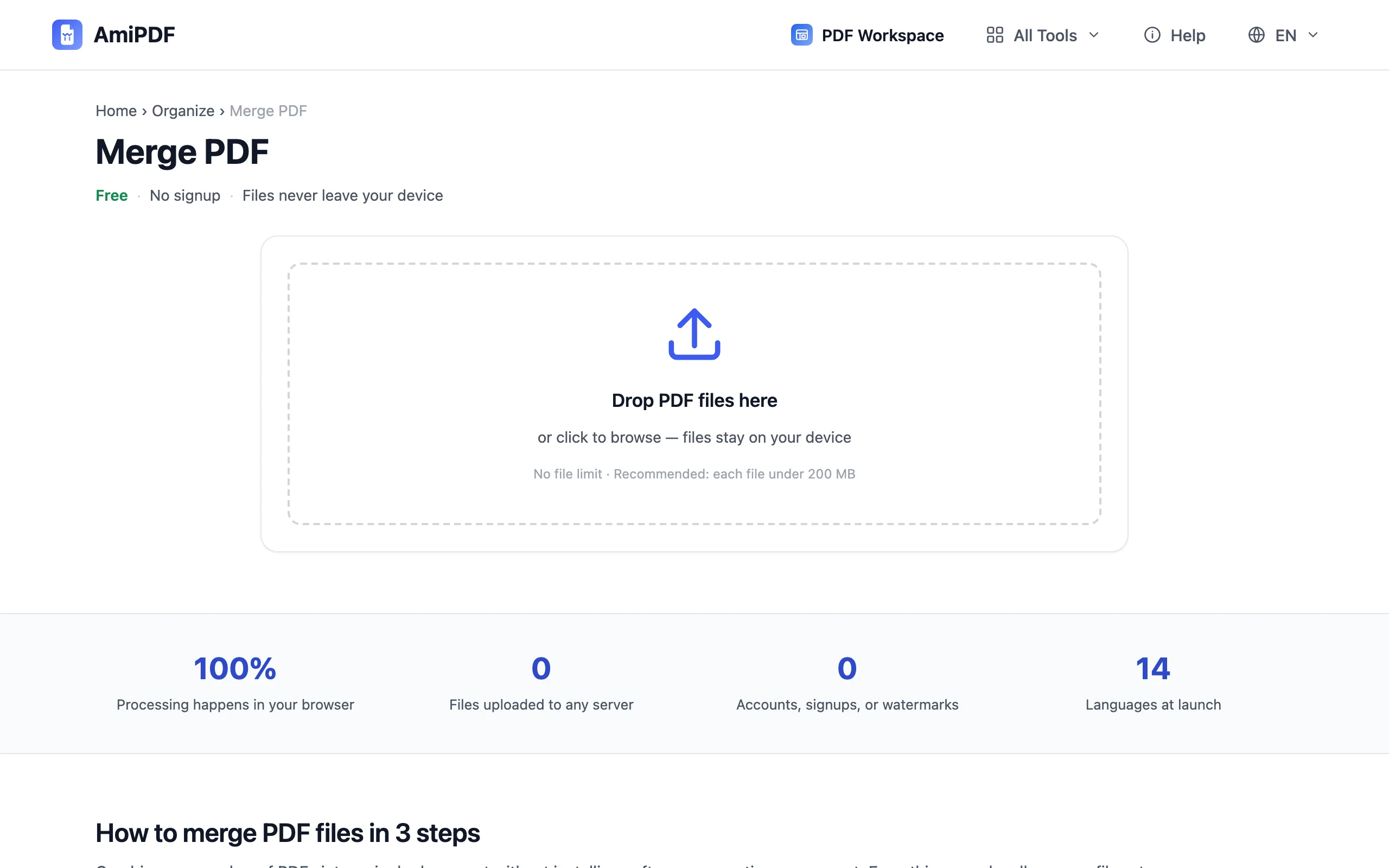
Open the merger and add your files
Go to the AmiPDF merge PDF tool and drop your files onto the upload area, or click to browse. Add documents one by one or select a whole folder at once; there is no file-count limit, and each card shows the page count so you can sanity-check the batch before combining.
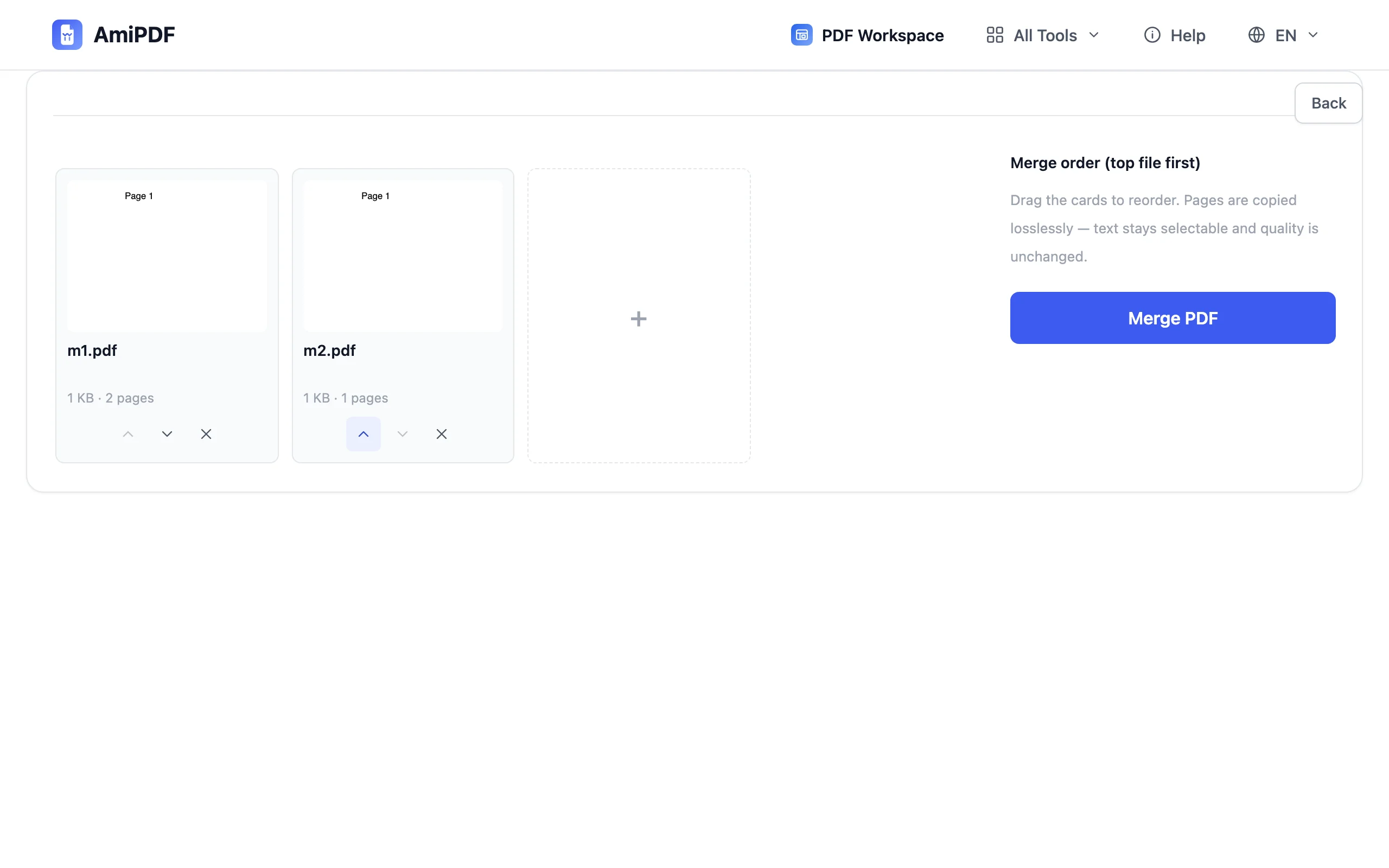
Put the files in order
Drag the file cards into the sequence you want the final document to have, or use the arrow buttons next to each card. The first card becomes page 1 of the merged PDF. Check the order visually before moving on; re-merging after a download is always possible, but getting it right the first time saves a round trip.
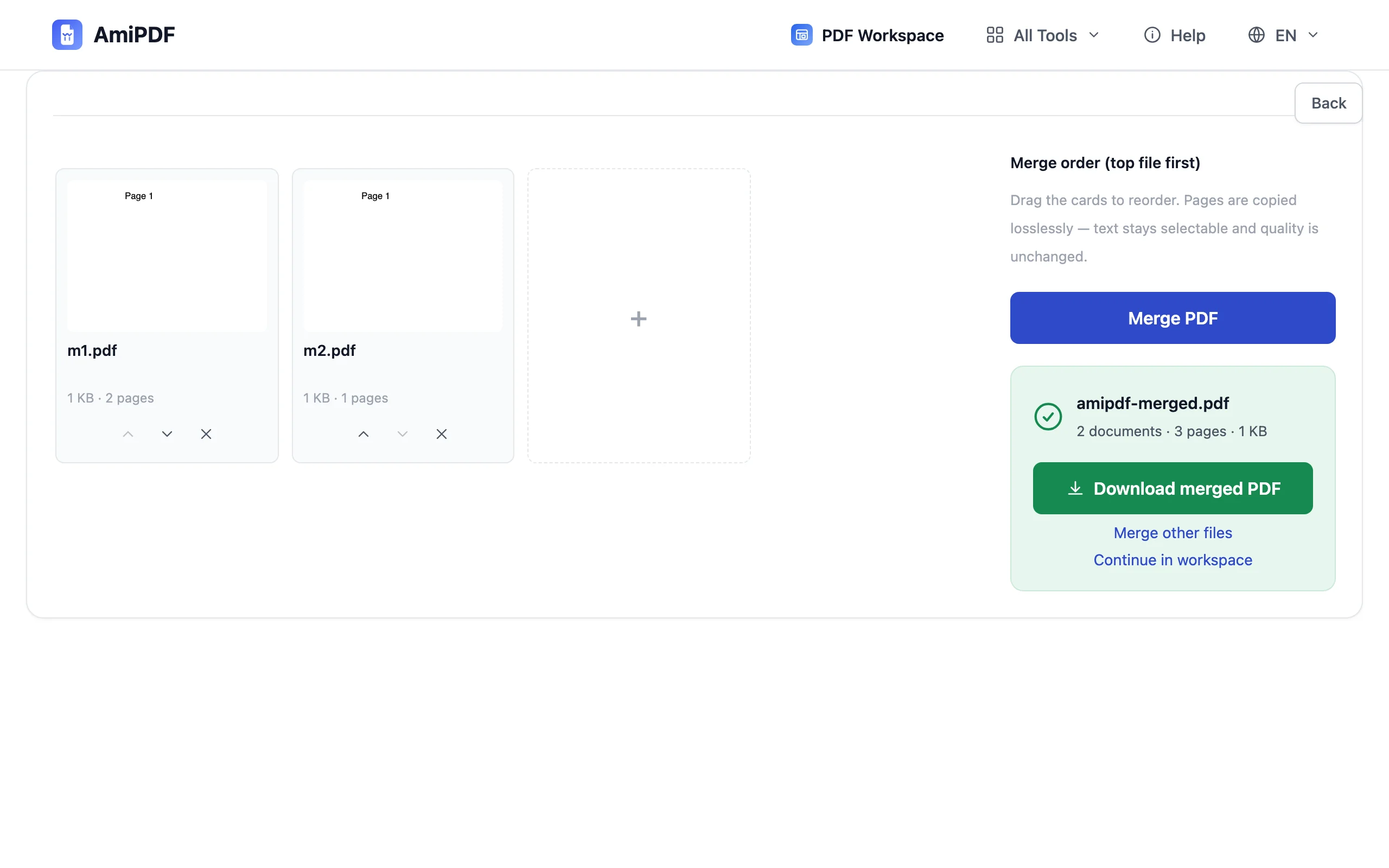
Merge the files
Click the Merge button. The documents are combined on your device: page content, links, and filled form values carry over from each source file. Large batches finish in a few seconds and a progress indicator tracks the run.
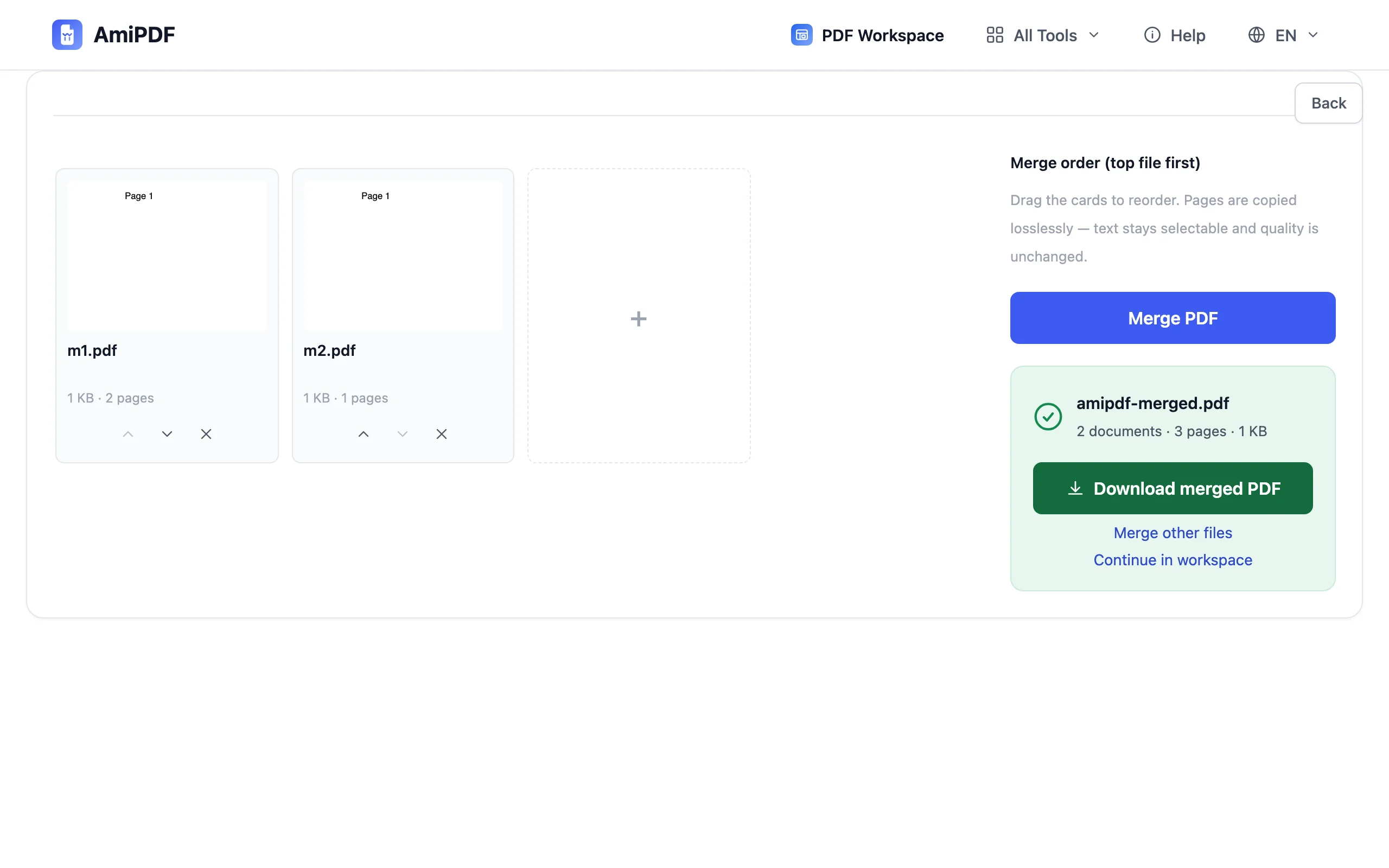
Download the combined PDF
Save the single output file. The merged document opens like any other PDF, ready to email, archive, or print. If you also need it smaller for an attachment cap, send it straight to the PDF compressor as the next step.
Getting the best results
Merge before you organize pages
If the goal is one tidy document with pages from several sources, merge first, then use the workspace to delete, rotate, or reorder individual pages across the combined file. Working on one document is faster than juggling many.
Watch out for encrypted files
A password-protected PDF cannot be merged as-is. Run it through unlock PDF first with its password, then add the unlocked copy to the merge queue.
Order-sensitive output
The merger appends files in queue order: chapters, appendices, and signature pages land exactly where you place them. For a table of contents or numbering, add page numbers after merging with add page numbers so the sequence runs through the whole document.
Frequently asked questions
Is there a limit on how many PDFs I can merge?
No file-count limit. Each file can be up to the site-wide size cap, and everything is processed locally in your browser, so adding more files costs no server time.
Does merging change the quality of my documents?
No. Pages are copied into the combined document as-is — text stays selectable, images keep their resolution, and links keep working. Nothing is re-rendered or re-compressed.
Can I merge password-protected PDFs?
Not directly. Unlock the file first with its password using the unlock tool, then merge the unlocked copy.