How to Compress a PDF
A step-by-step guide to compressing PDF files: three quality levels from high to extreme, size savings shown up front, runs privately in your browser.
Compress your PDF now«PDF too large» is the modern rejection notice: email servers bounce at 25 MB, government portals at 2, job applications at 5. Whatever the cap, the fix is the same: compress the file until it fits. This guide shows you how with AmiPDF's PDF compressor. You get three quality levels, a before-and-after size preview, and a clear warning when a file would actually grow instead of shrink. Compression runs in your browser on files up to 100 pages, and the tool tells you the trade-off of each level before you commit, so you never discover quality loss after sending the file.
Compressing a PDF, step by step
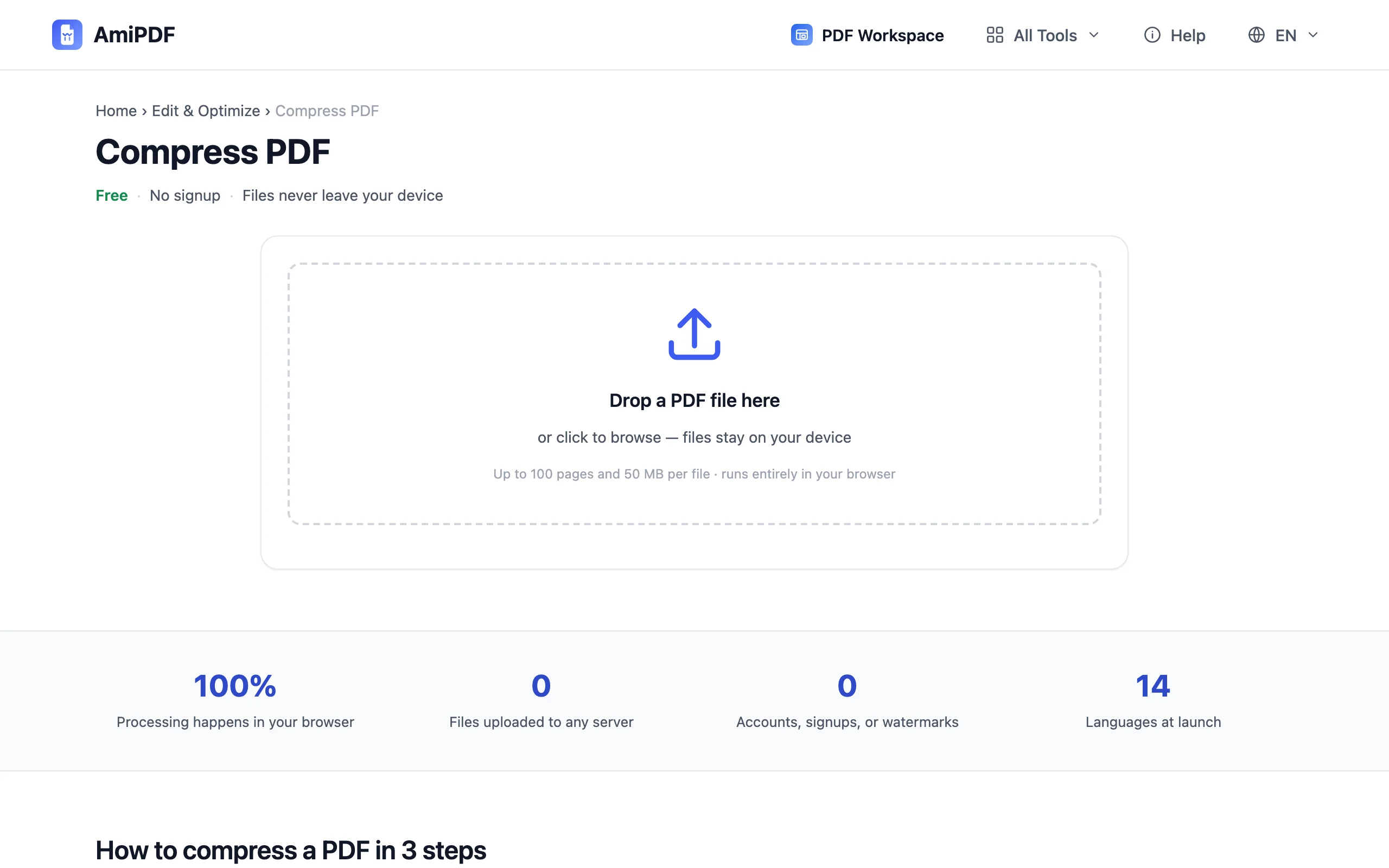
Open the compressor and add your PDF
Go to the AmiPDF compress PDF tool and drop your file onto the upload area. Documents up to 50 MB and 100 pages are accepted; larger files should be split first with the splitter, then each part compressed.
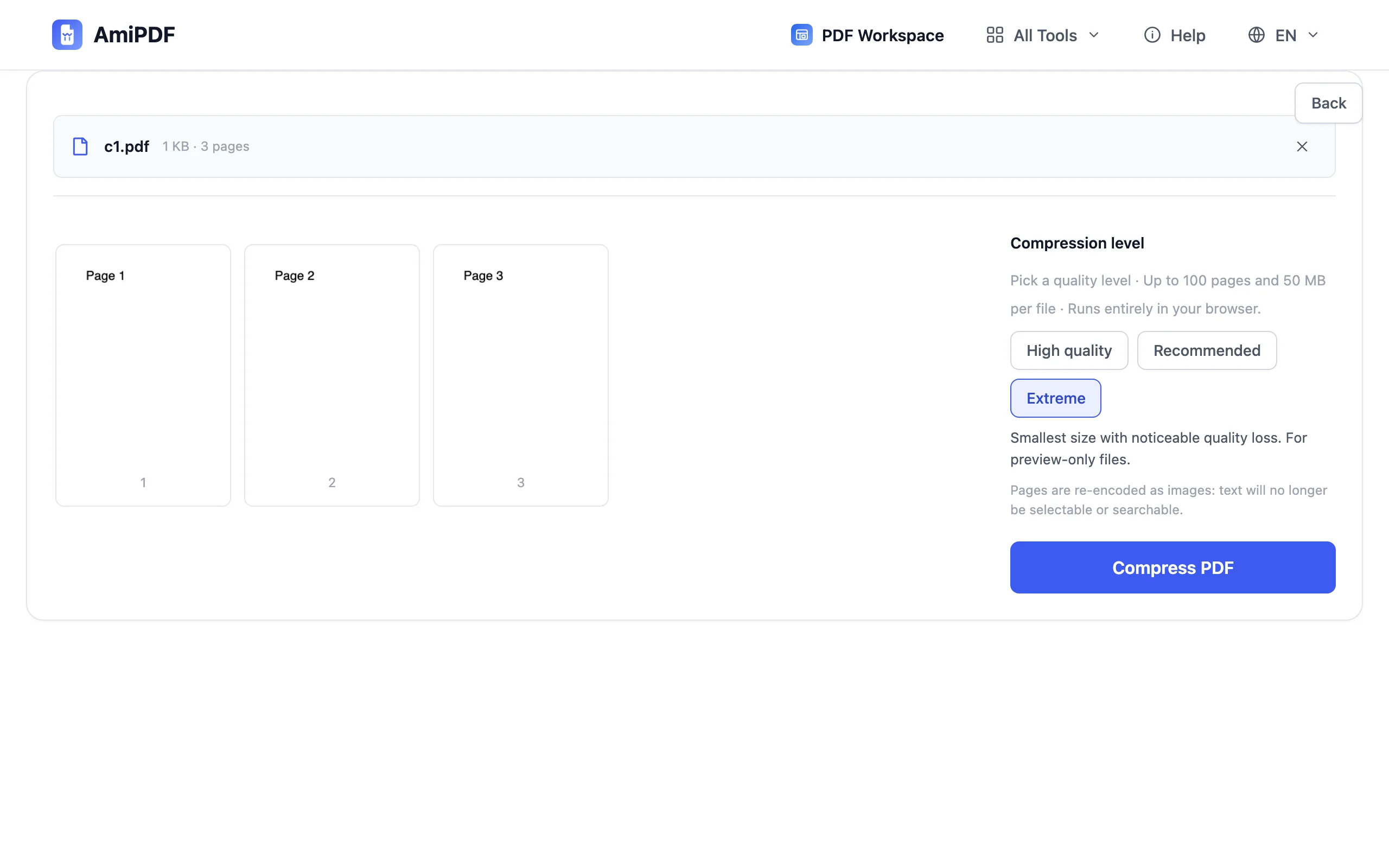
Pick a compression level
Three levels cover the common cases. High quality keeps output essentially indistinguishable, for printing or archiving. Recommended balances size and clarity, the right call for email and everyday sharing. Extreme produces the smallest file with visible quality loss, for preview-only copies facing a hard size cap.
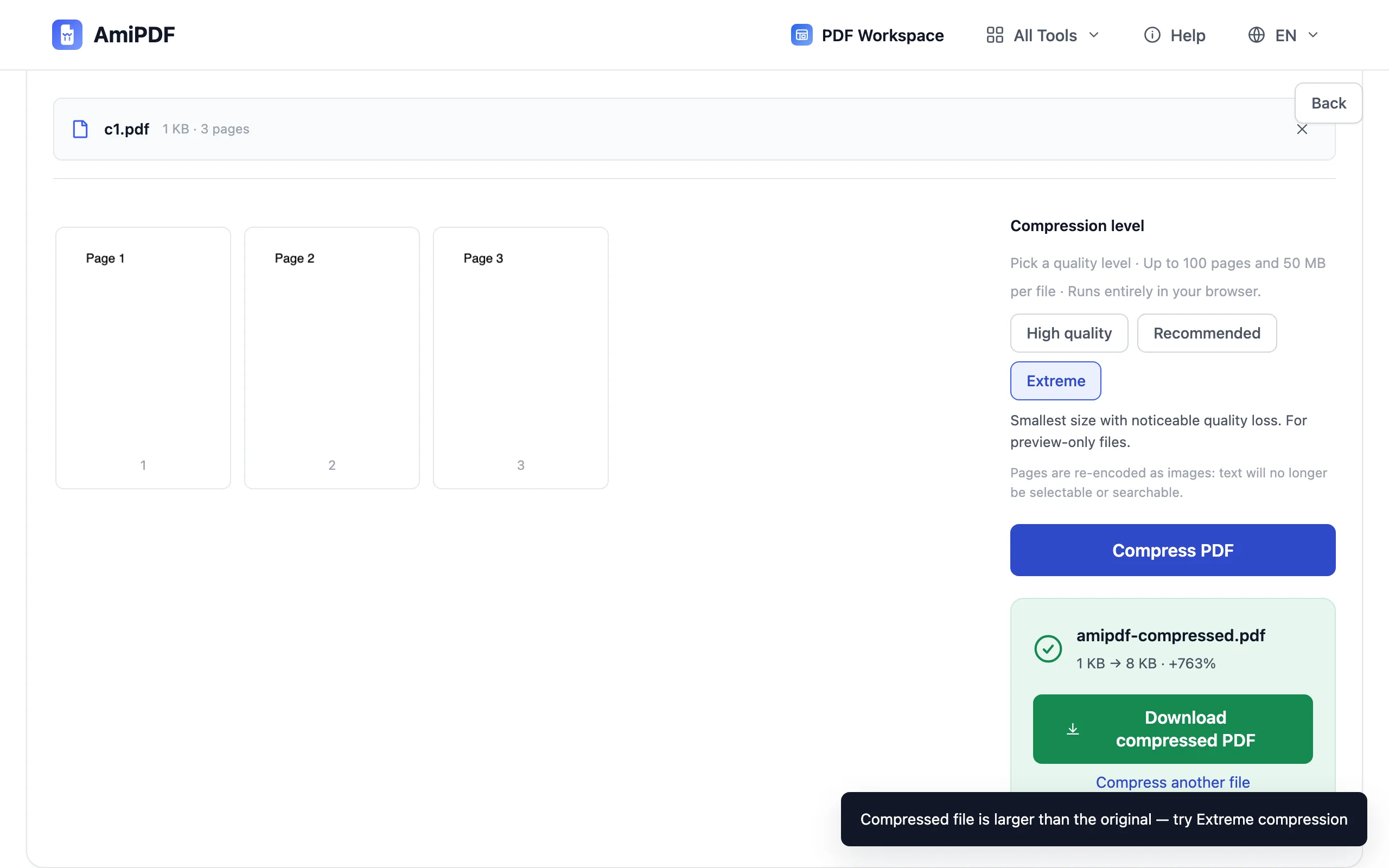
Compress and review the result
Click the compress button and watch the before → after size report. The tool also copies the document's title and author into the output. One edge case: a file that is already efficiently encoded may come out larger; the tool says so plainly and suggests extreme mode instead of silently shipping a bigger file.
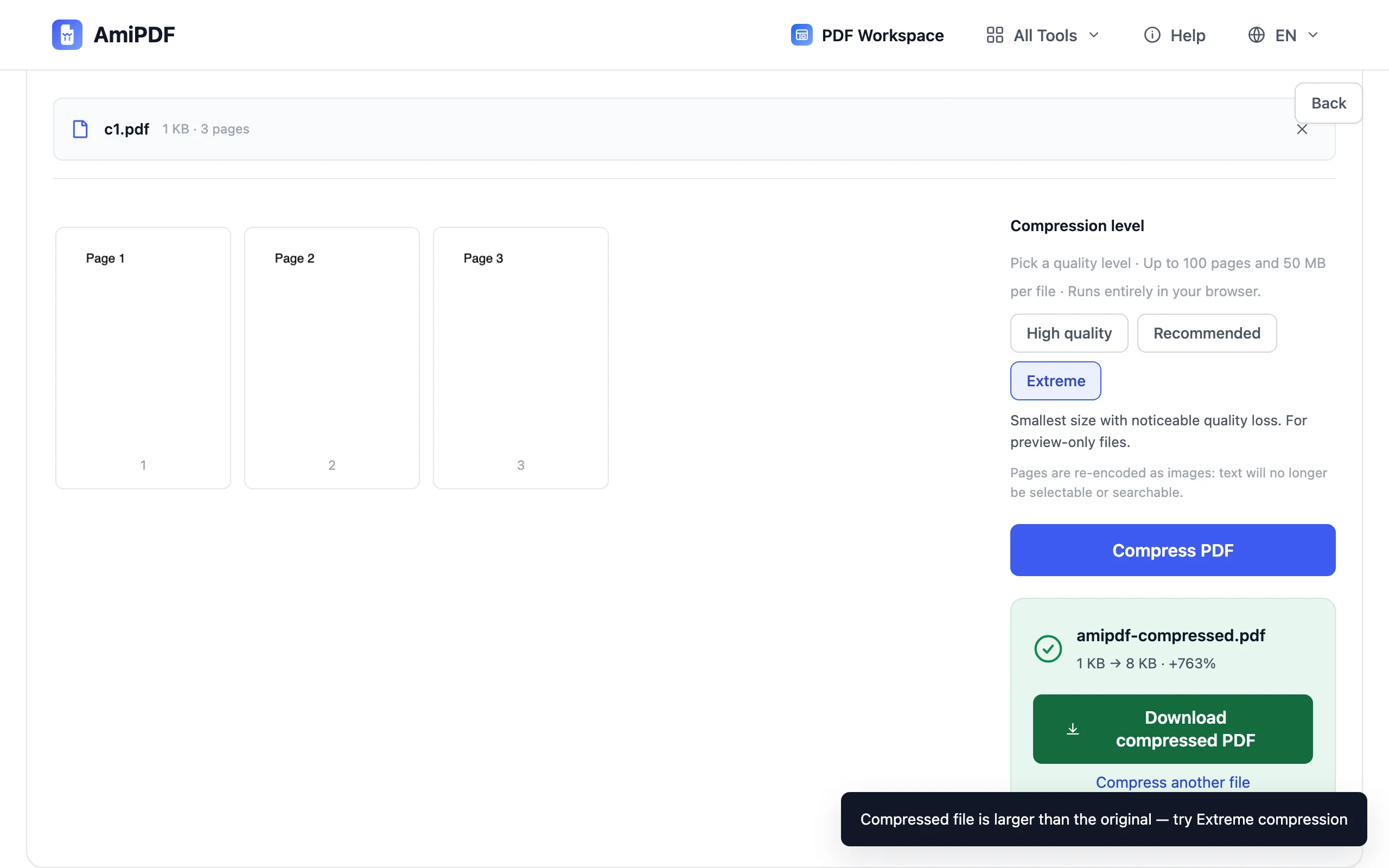
Download the smaller PDF
Save the compressed copy and check it against the cap you were aiming for. If it still doesn't fit, run it again at a stronger level, or split large scans into chunks first. Keep the original until you've verified the result opens the way you expect.
Getting the best results
Know what compression removes
Compression re-encodes pages as images: text stops being selectable and searchable. For documents where that matters, compress a copy for sending and keep the original for yourself, or send the text-based original and an extreme-mode preview alongside.
Scanned files shrink the most
Scans at 300 DPI or higher carry far more pixels than a screen needs. Recommended mode routinely cuts them by 70–90% with no visible difference, which usually solves an email-cap problem in one pass.
Fit a hard cap in two steps
For a strict portal limit, check the after-size report, and if you're still over, go one level stronger rather than re-uploading the original; each pass is fast because the file is already smaller.
Frequently asked questions
Will the text in my PDF stay selectable?
No — compression re-encodes pages as images, so text becomes part of the picture. Keep the uncompressed original whenever you need to search or copy text, and use the compressed copy for sending.
Can a compressed PDF get bigger?
Rarely, yes — files that are already efficiently encoded have nothing left to squeeze. The tool shows the real result before download and flags any size increase instead of hiding it.
What's the page and size limit?
Up to 100 pages and 50 MB per file, enforced up front. Larger documents are rejected immediately with a hint to split first — no partial output is produced.