How to Password Protect a PDF
A step-by-step guide to adding a password to a PDF: open passwords plus printing and copying restrictions, encrypted locally in your browser.
Protect your PDF nowTax documents, employment contracts, medical results. Some PDFs shouldn't travel as open attachments. A password fixes that at the file level: without it, the document won't open, wherever the copy ends up. This guide shows you how with AmiPDF's protect PDF tool. You set an open password, and optionally restrict printing and copying for readers who do have the password. Encryption runs entirely in your browser: the password and the file never leave your device, which matters when the document is sensitive enough to lock in the first place.
Protecting a PDF, step by step
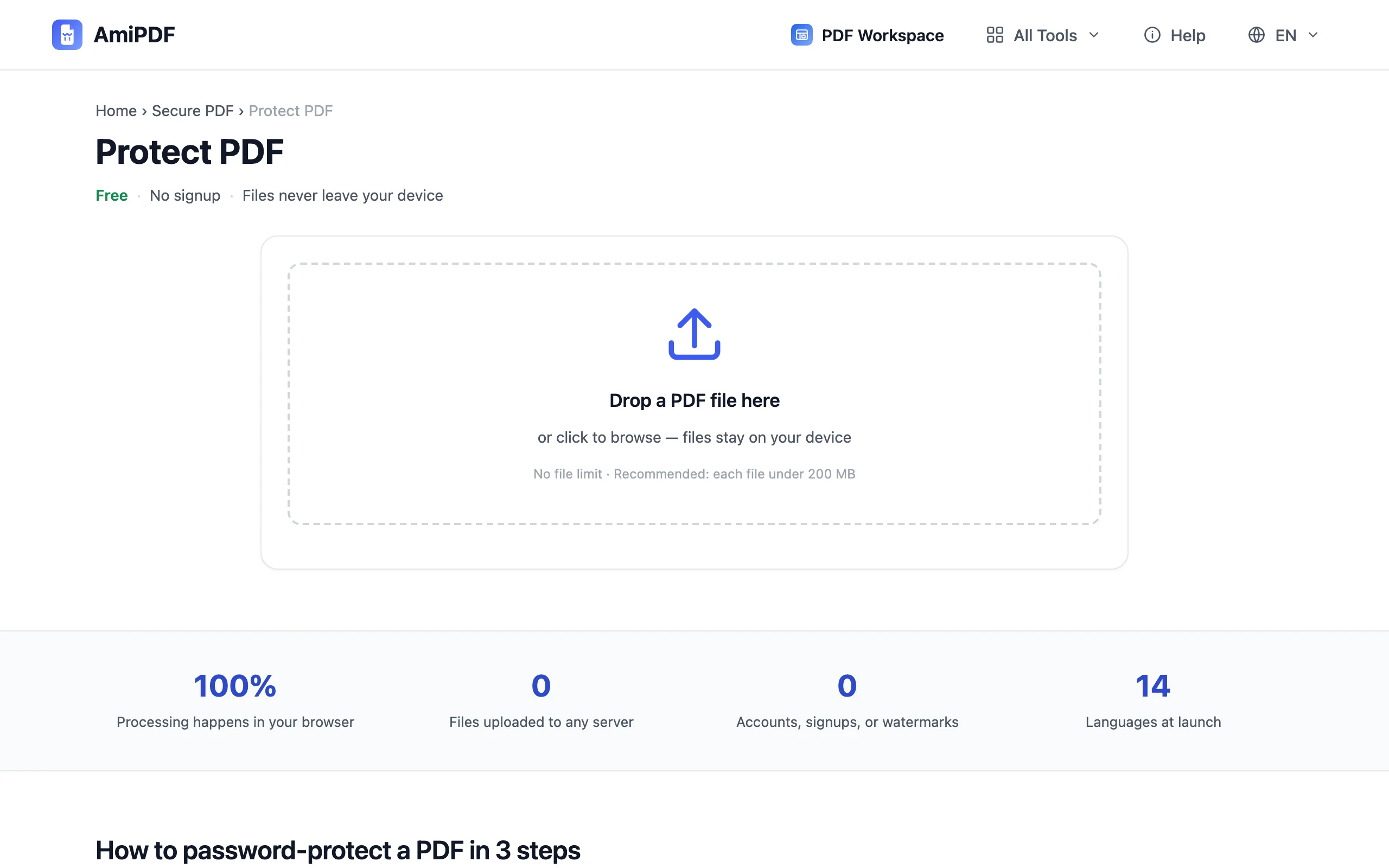
Open the tool and add your PDF
Go to the AmiPDF protect PDF tool and drop your document onto the upload area. The file is read locally; nothing is transmitted. Any PDF can be protected, including one that already carries form fields or annotations.
Set the open password
Type the password readers must enter to open the document, and confirm it in the second field. Longer is stronger: a phrase of several words beats a short string of symbols. The tool warns if the two fields don't match before any encryption starts.
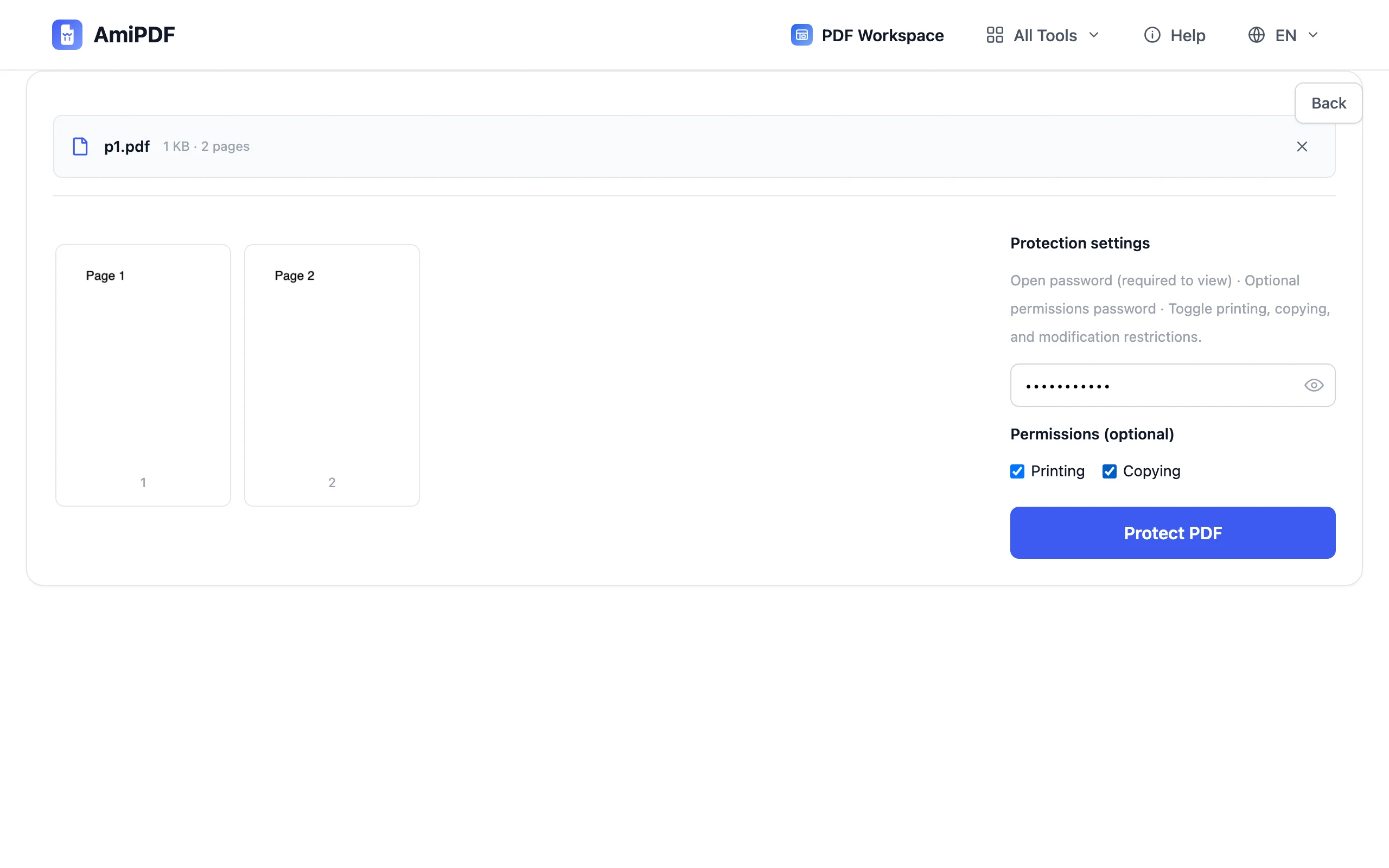
Choose optional permissions
Two switches control what readers can do once the document is open: allow or block printing, and allow or block copying text and images. Blocking both is the usual choice for documents meant strictly for reading; leaving them on keeps the file friendlier for reviewers.
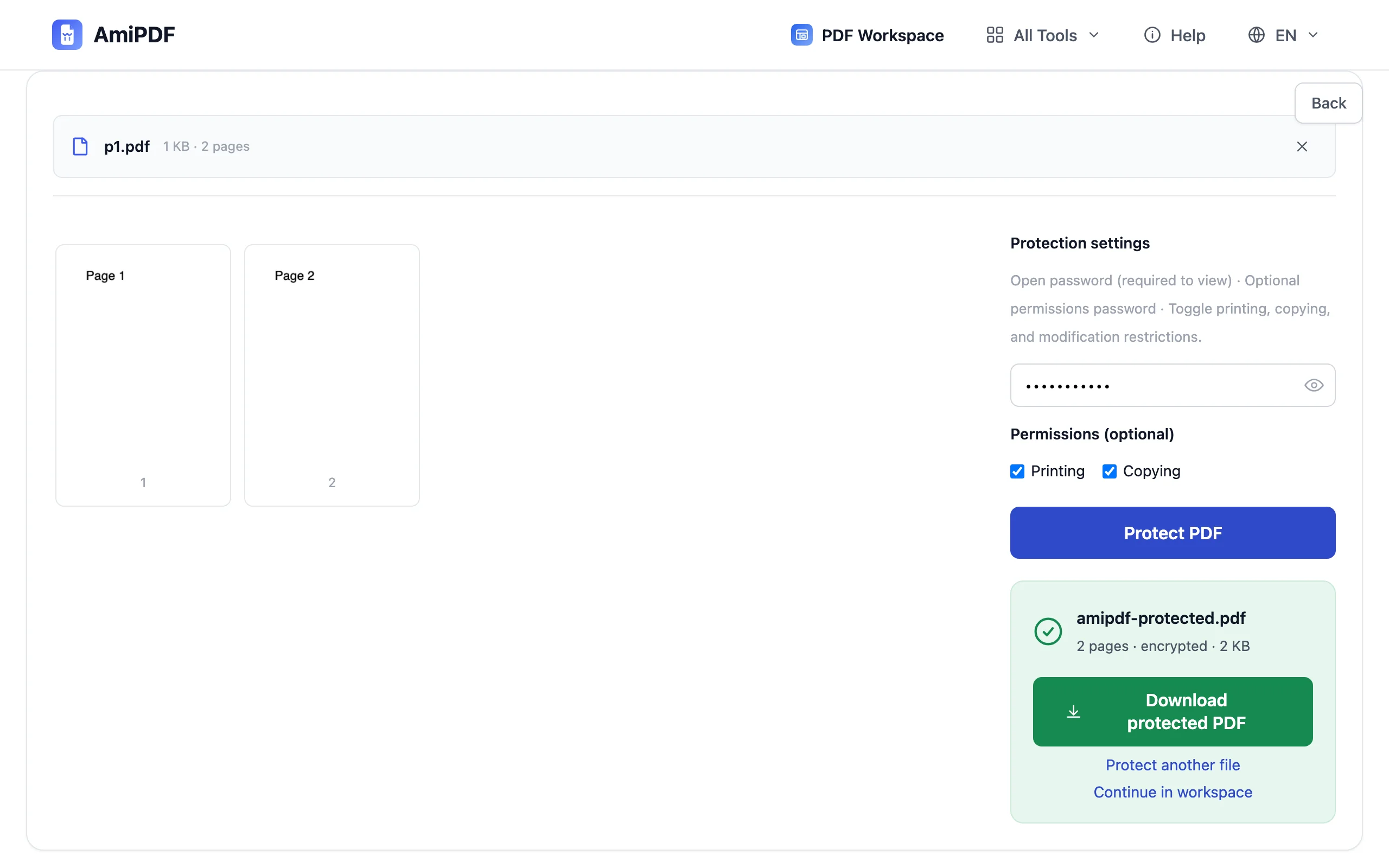
Encrypt and download
Click protect. The encrypted copy is produced on your device in a few seconds. Download it and verify by opening; any PDF reader should ask for the password. If you received a locked file and need to remove the protection, unlock PDF does that with the password its owner gives you.
Getting the best results
Send the password through a different channel
An encrypted file attached to the same email as its password protects nothing. Share the password by phone or messenger, or send the file by email and the password by a separate message; the mismatch is the security.
Permissions are requests, not walls
Printing and copying restrictions are honored by well-behaved PDF readers, but determined users with special software can bypass them. The open password is the real protection; treat the permission switches as a courtesy layer for readers who follow the rules.
Protect the final version
Encrypt after the document is finished, including signatures and page numbers. Editing a locked file means unlocking it first, so run sign PDF or watermark PDF before protecting, and the result ships once.
Frequently asked questions
Can the password be recovered if I forget it?
No — the encryption has no backdoor, and this is not a password cracker. Keep a copy of the original unprotected file until you've confirmed you can open the encrypted one with the password you chose.
Is my password sent anywhere?
No. Encryption happens in your browser; neither the file nor the password is uploaded at any point.
Which PDF readers can open the result?
The output uses standard PDF encryption supported by every mainstream reader — Acrobat, Preview, browsers, and mobile viewers will all ask for the password.