How to Extract Pages from a PDF
A step-by-step guide to extracting pages from a PDF: select by thumbnail or type ranges like 1-3,5,8, output is a new document, runs locally in your browser.
Extract your pages nowNot every PDF needs to travel in full. A 90-page tender where only the pricing section concerns you, a year-long bank statement where you need three months, a scanned book where you want one chapter. In each case the job is the same: pull specific pages into a clean new document. This guide shows you how with AmiPDF's extract pages tool. Click thumbnails to pick pages visually or type ranges like 1-3,5,8; the output is a fresh PDF containing exactly those pages in the order you specified, produced in your browser without any upload.
Extracting pages, step by step
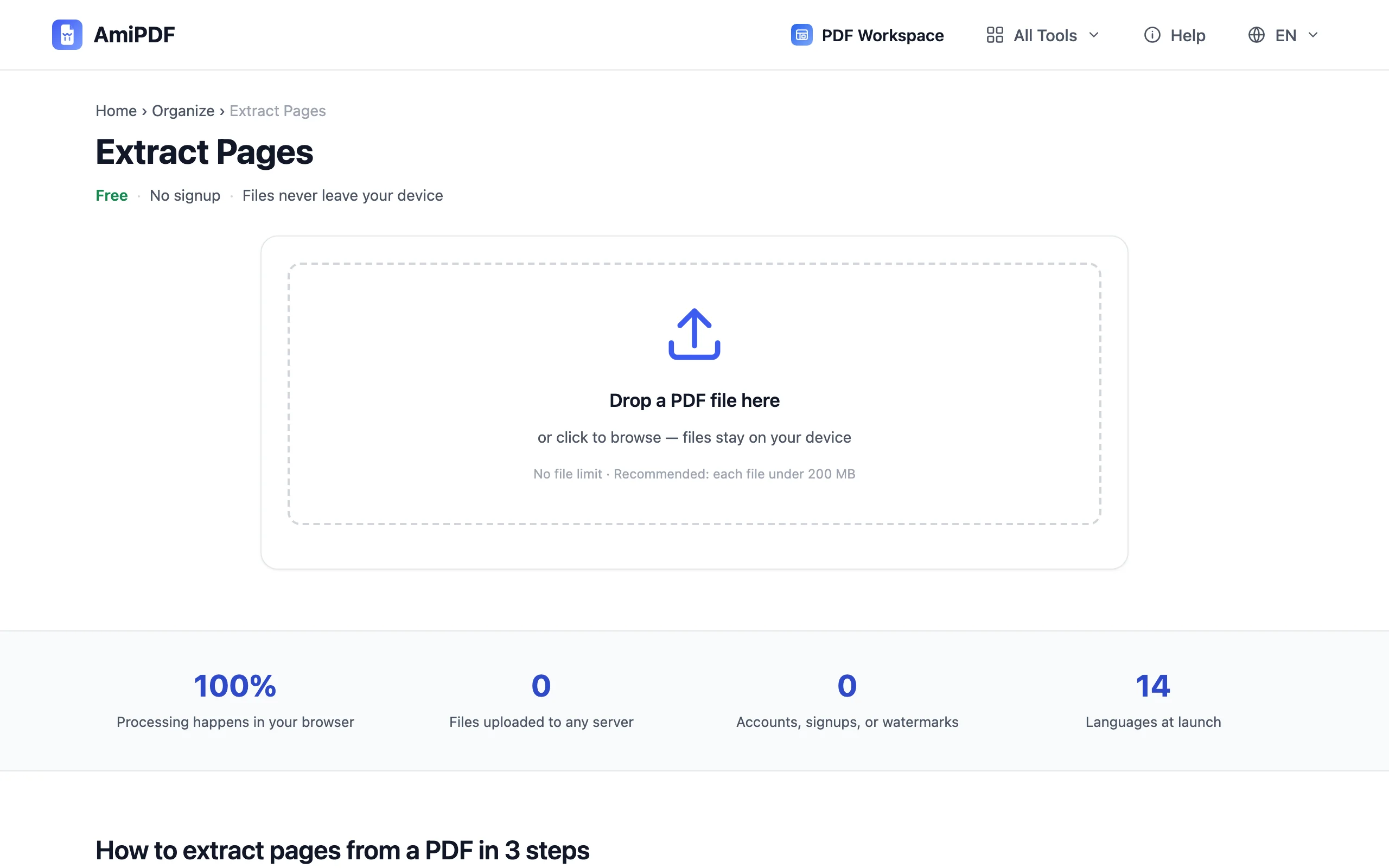
Open the tool and add your PDF
Go to the AmiPDF extract pages tool and drop your document onto the upload area. Thumbnails of every page render locally; scroll through them to find the ones you want, using the page count display to navigate long documents.
Pick your pages
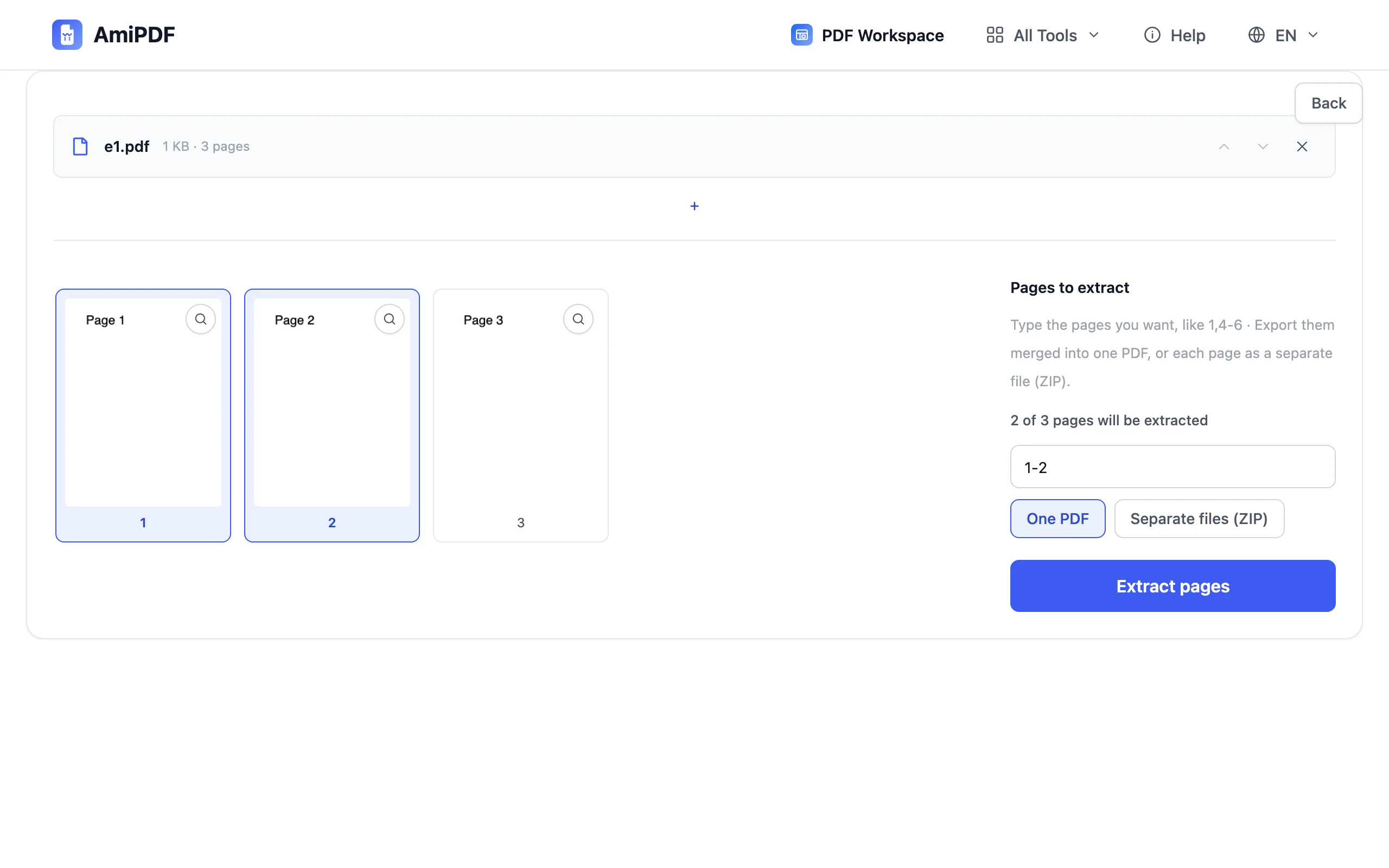
Two ways to select. Click thumbnails: each click marks or unmarks a page, ideal when you recognize pages on sight. Type a range: enter 1-3,5,8 style syntax in the input field, faster for documents you already know by page number. Both methods work together, and the selection count updates as you go.
Extract
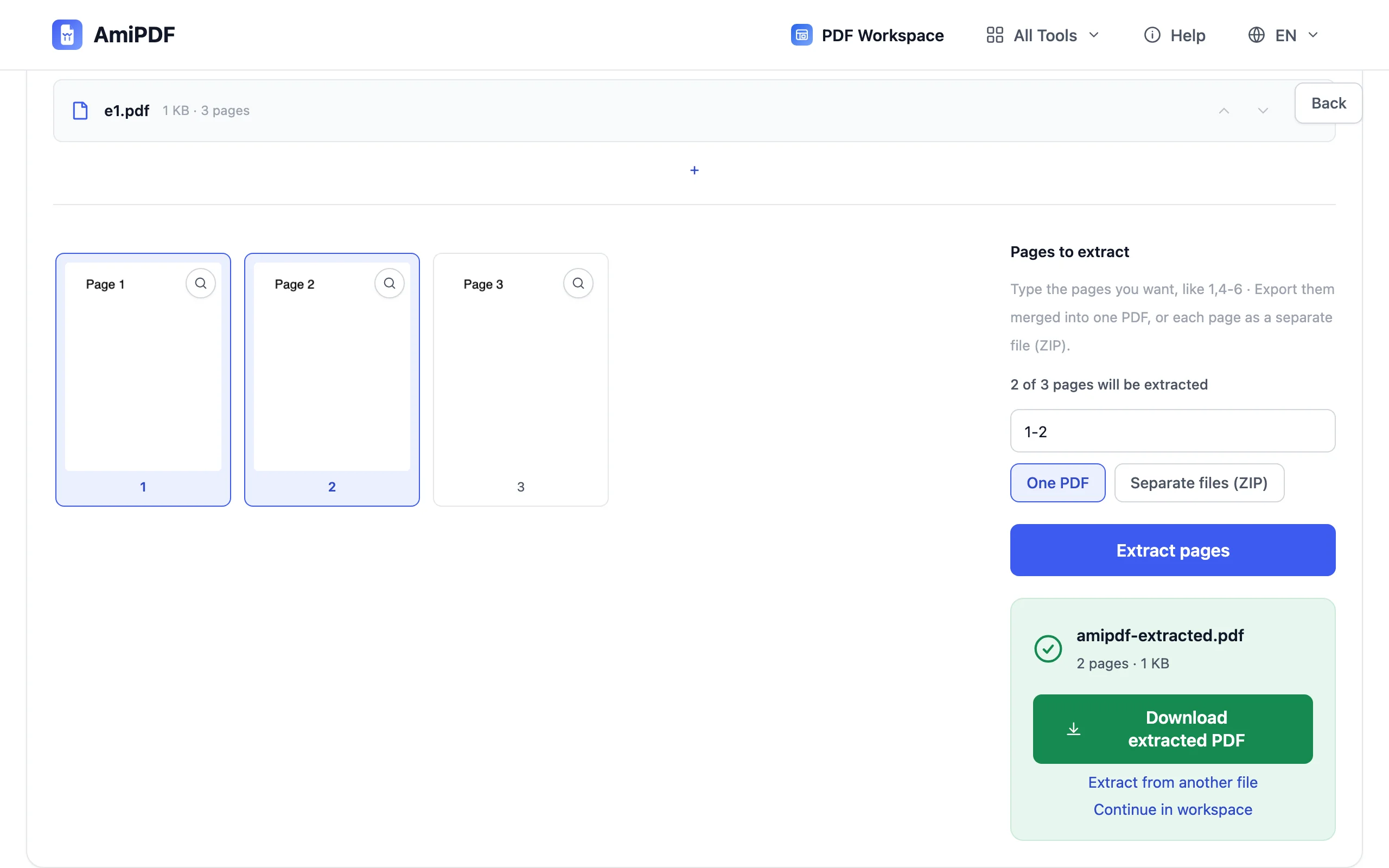
Click the extract button. The selected pages are copied into a new PDF on your device in selection order, with content, quality, and links unchanged from the original. An empty selection is rejected with a hint, so you can't produce a blank file by accident.
Download the new document
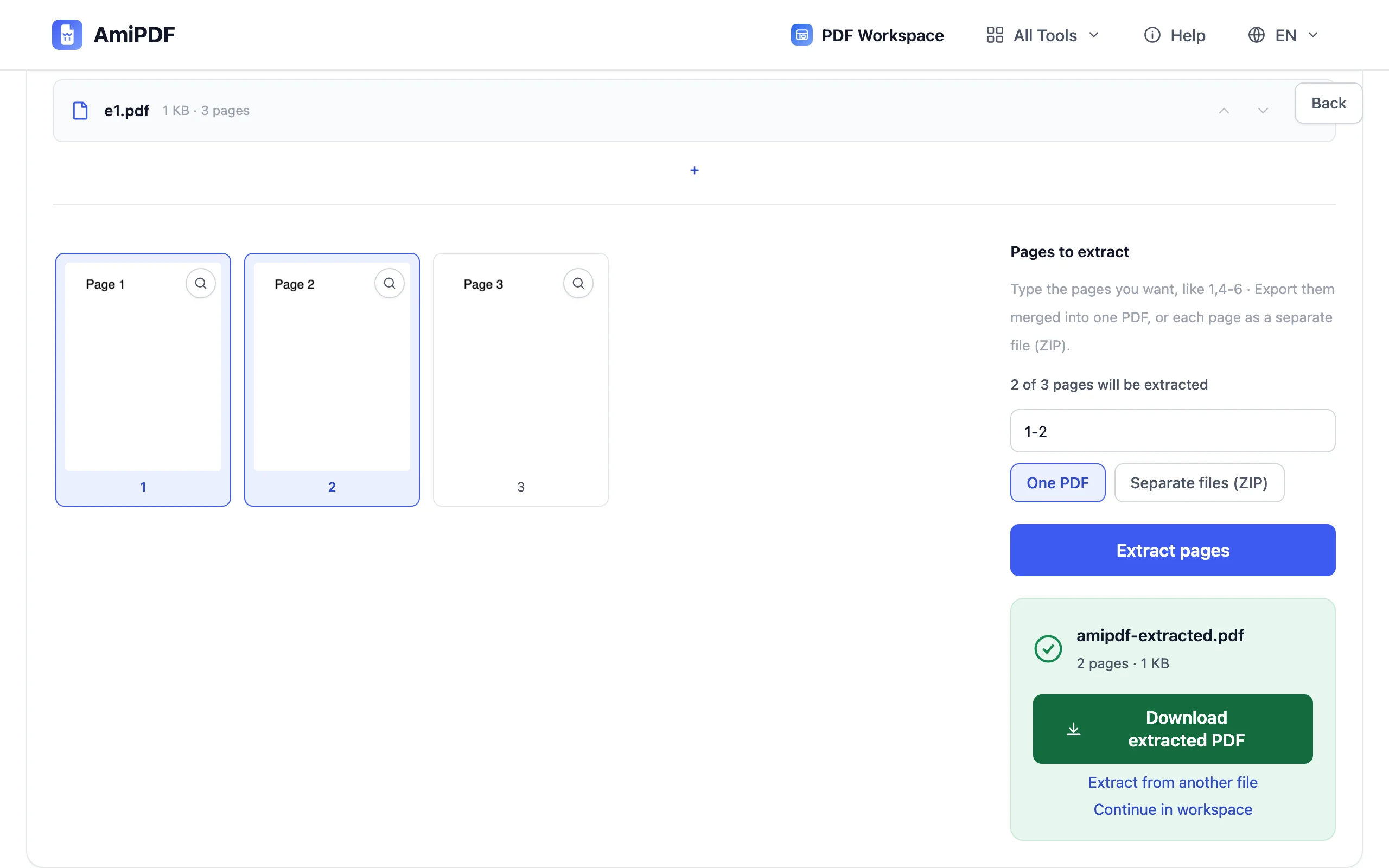
Save the extracted PDF; it's an independent file with only the pages you chose. The original stays untouched on your disk. If what you actually wanted was to divide the whole document into parts, that's the split PDF tool's job.
Getting the best results
Order follows your input
Pages land in the order your ranges list them: 5,1-3 produces a document starting with page 5. That's handy for pulling a summary page to the front of an appendix bundle, and worth remembering before you hit extract.
Extract before you share, not after
The cleanest privacy habit: send only the pages the recipient needs. Instead of attaching a full statement or dossier, extract the relevant range and send that: smaller, faster, and nothing extra travels by email.
Combine with page numbers for handouts
Extracted pages keep their original printed numbers, which can confuse a new reader. Run the output through add page numbers to stamp a fresh sequence, or add headers with watermark PDF when the pages need a source label.
Frequently asked questions
Can I extract from a password-protected PDF?
Not while it's locked — remove the protection first with unlock PDF and the correct password, then extract from the unlocked copy.
Does extraction affect the original file?
No. The original is never modified; extraction reads it and writes a new document containing only the selected pages.
Can one page appear twice in the output?
Yes — repeating a page number or range in the input includes it again. 2,2,4 produces a document where the content of page 2 appears twice.