How to Reorder Pages in a PDF
A step-by-step guide to reordering PDF pages: drag thumbnails into place, rotate sideways scans, delete blanks, rebuilt in your browser.
Organize your PDF nowThe scanner swallowed the stack out of order. The portal wants the signature page first and the appendix last. Your report buries the summary on page 9, and every reviewer asks for it up front. Wrong page order is a paperwork constant, and the wrong fixes make it worse: retyping wastes an afternoon, print-and-rescan costs quality. The right fix is to reorder the pages themselves. This guide shows you how to reorder pages in a PDF with AmiPDF's organize PDF tool: every page shows up as a thumbnail, you drag them into position, rotate the ones that went through sideways, and drop the blanks the scanner added for good measure. All of it runs in your browser: the file never uploads, which matters when you're holding contracts, ID scans, or medical records.
Reordering PDF pages, step by step
Open your PDF in the page grid
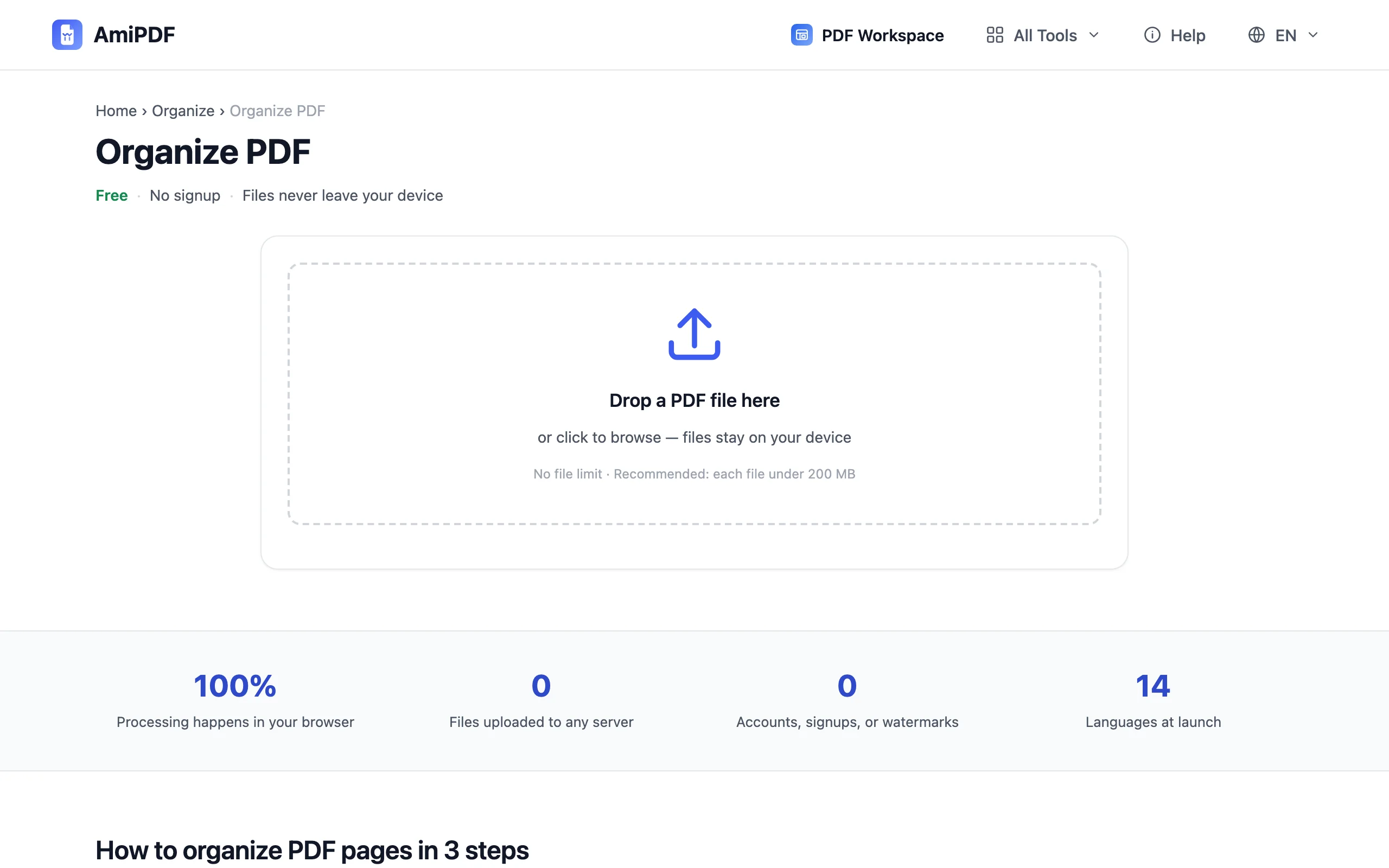
Go to the AmiPDF organize PDF tool and drop your file in. Thumbnails for every page render in seconds, on your device rather than a server. A 40-page scan becomes a grid you can scan visually, instead of a page counter you have to trust.
Drag pages into the new order
Grab a thumbnail and drop it where the page belongs; the rest shift to make room. Repeat until the sequence reads the way it should. For big reshuffles, work from the front backward; each settled page stops competing for your attention.
Rotate strays and delete blanks
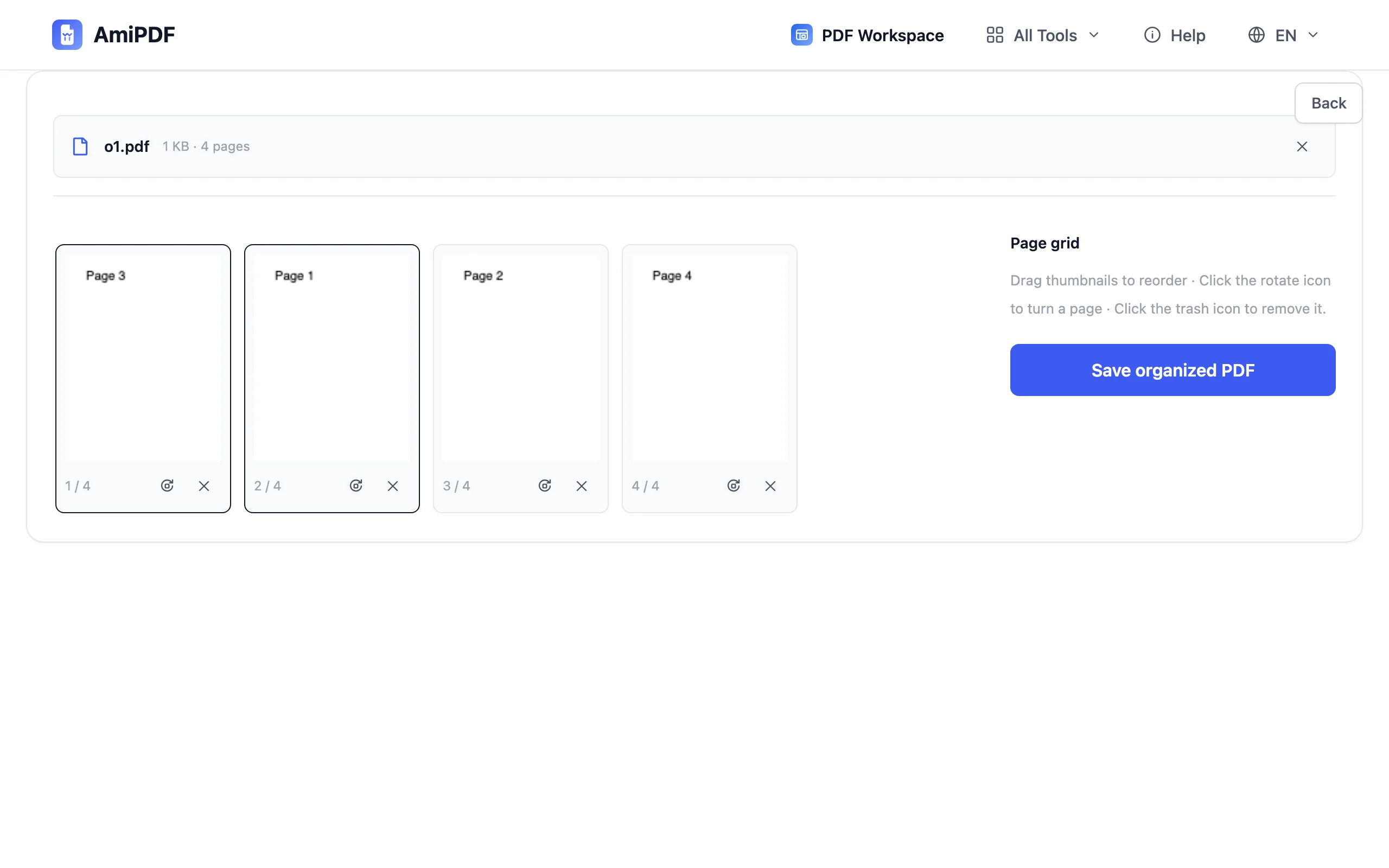
Each thumbnail carries its own controls: the rotate icon turns a page in 90° steps without touching the others, and the trash icon removes a page outright. Sideways scans and double-fed blanks are the usual suspects; clear them before saving so the final file is clean on first open.
Save and download the reorganized PDF
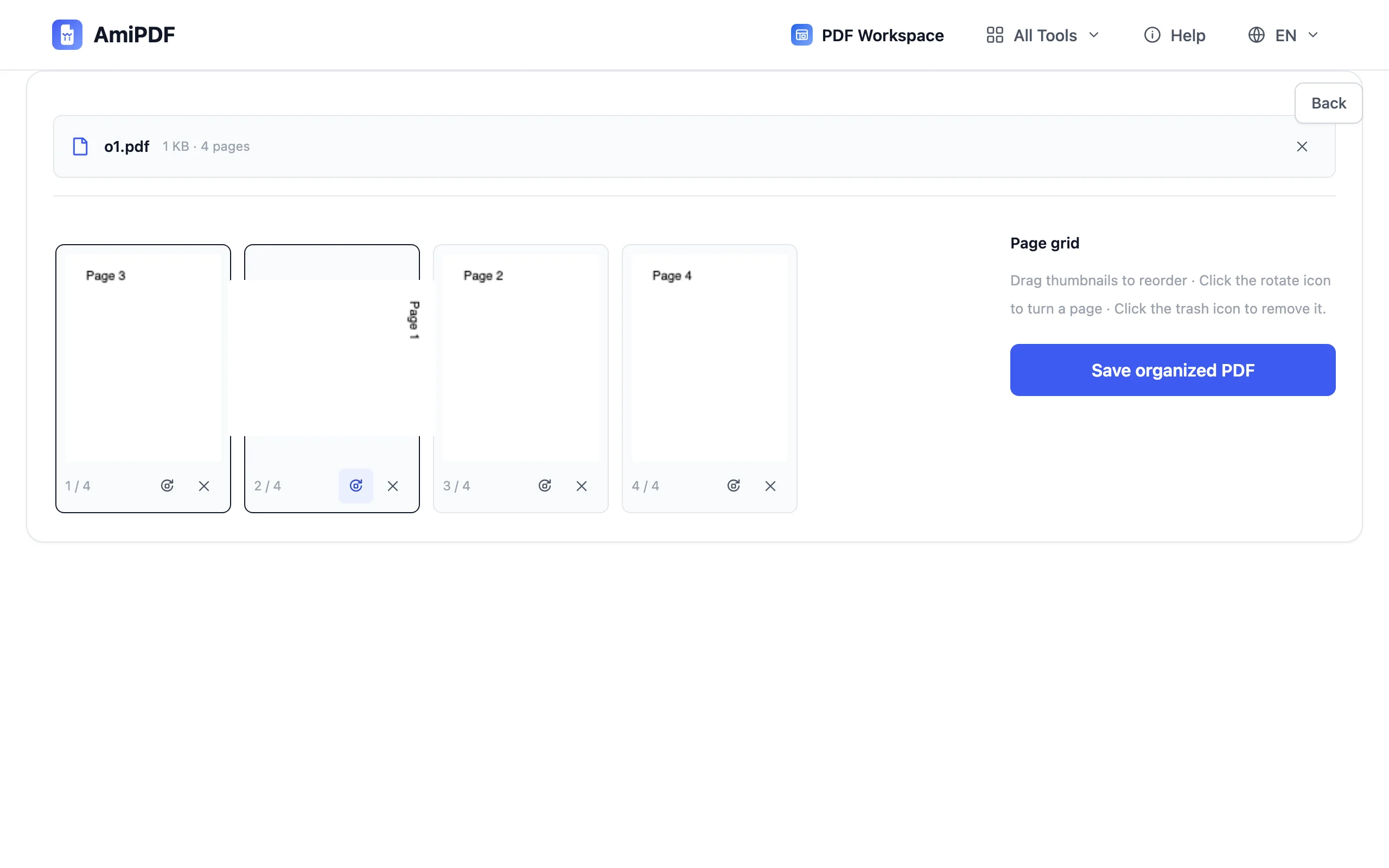
Click Save. The document is rebuilt in your browser with the new page order and downloads immediately. Pages you didn't touch are copied exactly (text, fonts, links, everything), so the content is identical to the original, only better arranged.
Getting the best results
Delete before you order
Trimming blanks and duplicate feeds first leaves fewer thumbnails to sort; the drag targets get sparser and mis-drops rarer. Ten seconds of cleanup buys a faster, cleaner reorder.
Several hundred pages still work
There's no fixed page limit: the grid scrolls, and a few hundred pages organize fine. Very large scans are bounded by your device's memory, not by the tool; if a file struggles, split it, organize the parts, and merge them back.
Keep the original until the copy proves itself
The download is a new file; the source stays wherever you keep it. Open the reorganized copy once, check the first and last pages, then retire the original to your archive.
Frequently asked questions
Can I reorder PDF pages without uploading the file?
Yes — thumbnails, dragging, and the final rebuild all run locally in your browser. Nothing leaves your device at any point, which is what makes the tool safe for IDs, contracts, and medical records.
Is there a limit on how many pages I can reorder?
No fixed limit. Documents of several hundred pages work — the grid just scrolls. The practical ceiling is your device's memory with very large scans, not the tool.
Does reordering pages degrade the PDF?
No. Pages are copied exactly as they were — text stays selectable, fonts and links intact. Only the sequence changes; rotation and deletion touch just the pages you act on.
Can I reorder, rotate, and delete in one pass?
Yes, that's the intended workflow: arrange the order, fix sideways pages with the rotate control, remove what you don't need, then save once at the end.