How to Repair a Damaged PDF
A step-by-step guide to repairing PDFs that won't open: junk-byte trimming, cross-reference rebuild, page salvage for badly damaged files. Runs locally, free.
Repair your PDF nowIt starts innocently: a download that stalled at 96%, a USB stick that unmounted mid-write, an email attachment that went through an aggressive scanner. The file looks normal, right size and right name, but every PDF reader says it can't be opened. The structure is damaged, and the fix is a repair pass. This guide shows you how with AmiPDF's repair PDF tool. It diagnoses what's actually broken, trims junk bytes before the PDF header, rebuilds the cross-reference table that maps the file, and salvages every page that is still readable when the damage runs deeper. Everything happens in your browser, which matters for confidential documents you'd rather not upload to an unknown repair service.
Repairing a PDF, step by step
Open the tool and add the damaged file
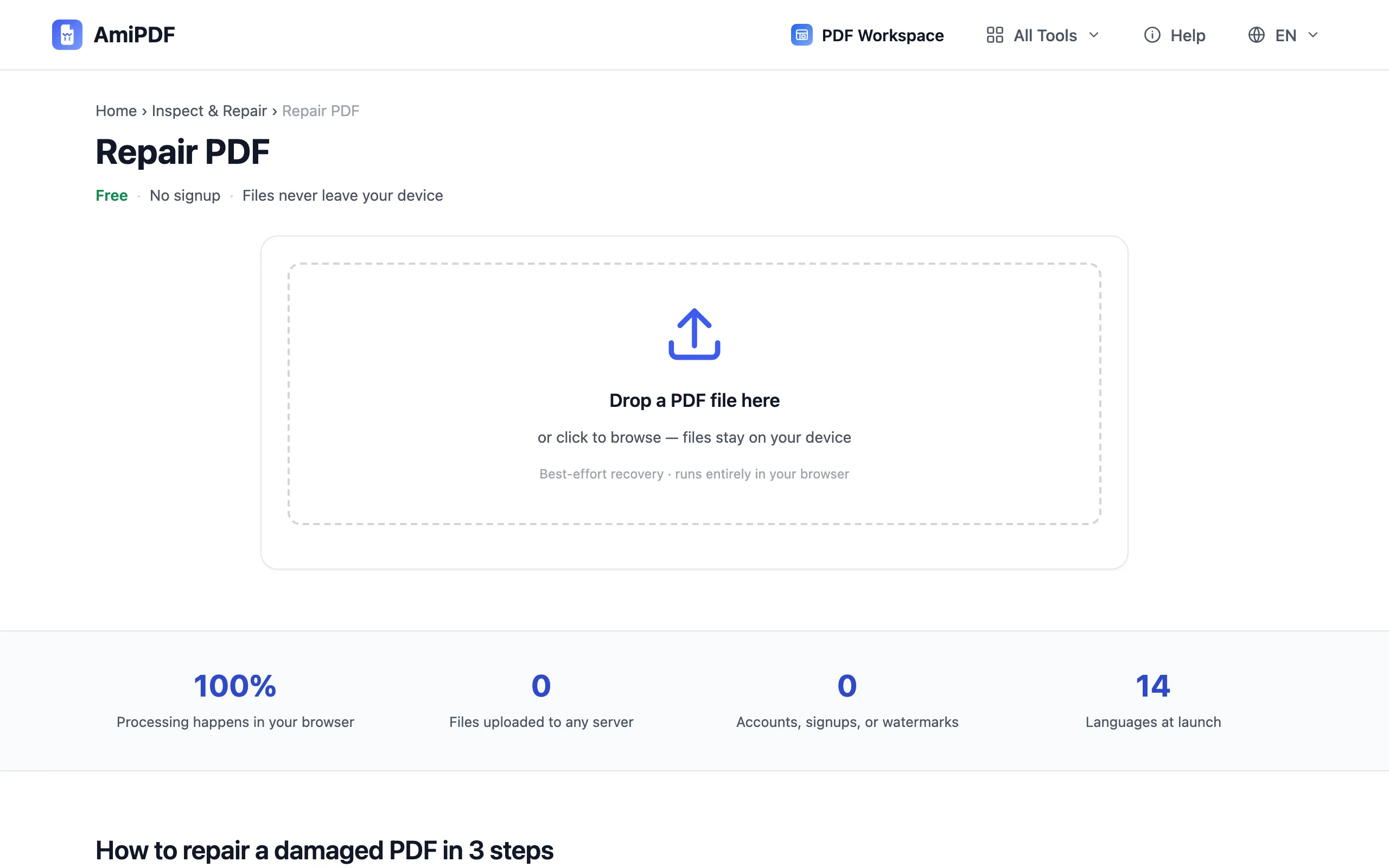
Go to the AmiPDF repair PDF tool and drop the file onto the upload area. Files that normal readers reject are exactly the target here; the tool parses the raw bytes itself instead of trusting the broken structure.
Read the diagnosis
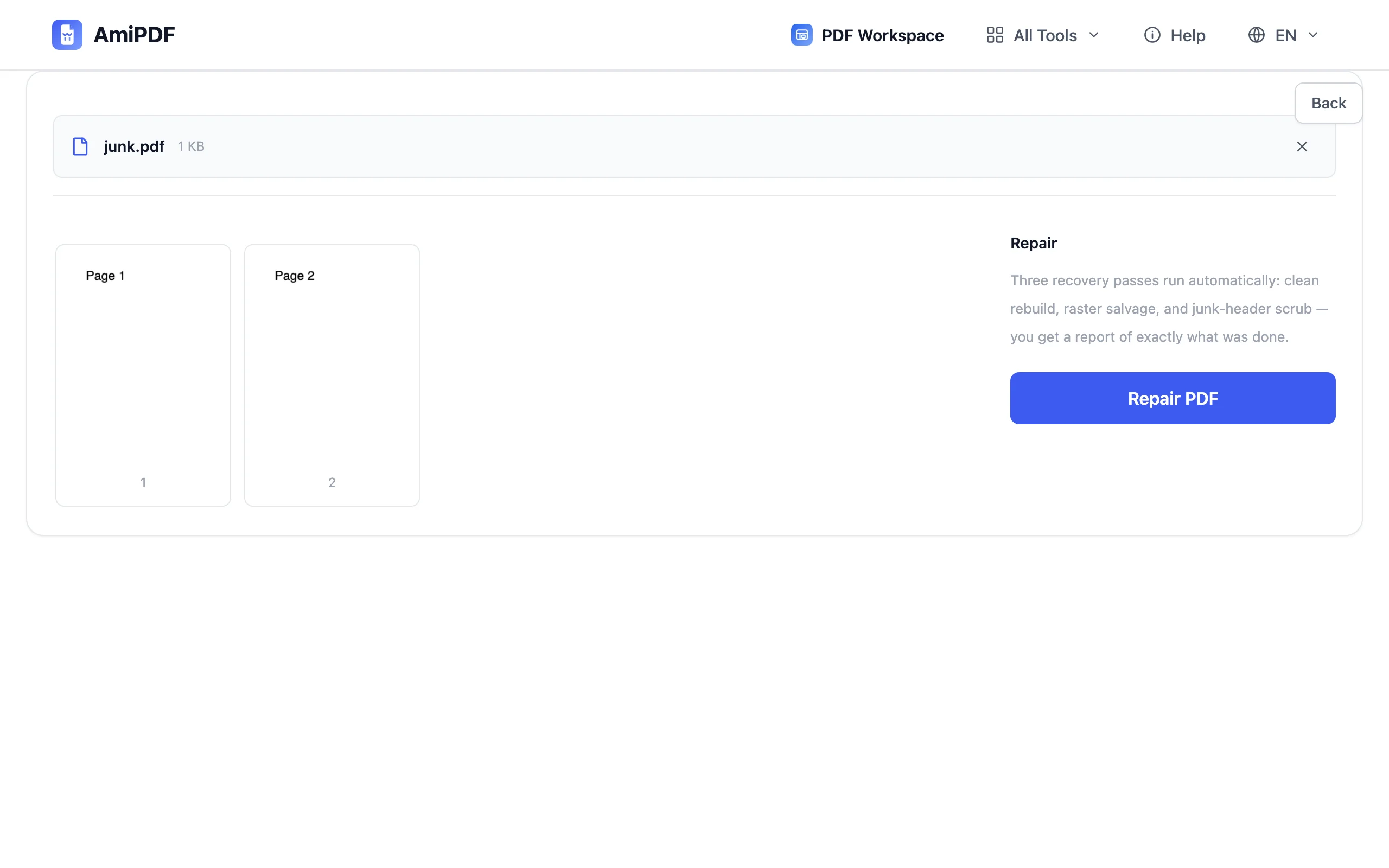
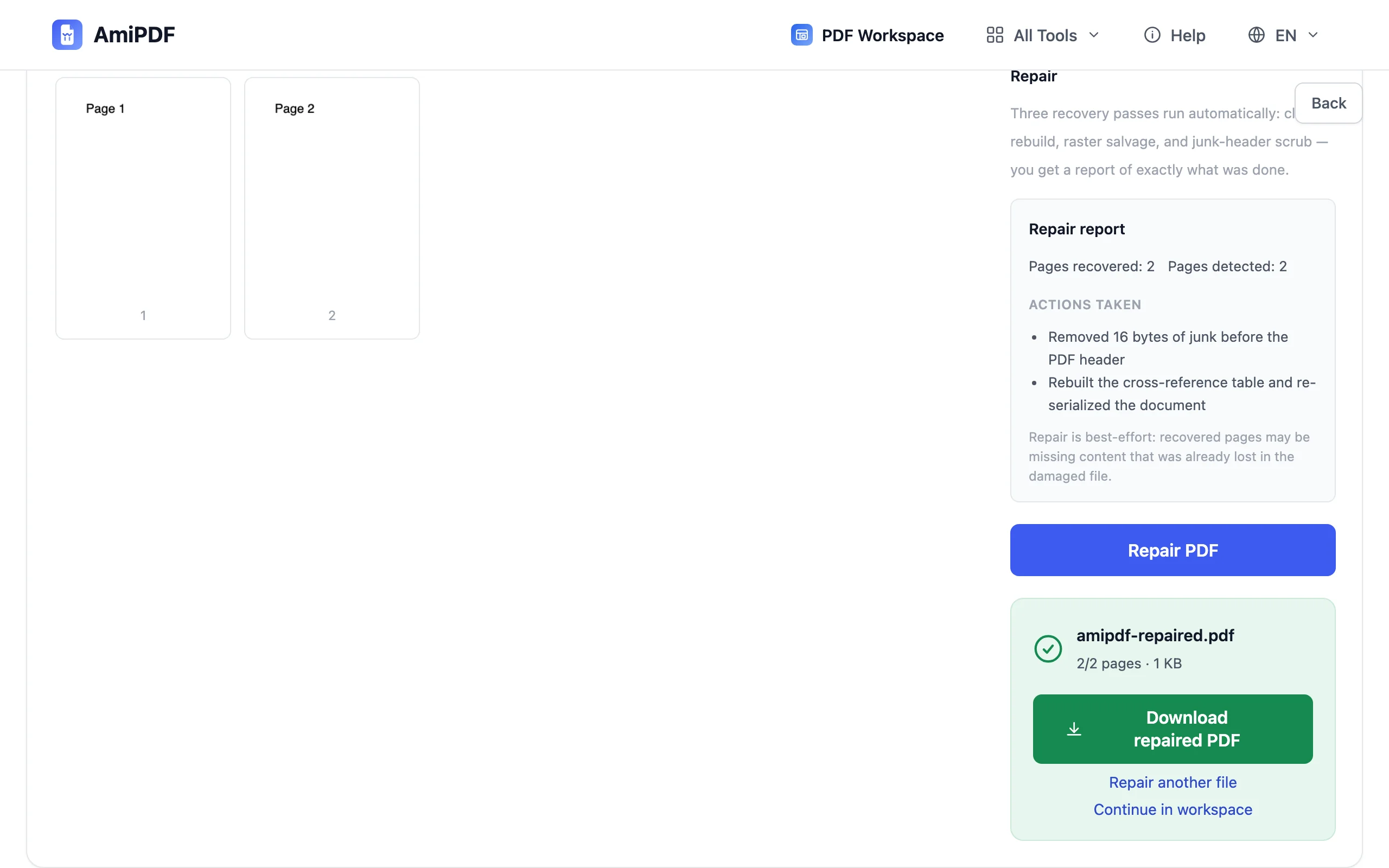
The tool reports what it found: junk bytes before the header, a broken cross-reference table, a truncated tail, or, in the good case, no real damage at all, just a reader hiccup. The report shows how many pages it detected and what actions it will take, so you know what you're getting before committing.
Run the repair
Click repair. Best-effort paths run in order: junk trimming, table rebuild, page-by-page salvage. Severely damaged files may be re-rendered as images to recover readable content; the report states plainly when that happens, because it means text stops being selectable in the recovered copy.
Download and verify
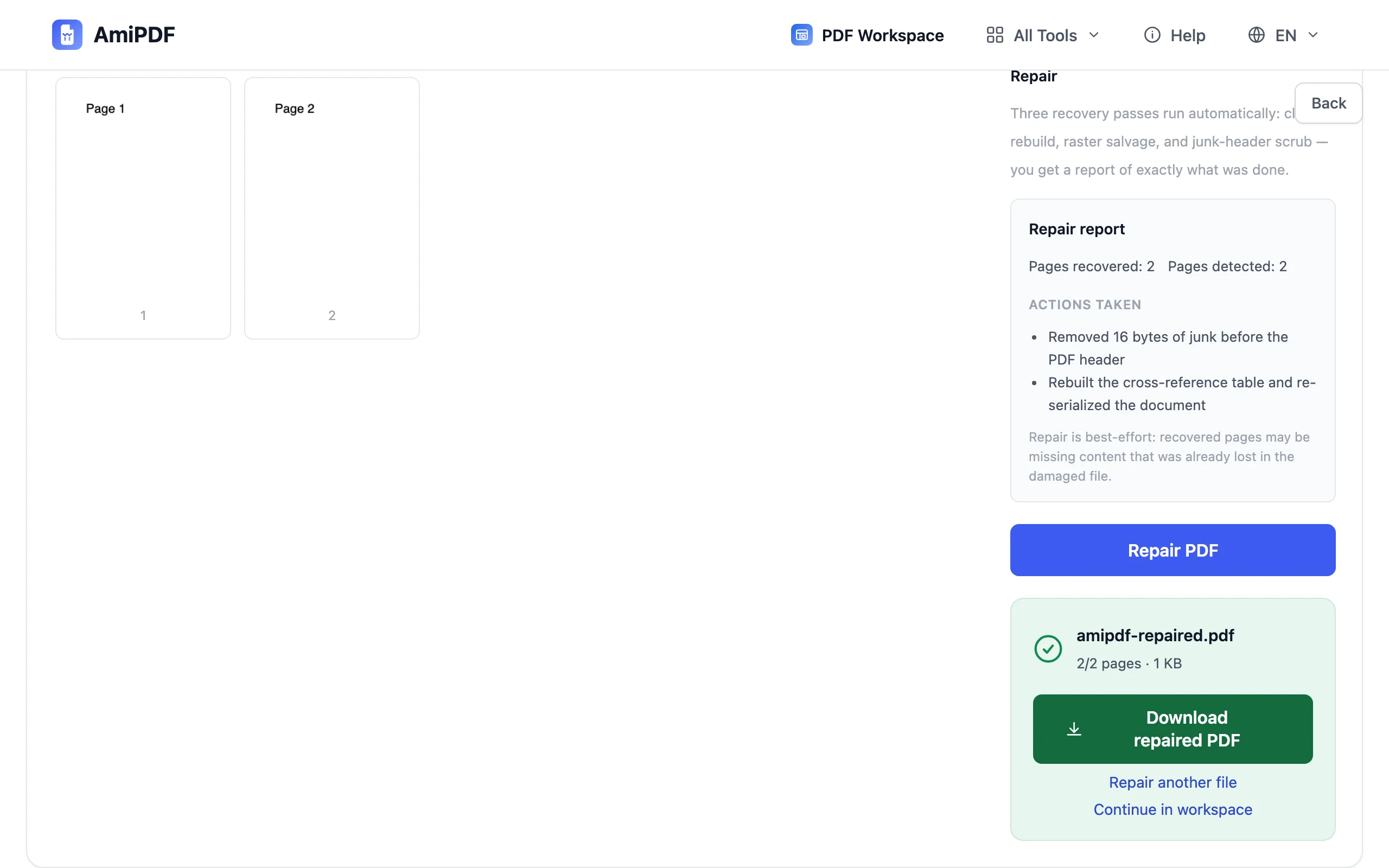
Save the repaired PDF and open it in your usual reader. Check the pages that matter most; repair recovers content, but pages whose data was already lost in the original damage can't be resurrected. If the document is now readable but some text is gone, the source copy is the only place it ever existed; keep both files.
Getting the best results
Repair is best-effort by nature
A repair tool rebuilds around the damage; it cannot invent content that is no longer in the bytes. Expect recovered pages to be complete where the data survived and absent where it didn't; the report's page counts tell you which is which.
Stop writing to the source
If the damage came from a failing disk or an interrupted transfer, stop using that copy immediately; every rewrite risks eating more of the readable bytes. Copy the file somewhere safe first, then repair the copy.
Ask for a re-send when possible
The most reliable repair is a fresh copy. If the file came from a person or a portal that can export it again, that beats any salvage; use repair for the documents that exist nowhere else.
Frequently asked questions
Can every damaged PDF be repaired?
No. Repair succeeds when the damage is structural — broken tables, junk prefixes, truncated tails. When the page data itself is gone, no tool can restore it; the report states this instead of producing empty pages.
Why is my repaired PDF no longer searchable?
Deeply damaged files are salvaged by re-rendering pages as images — that path preserves what's visible but drops the text layer. Run the result through OCR to make it searchable again.
Is it safe to repair a confidential document here?
The repair runs entirely in your browser; the file is never uploaded. For sensitive documents that local-first design is exactly why this tool exists.