How to Convert a Scanned PDF to Word
Turn scanned, image-only PDFs into editable Word files: scan detection is automatic, OCR is included at no cost, uploads are deleted after download.
Convert a scanned PDF to WordA scanned PDF is a photograph of a document, not a text file. That is why a regular conversion comes back empty: there is nothing for the converter to extract, only pixels. The fix is optical character recognition: OCR reads the letters off the page image and rebuilds them as real text. With AmiPDF's PDF to Word converter, the scan is detected for you: upload the file, confirm the OCR path once, and download an editable DOCX. One note up front: this converter is one of the server-processed tools, so the file is uploaded for OCR and deleted right after you download the result. If even that is too much for your document, the browser-only route exists too and is covered below.
Converting a scanned PDF to Word, step by step
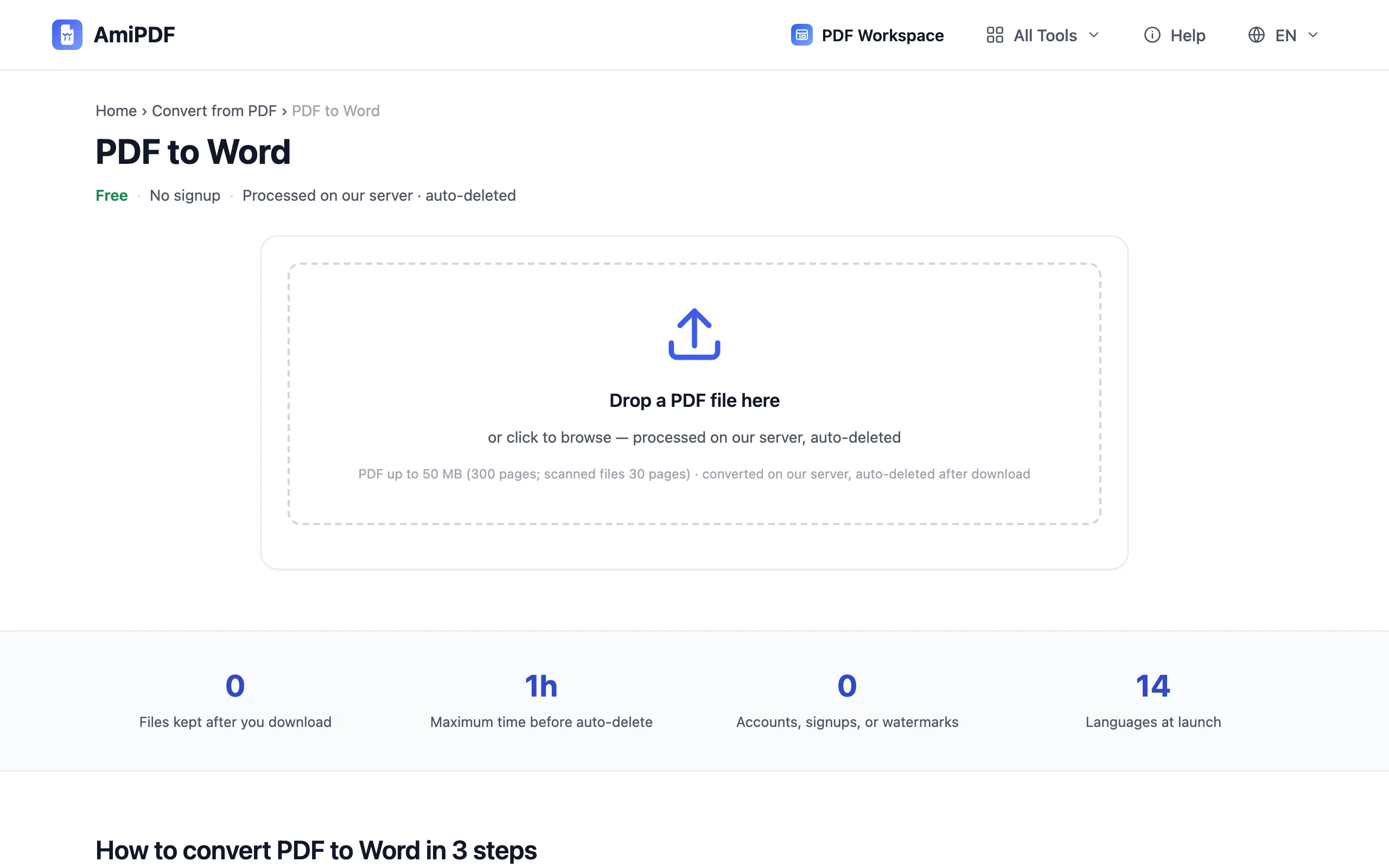
Open the converter
Go to the AmiPDF PDF to Word tool. It handles both cases in one place: PDFs with a real text layer convert directly, image-only scans get the OCR path; you do not have to pick in advance.
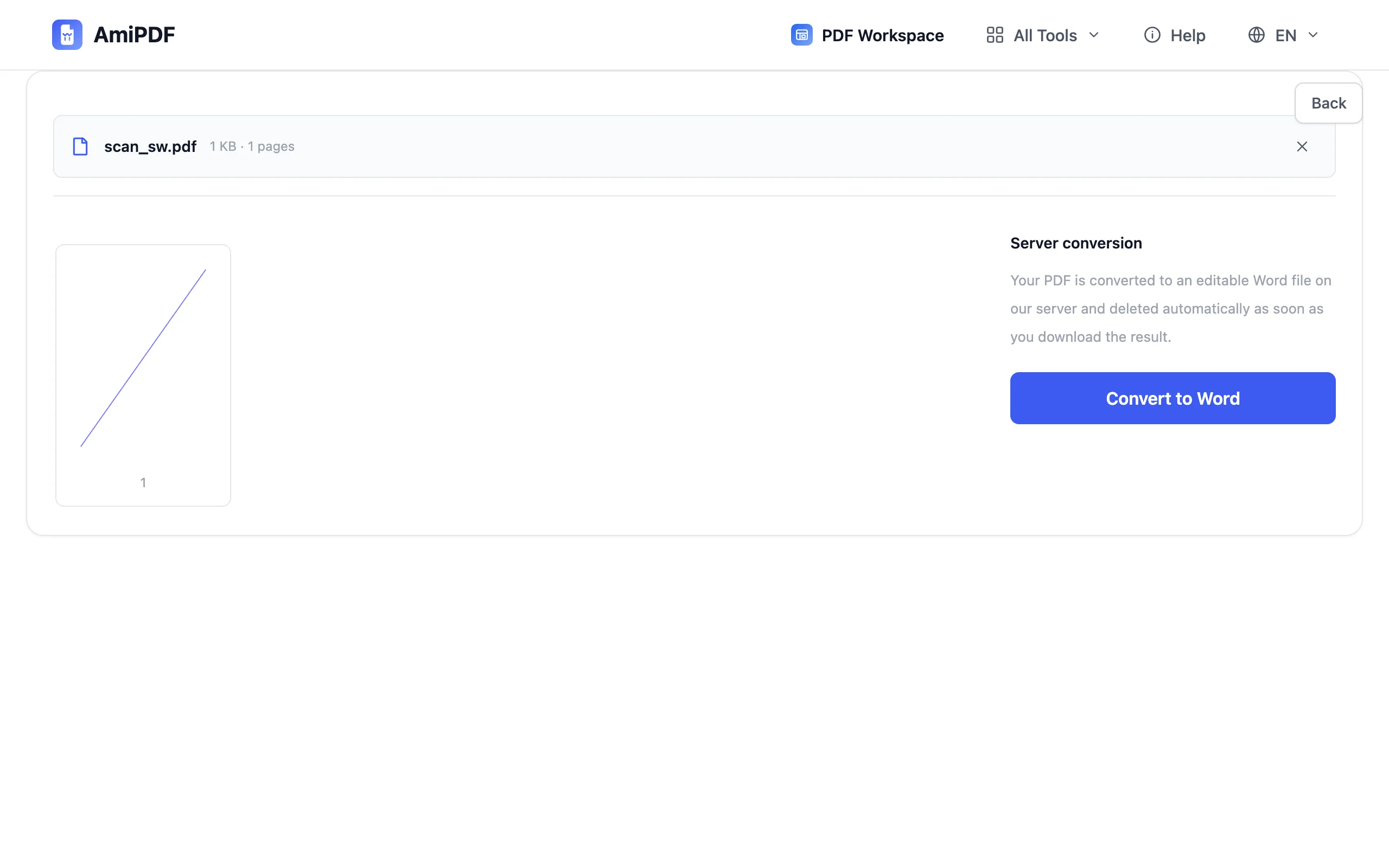
Upload the scanned document
Drag your scan onto the upload area. The page preview renders so you can confirm you picked the right file before anything happens. Text-based PDFs skip straight to conversion from here.
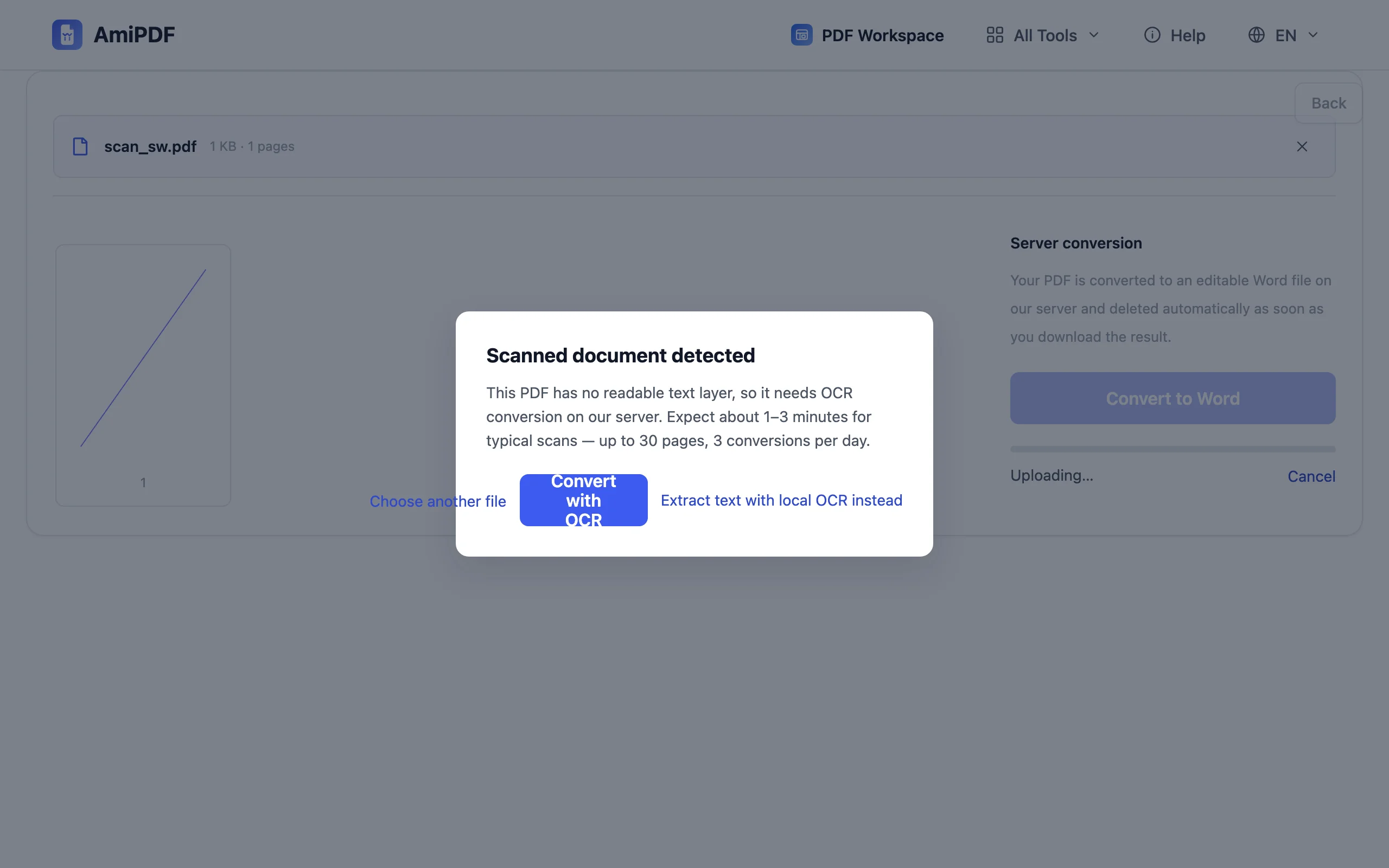
Confirm Convert with OCR
When the file turns out to be a scan, the tool says so and offers Convert with OCR. Confirm it once. The recognition runs server-side, rebuilds paragraphs and headings as text, and the upload is deleted after you download the result.
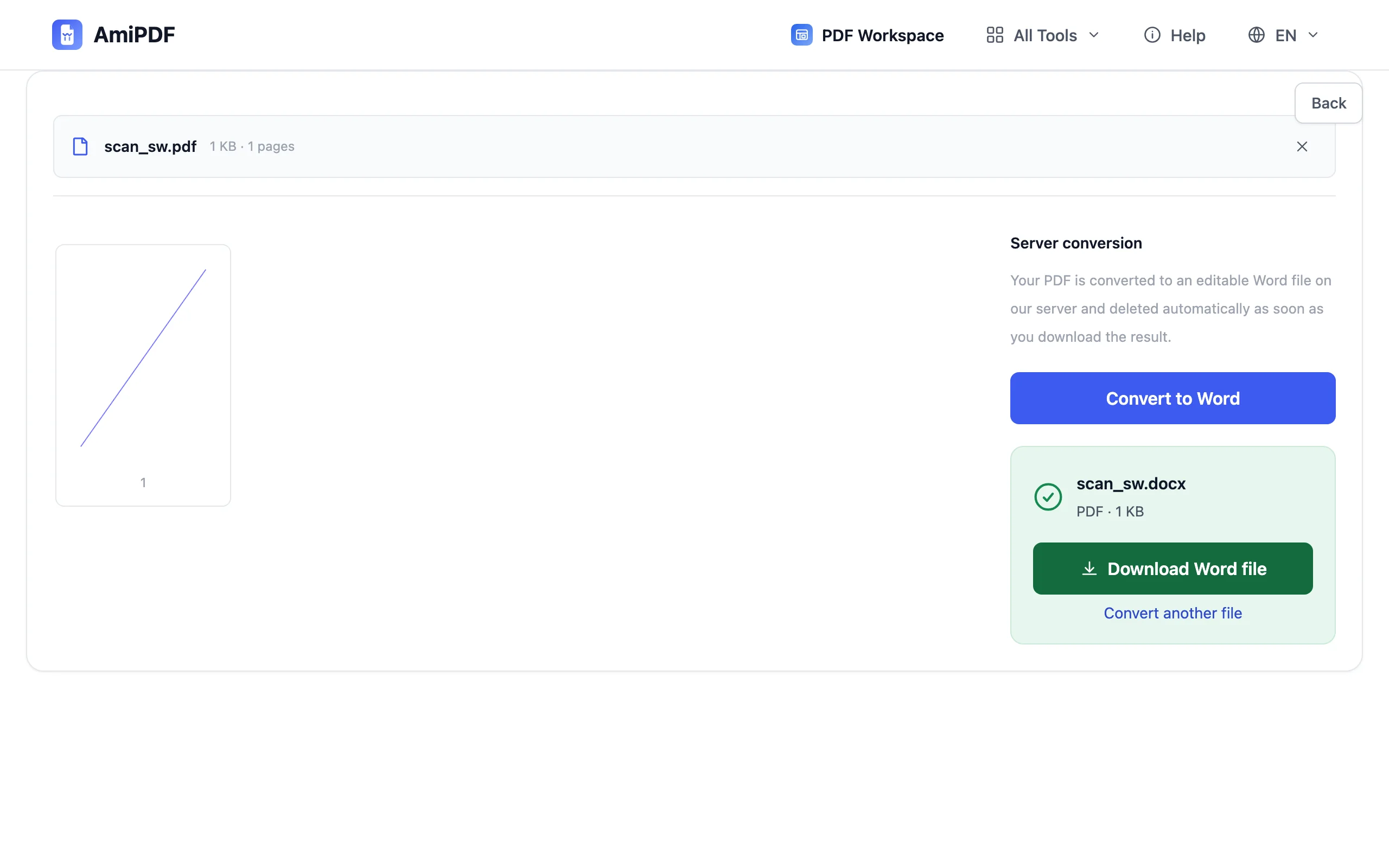
Review and download the DOCX
Open the resulting Word file and check the tricky spots first: headings, columns and tables are where recognition needs a human eye. Download the DOCX and edit it like any other document.
Getting the best recognition
Scan quality decides accuracy
OCR reads what it can see. A straight, flat scan at 300 DPI with even lighting converts almost perfectly; a skewed phone photo with shadows produces garbage no converter can fix. Rescanning beats re-trying.
Check tables cell by cell
Simple tables rebuild as editable rows, but dense multi-column layouts can shift during recognition. Check them before sending.
The searchable-PDF alternative
If your goal is searching and copying rather than editing in Word, the OCR PDF tool adds an invisible text layer to the scan and runs entirely in your browser; the file never leaves your device.
Frequently asked questions
Is OCR a paid feature here?
No — scan detection and OCR conversion are included at no cost, with no signup and no premium tier to unlock.
Are my files uploaded for this conversion?
Yes. Scanned-PDF conversion is one of the server-processed tools, so the file is uploaded for OCR and automatically deleted after you download the result. The browser-only alternative is to add a text layer with the OCR PDF tool first, then convert.
The output text is gibberish — what went wrong?
Almost always the scan, not the converter: blur, skew, low contrast or a non-flat page. Rescan at a higher resolution with the page flat and evenly lit, then convert again.