How to Convert PDF to Word
A step-by-step guide to converting a PDF to an editable Word document: text-based files in seconds, scanned documents via OCR. Free and online.
Convert to Word nowA PDF is built to stay fixed; a Word document is built to be edited. When a colleague asks for «the Word version» of a contract, a report, or a CV, converting by retyping is a last resort. This guide shows you how to convert with AmiPDF's PDF to Word converter. Text-based PDFs convert in seconds into editable DOCX files; scanned documents are detected automatically and routed through server-side OCR, which takes a few minutes and is clearly disclosed before you commit. Daily limits keep the shared server fast for everyone, and uploaded files are deleted automatically after download.
Converting PDF to Word, step by step
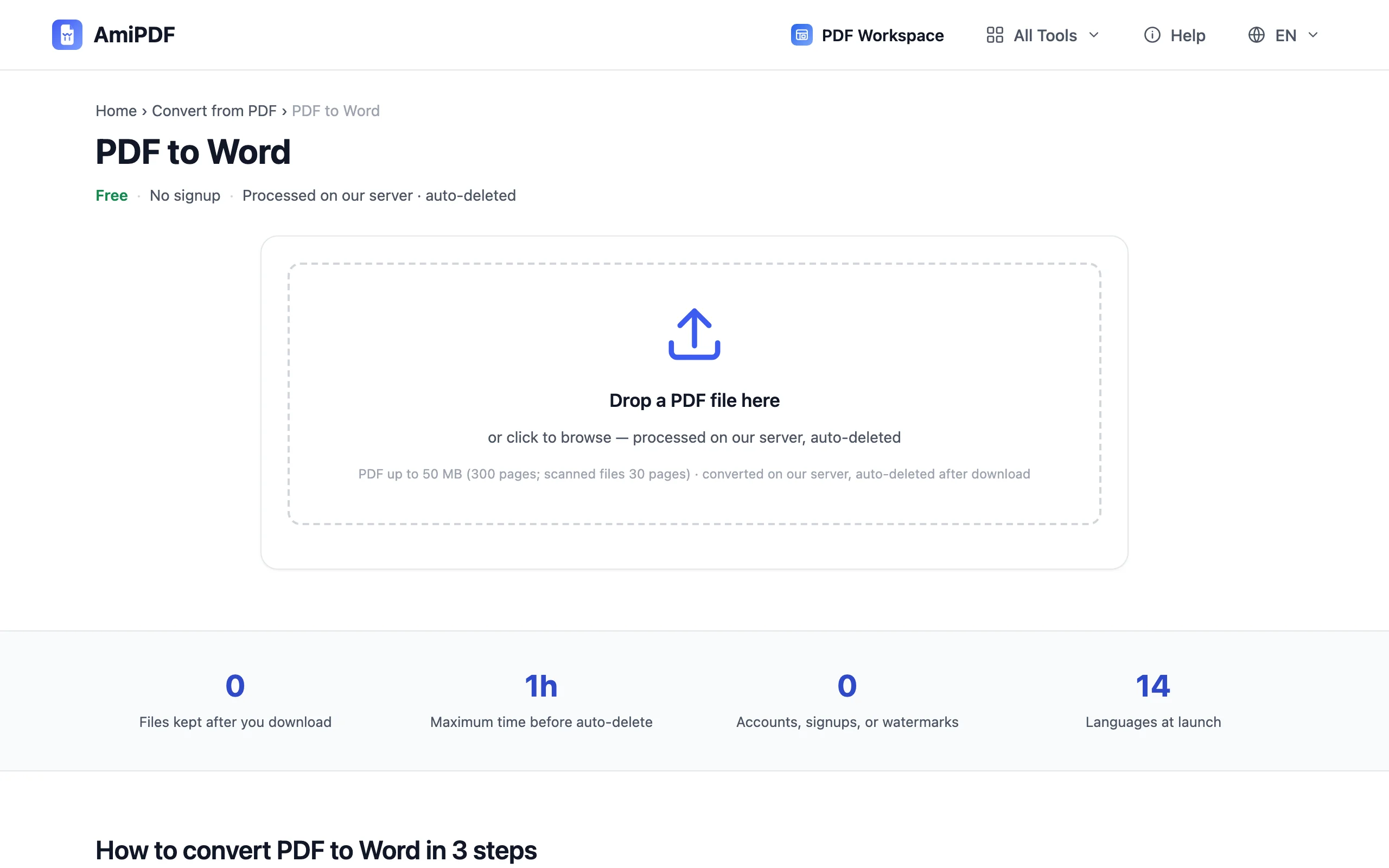
Open the converter and add your PDF
Go to the AmiPDF PDF to Word tool and drop your file onto the upload area, or click to browse. Text-based documents up to the page and size limits go straight to conversion; the tool inspects the file and tells you which lane applies before anything runs.
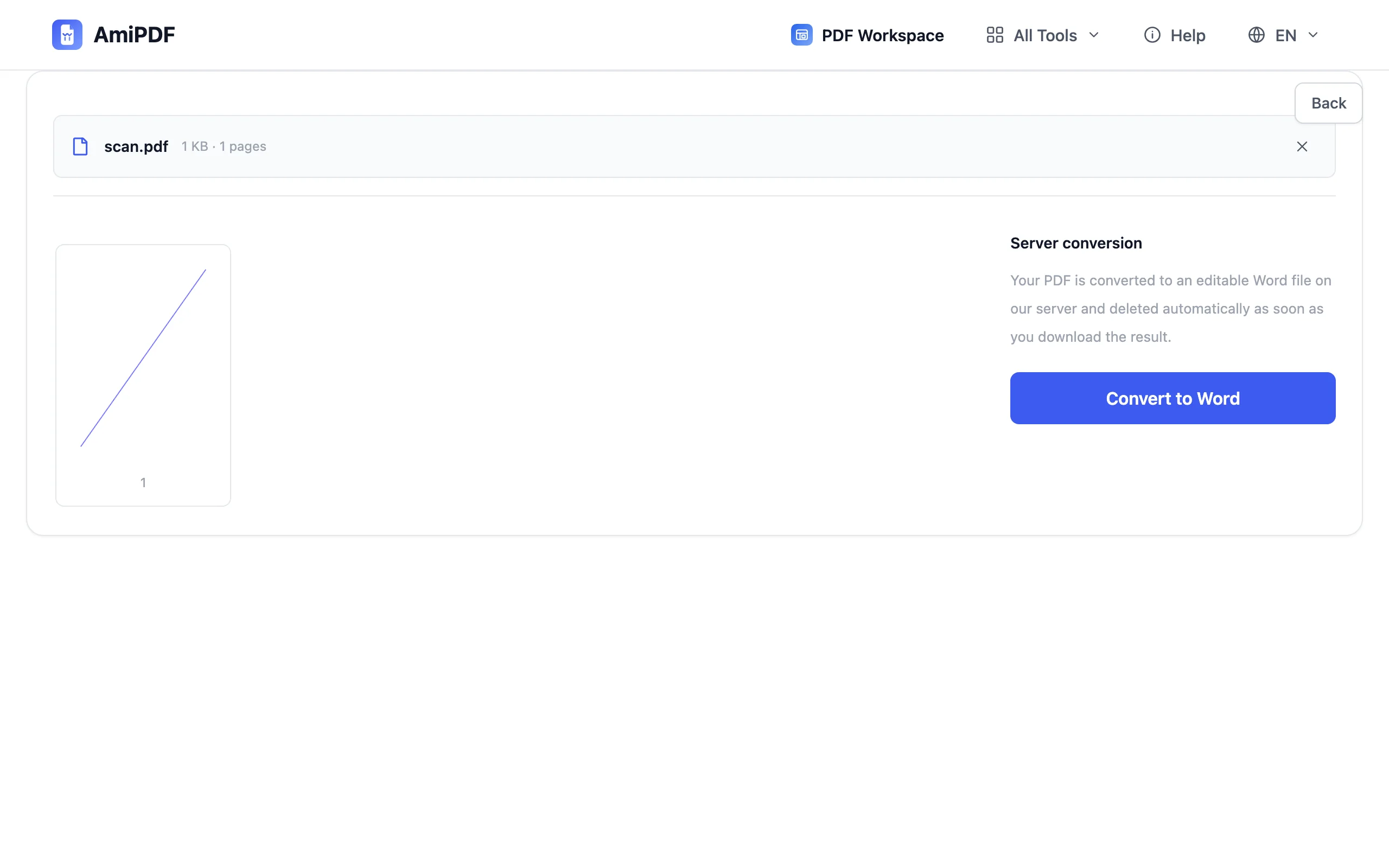
Confirm the scanned-document notice if it appears
If your PDF has no readable text layer (a scan or a photo of pages), a notice explains that server-side OCR is required, takes about 1–3 minutes, and counts against a small daily quota. Confirm to continue, or cancel and extract the text with the PDF to Markdown tool instead if plain text is enough.
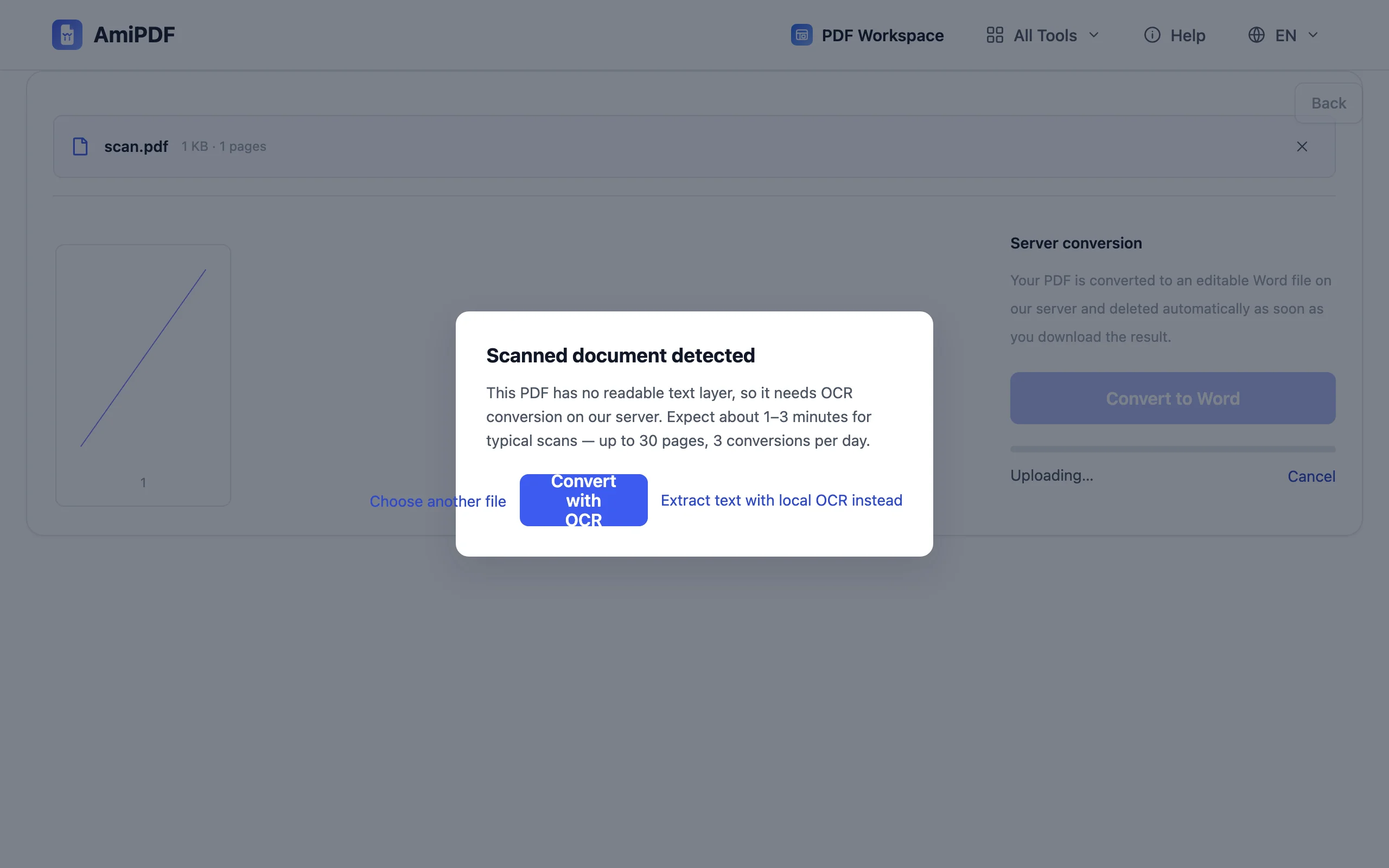
Convert the document
Click convert. Text-based files finish in seconds; OCR conversions show a progress indicator with your queue position. The result is a DOCX file you can open in Word, LibreOffice, or Google Docs, with paragraphs and line breaks carried over from the layout.
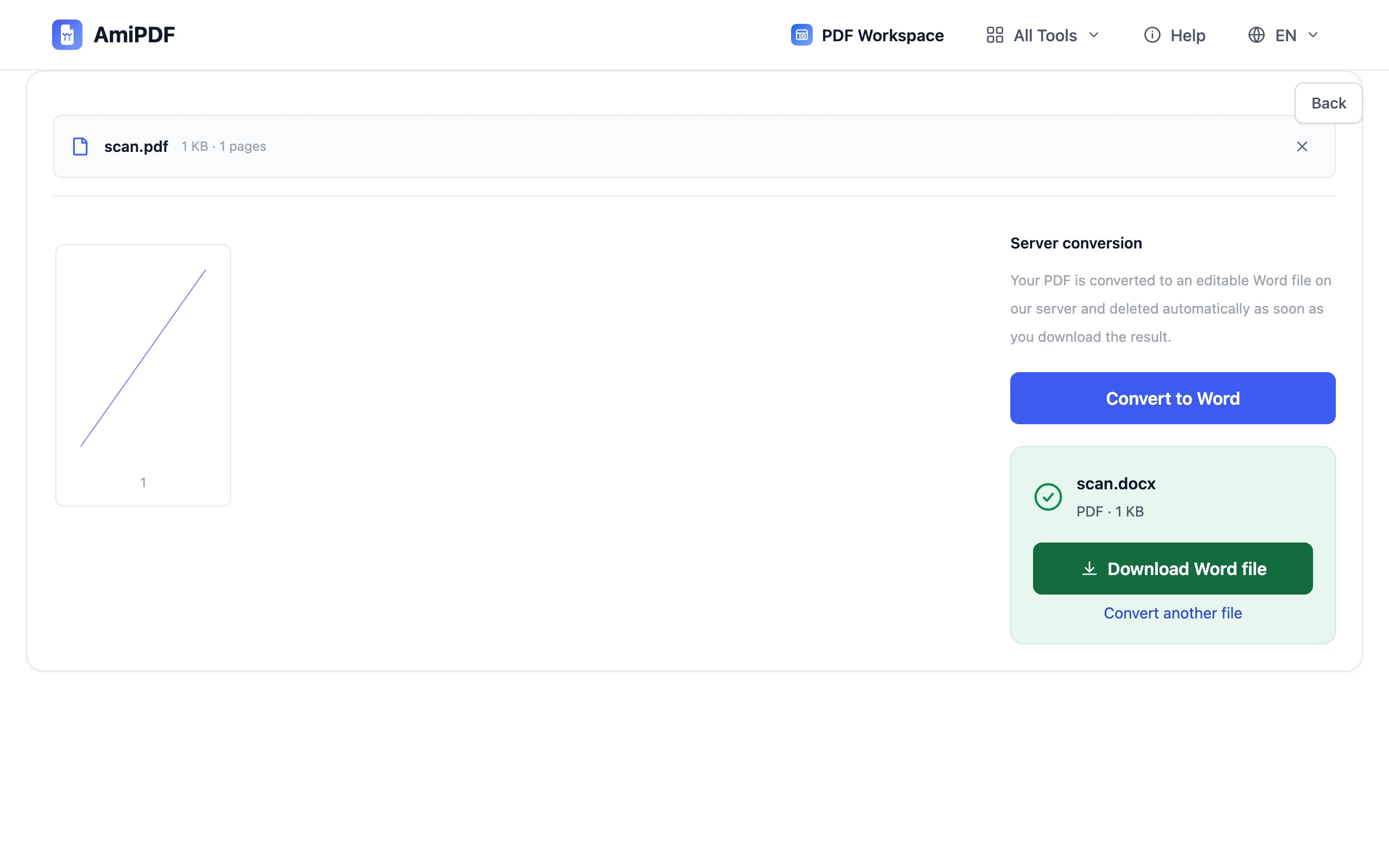
Download and edit the DOCX
Save the Word document and start editing. Converted text reflects the original layout as plain flow; complex columns and floating text boxes may need tidying, so give the file a quick read before sending it on. For the reverse trip later, the Word to PDF tool is one click away.
Getting the best results
Text PDFs convert best
If the original was exported from Word or another editor, the text layer is clean and the round trip is nearly lossless. Scans depend entirely on OCR quality: clearer scans, straight pages, and common fonts give markedly better results.
Proofread before you send
Conversion reconstructs text flow, not design. Tables sometimes flatten and headers can merge into body text. A quick read-through catches the handful of spots that need manual fixing, far faster than retyping the whole document.
Watch the daily quota on OCR
Server OCR is capped per day to keep the queue fast for everyone. If you hit the cap, split the document and convert the critical pages today, or use the local OCR tool to add a text layer and then extract with PDF to Markdown.
Frequently asked questions
Does the conversion upload my file?
Text-based conversions also run through the converter service — the tool page states this plainly before you start. Uploads are auto-deleted after you download the result, and the retention window is shown on the page.
Why does my scan take minutes?
Scans have no text layer, so the server runs OCR — recognizing every page takes real computation. Typical scans finish in 1–3 minutes, with a progress indicator and queue position while you wait.
Will formatting be identical to the PDF?
No converter promises that — Word reflows text, so exact visual fidelity isn't possible. Content, paragraph order, and line breaks carry over; expect to adjust tables, columns, and fonts in Word.