How to Extract Images from a PDF
A step-by-step guide to extracting images from a PDF: every embedded picture listed with size and format, JPEGs come out as exact copies, runs locally in your browser.
Extract images nowSometimes the file you want is inside a PDF. Product photos locked in a supplier catalog, figures from a research paper, artwork from a brochure that arrived flattened. Screenshots capture them at screen resolution; extraction pulls the stored pictures out at full quality instead. This guide uses the AmiPDF extract images tool: it scans the document in your browser, lists every embedded picture with its dimensions and format, and hands you the originals — JPEG files come out byte-for-byte identical to what is stored in the PDF.
Extracting images, step by step
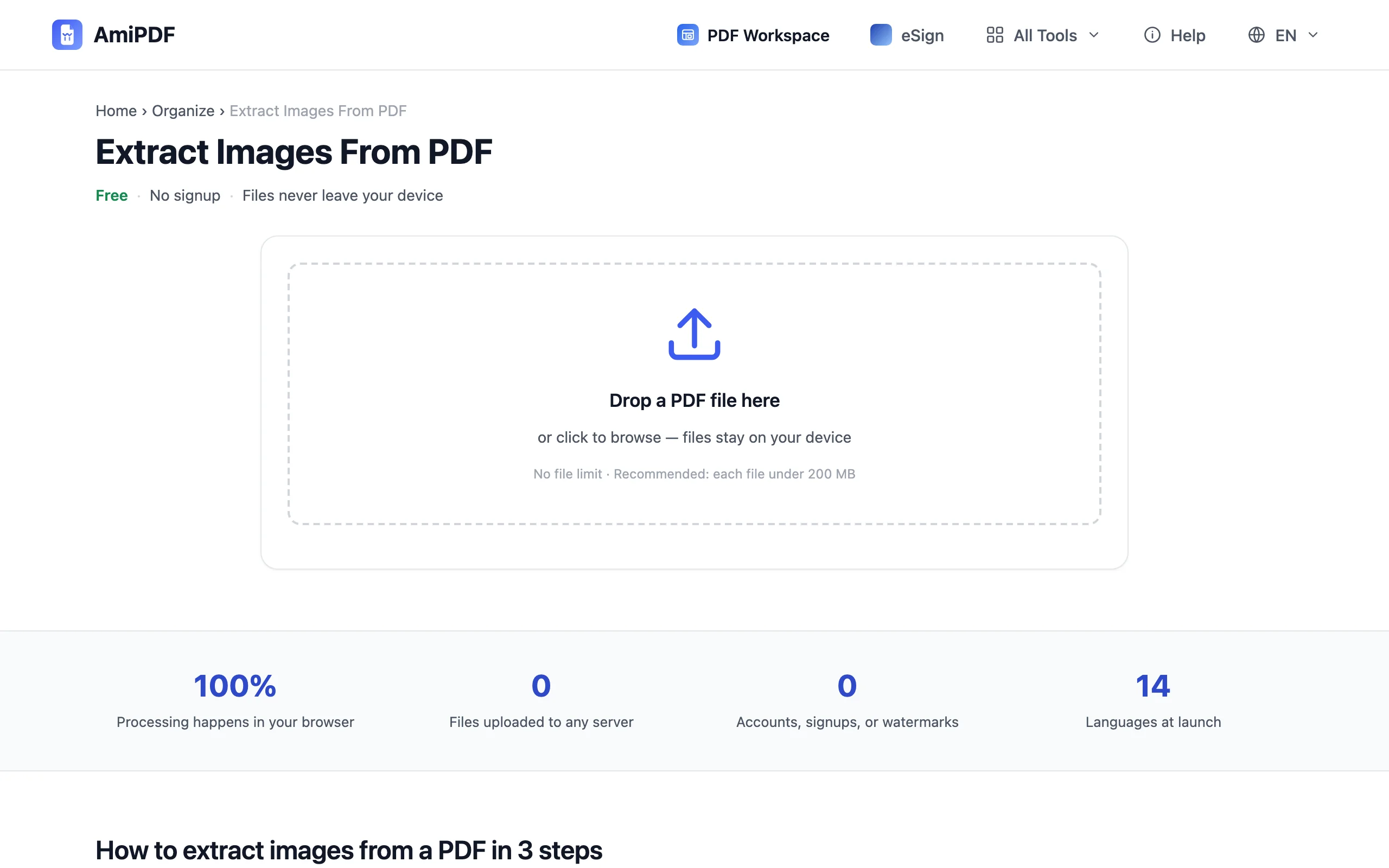
Open the tool and add your PDF
Go to the AmiPDF extract images tool and drop your document onto the upload area. The scan runs locally in your browser; nothing is uploaded anywhere. Within a few seconds every embedded image is listed below the page thumbnails, each with its size, format, and the page it lives on.
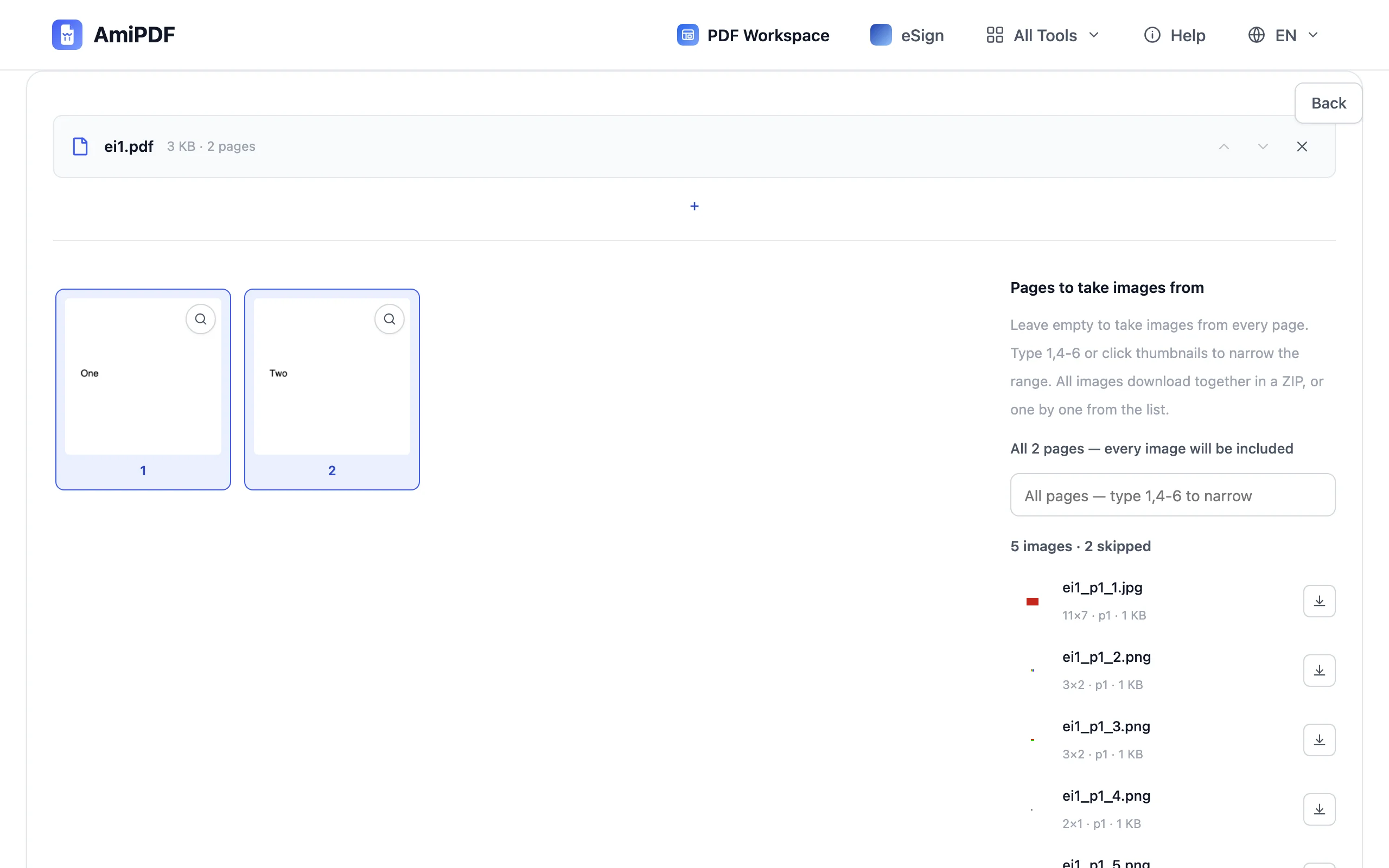
Review the found images
Each row shows a small preview, the file name, the pixel dimensions, and the page number. Click the download button on any row to save that single image, or read on to grab everything at once. Images the tool can't deliver — rare codings like JPEG 2000 or JBIG2 — are listed with the reason, so nothing disappears silently.
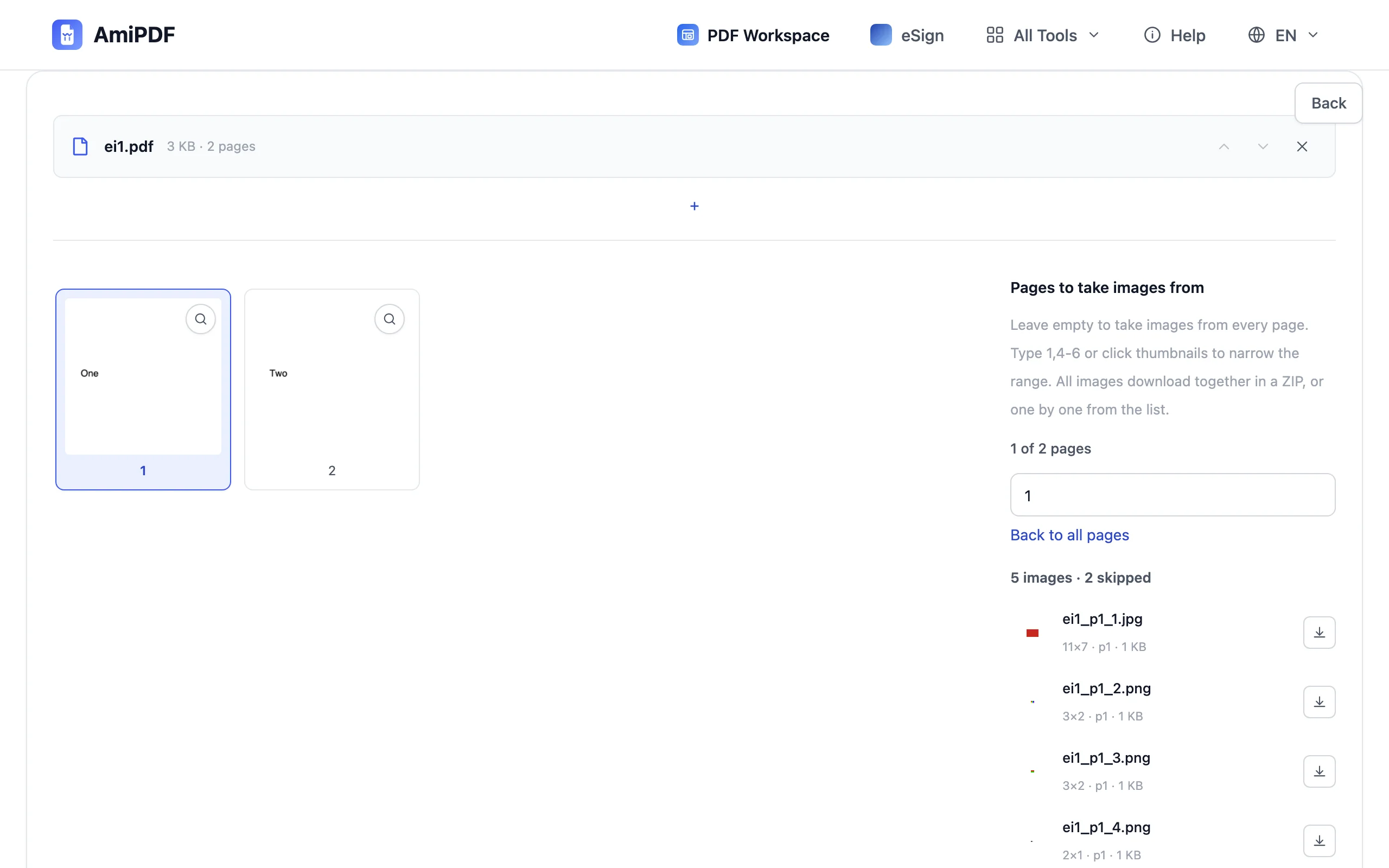
Narrow the range if it helps
Long documents can hold hundreds of pictures. By default every page contributes its images; if you only want a section, type a range like 2,5-9 in the pages field or click the page thumbnails. Rows outside the range dim, and the download covers only what remains.
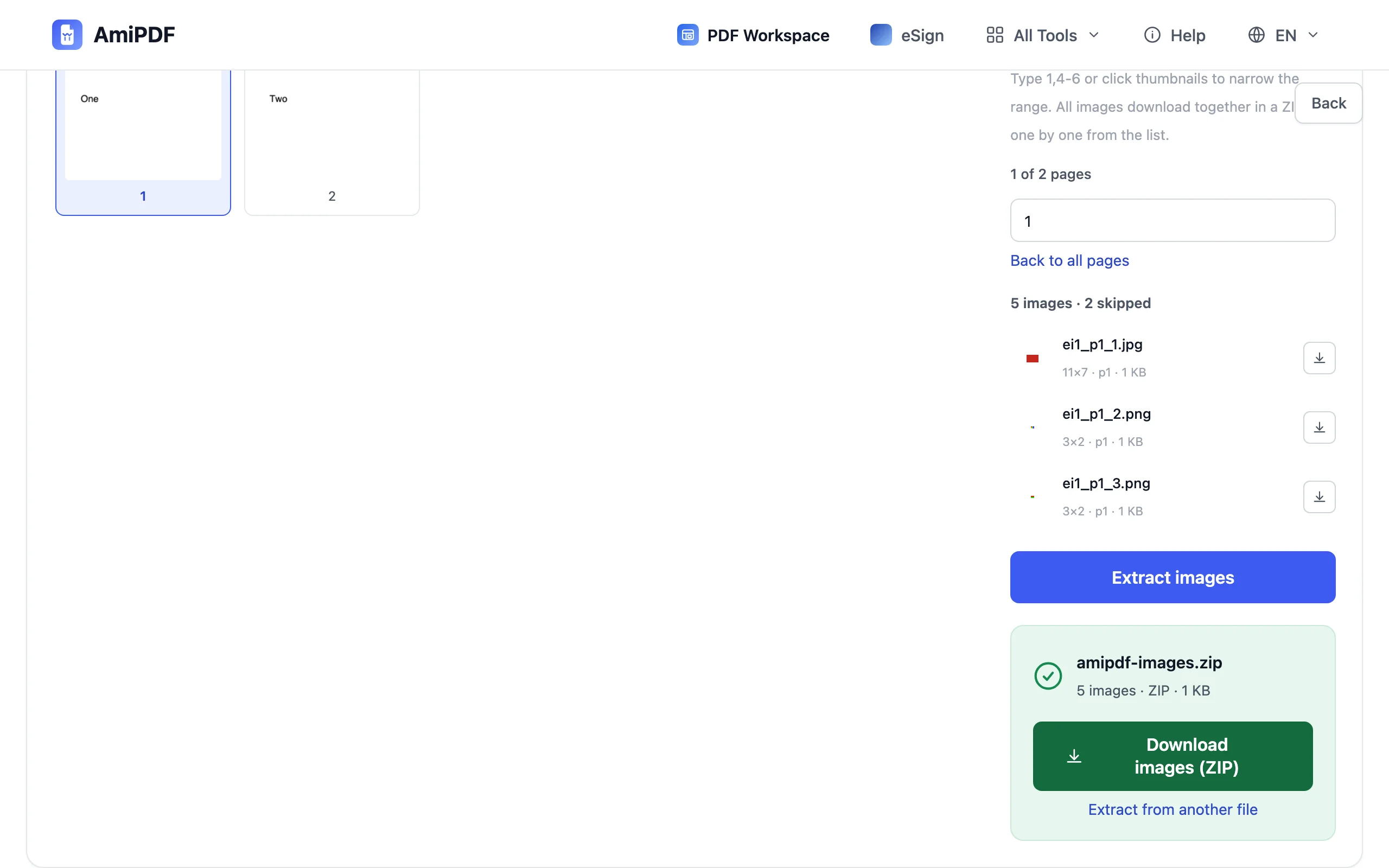
Extract and download
Click the extract button. All deliverable images from the selected pages are bundled into a ZIP, ready as one download. JPEGs keep their original bytes — no recompression, no quality loss — while raw pixel data is rebuilt into lossless PNG. If you wanted a picture of a page rather than the pictures in it, that's PDF to JPG.
Getting the best results
Why the JPEGs come out identical
PDF stores JPEG images as compressed bytes. Extraction copies those bytes out untouched, so the file you download is exactly what was embedded — same pixels, same file size. Images stored as raw pixels are converted to PNG, which rebuilds them without loss.
The same picture on many pages
A document can place one stored image on several pages — a logo on every letterhead, for example. The list shows it under each page it appears on, so filtering by page keeps everything you expect.
Rendering is a different job
Extraction and conversion answer different needs. Use this tool when you want the images inside the document; use PDF to JPG when you want each page as a picture, text and layout included.
Frequently asked questions
Will the extracted images lose quality?
No. JPEG images are copied out as the exact bytes stored in the PDF, and pixel-based images are rebuilt into lossless PNG. Nothing is re-rendered or recompressed.
Which formats can be extracted?
JPEG comes out as the original .jpg file. Images stored with Flate compression become .png, including pictures with a transparency mask. Rare codings — JPEG 2000, JBIG2, fax coding and image masks — are skipped and listed with the reason.
Can I extract images from a password-protected PDF?
Not while it's locked. Remove the protection first with unlock PDF and the correct password, then extract from the unlocked copy.
Is there a limit on file size or image count?
No fixed limit. Everything runs in your browser, so the practical ceiling is your device's memory; documents with several hundred images simply take longer to scan.