How to Split a PDF
A step-by-step guide to splitting a PDF: fixed page counts or custom ranges like 1-3,5,8. Runs privately in your browser, free, no signup.
Split your PDF nowOne big PDF is convenient until you need only part of it: three chapters for a review, a single section for a client, or evenly sized chunks for an upload form that caps file size. Splitting solves all of these without touching a printer. This guide shows you how to split with AmiPDF's PDF splitter: choose a fixed number of pages per output file, or write exact ranges like 1-3,5,8 for full control. The split happens in your browser, so the document never leaves your device and the output files keep the original page content untouched.
Splitting a PDF, step by step
Open the splitter and add your PDF
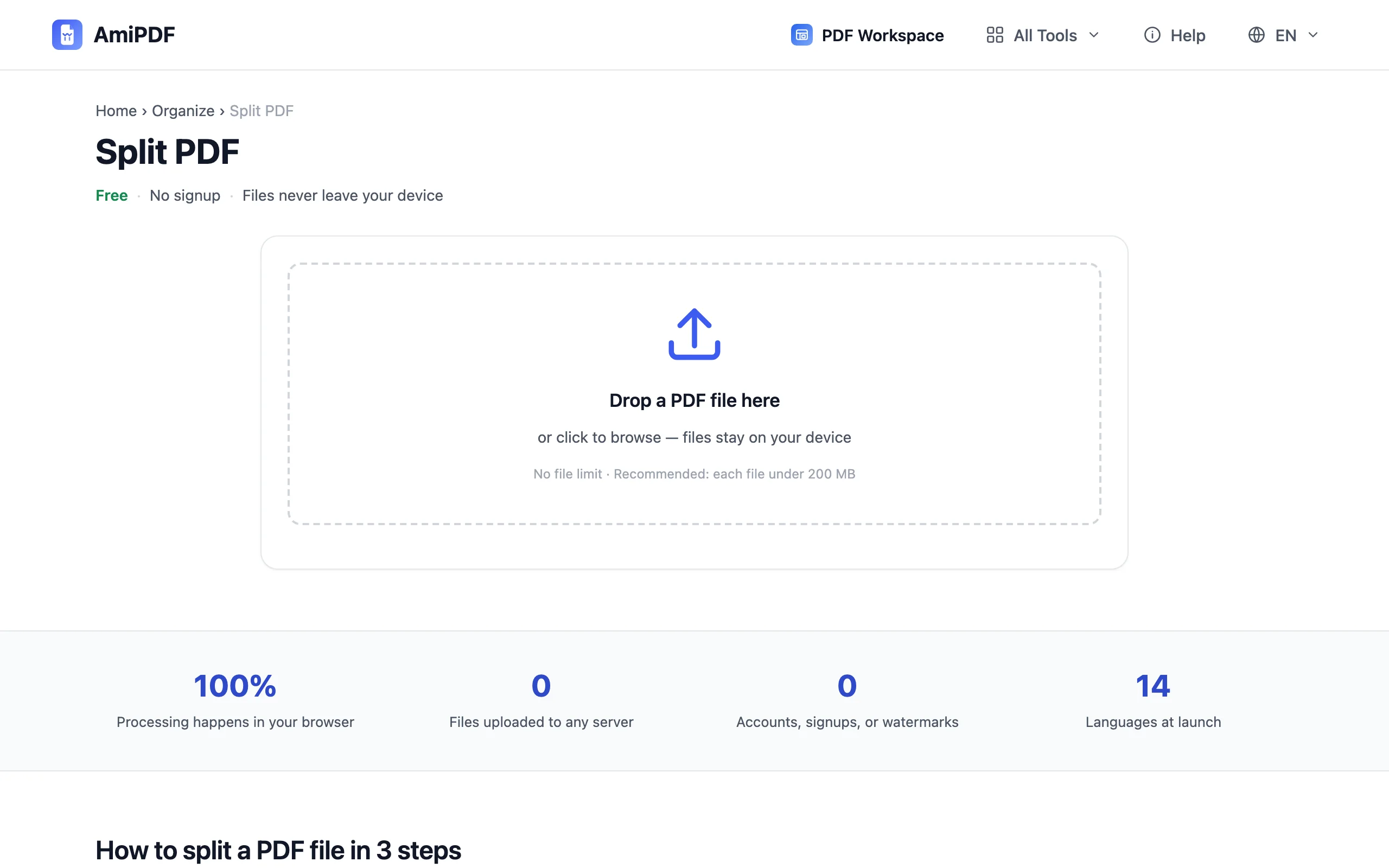
Go to the AmiPDF split PDF tool and drop your document onto the upload area. The tool reads the file locally and shows the total page count, which you'll need for the next step; check it matches what you expect before configuring the split.
Choose a split mode
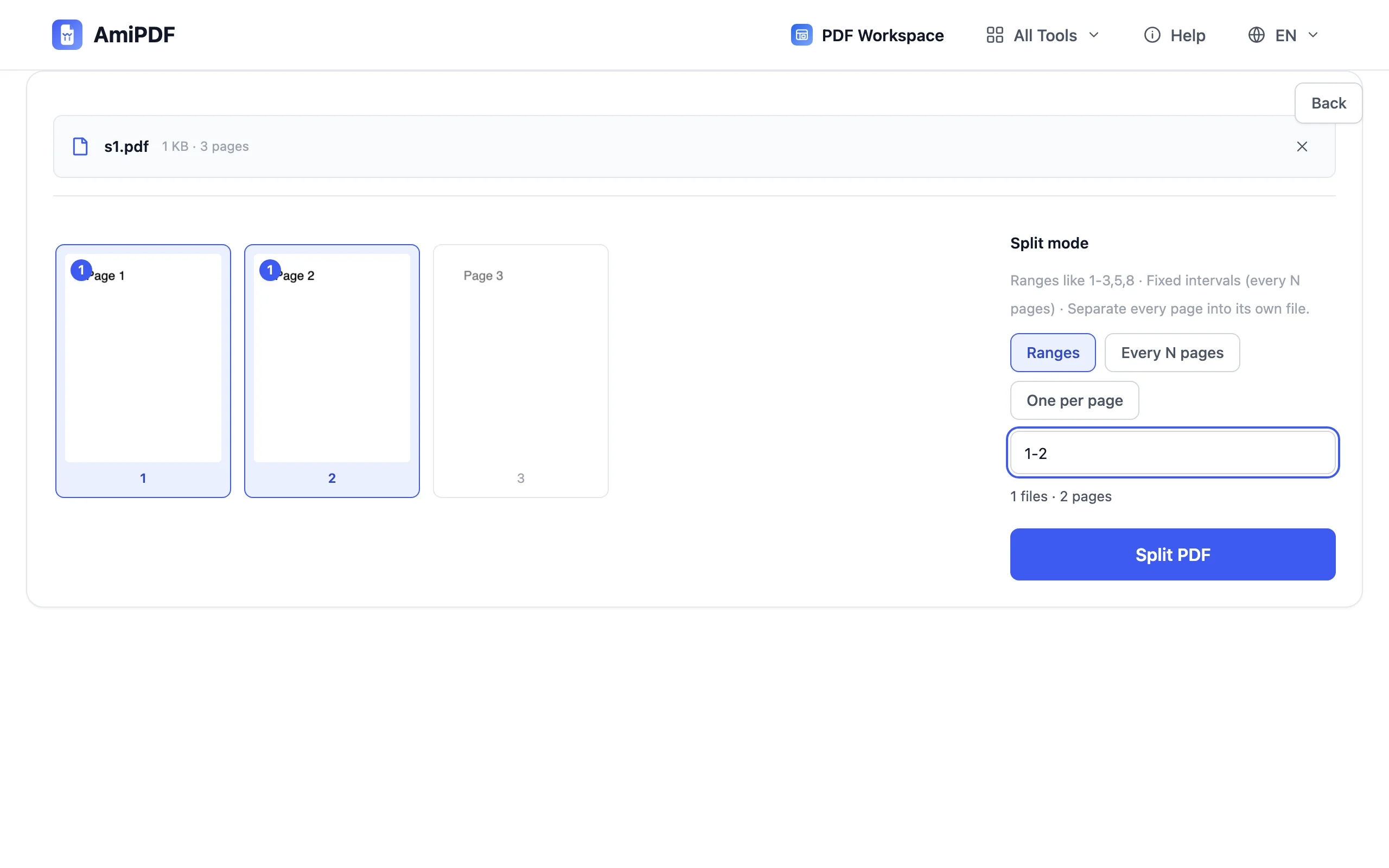
Two modes cover every case. Ranges: type exactly which pages go into the new file, for example 1-3,5,8; the output contains those pages in that order. Every N pages: the document is cut into equal chunks, say 5 pages each, which is the classic move for oversized scans that need to fit an email cap.
Split the document
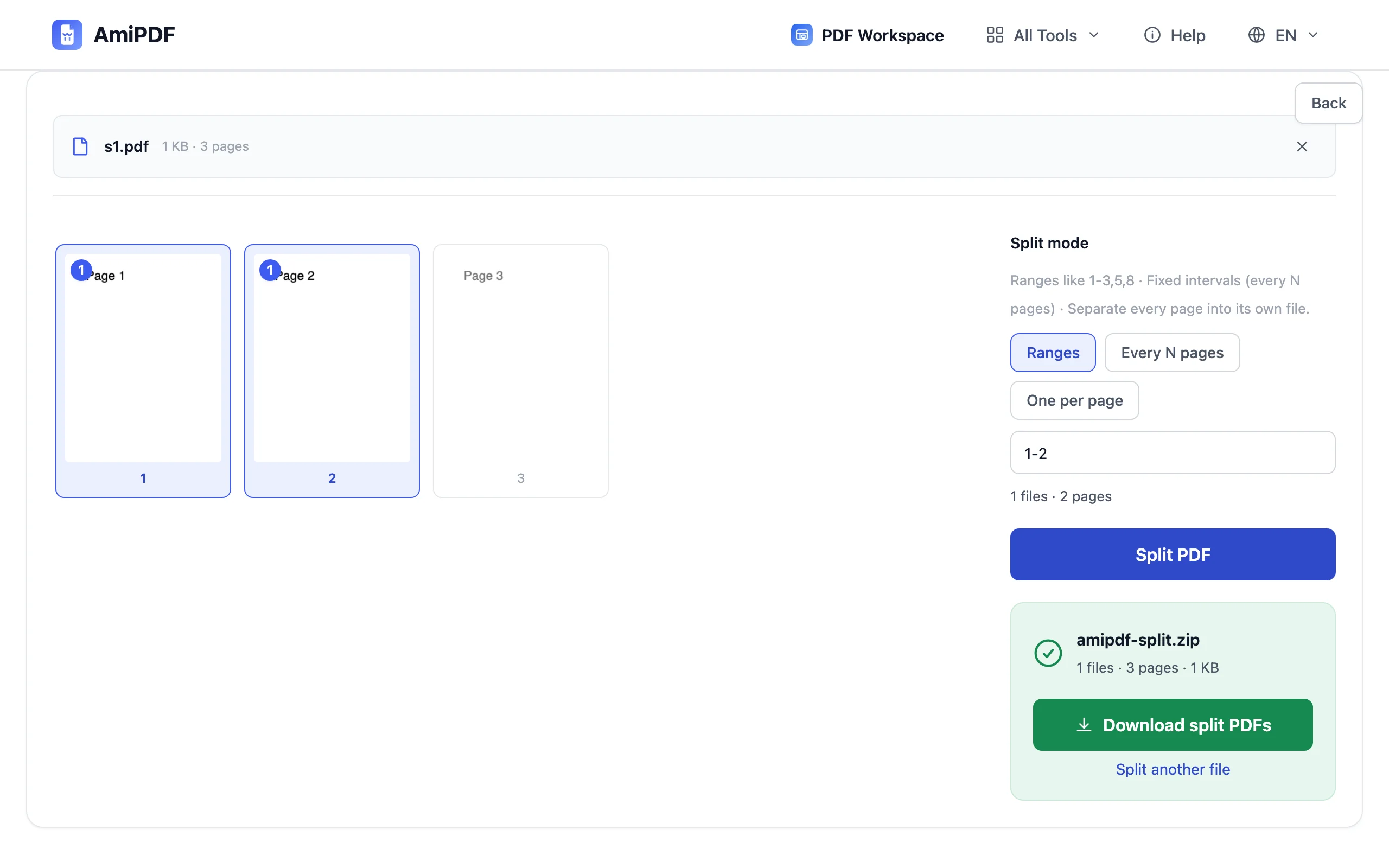
Click the Split button. The pages you selected are copied into new PDF files on your device; nothing is re-rendered, so text, links, and images carry over exactly as they appear in the original.
Download the output files
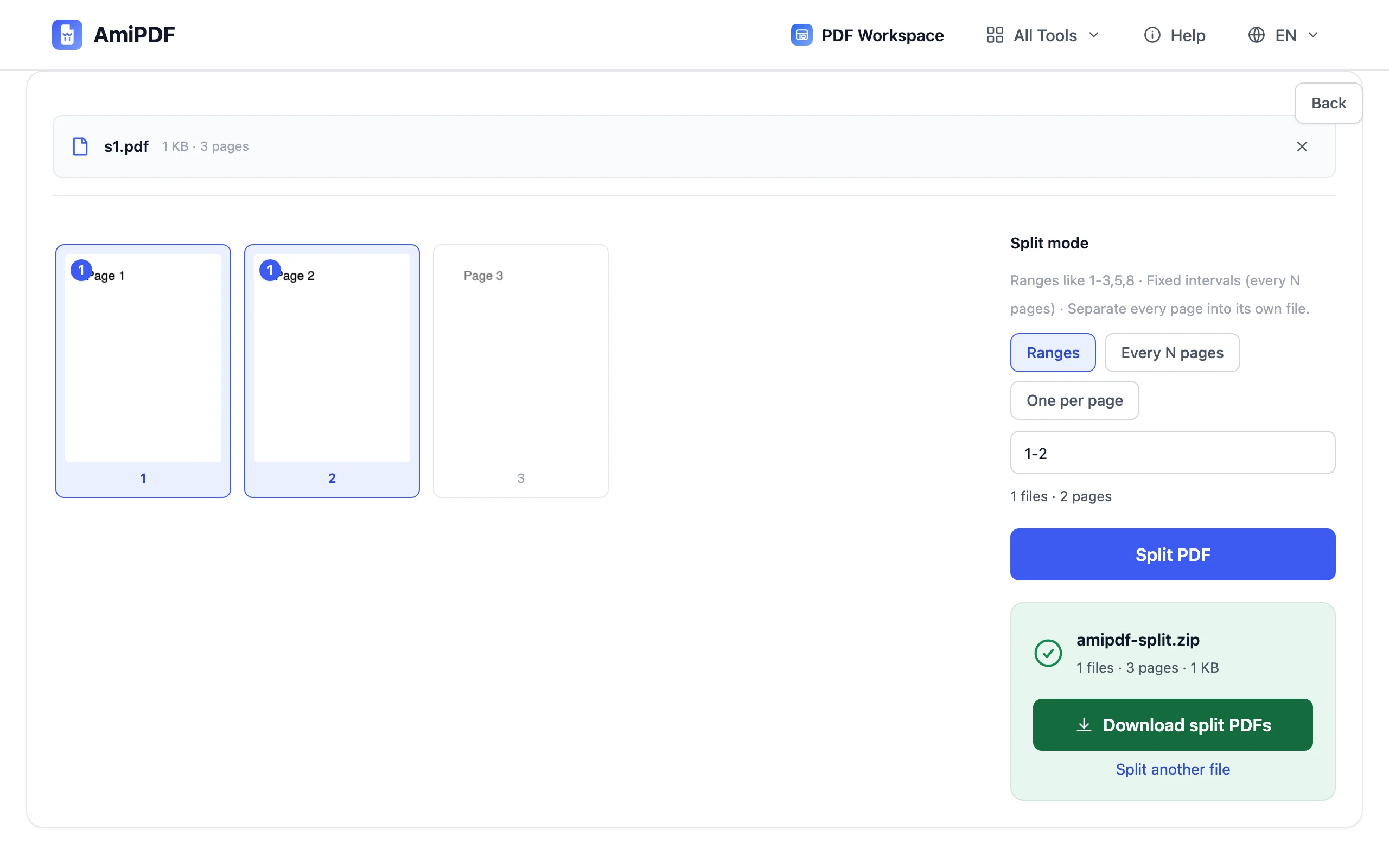
Save the results individually or grab them together as a ZIP. Output names include the page range they contain, so finding the right chunk later is straightforward. If you need only one specific range extracted rather than the document divided, the extract pages tool does exactly that.
Getting the best results
Ranges for hand-picking, N for bulk cutting
If you can name the pages you want, use ranges; it produces exactly one file with no leftovers. If the goal is «make this document smaller in equal parts», use every N pages and adjust N until the chunks fit your target size.
Split oversized scans before OCR
Long scanned documents OCR faster and more reliably in parts. Split into 20–30 page chunks, then run each through the OCR tool and merge the searchable results back together.
Check the page count first
Range syntax refers to physical page numbers in the file, not the numbers printed on the pages. Confirm the total count shown after upload, and remember ranges are validated against it; an out-of-bounds range is rejected before any output is written.
Frequently asked questions
Can I split into more than two files at once?
Yes. In ranges mode, every range becomes its own file; in every-N mode the whole document is cut into as many chunks as needed. One operation can produce dozens of outputs, downloadable as a ZIP.
Does splitting reduce quality?
No. Pages are copied byte-for-byte into the new files — text stays selectable, images keep their resolution, and nothing is re-compressed.
What does 1-3,5,8 mean exactly?
Pages 1 through 3, then page 5, then page 8 — combined into one output file in that order. Spaces are optional and ranges can overlap or repeat if you need a page twice.