How to Compare Two PDF Files
A step-by-step guide to comparing two PDF files: side-by-side pages, word-level highlights, differences-only view, runs in your browser.
Compare your PDFs nowVersion 3 arrives with a note: «small changes». Somewhere in those 14 pages sit a shifted payment date, a renamed liability clause, and a paragraph nobody announced. Reading both versions line by line finds about half of it; human eyes fatigue on page 5 and start skimming. The reliable way to compare two PDF files is to let the machine align them: every page paired side by side, every inserted and deleted word marked exactly where it sits. AmiPDF's PDF comparison tool does that in your browser: the contract, invoice, or statement never uploads, and the diff comes back in seconds.
Comparing two PDFs, step by step
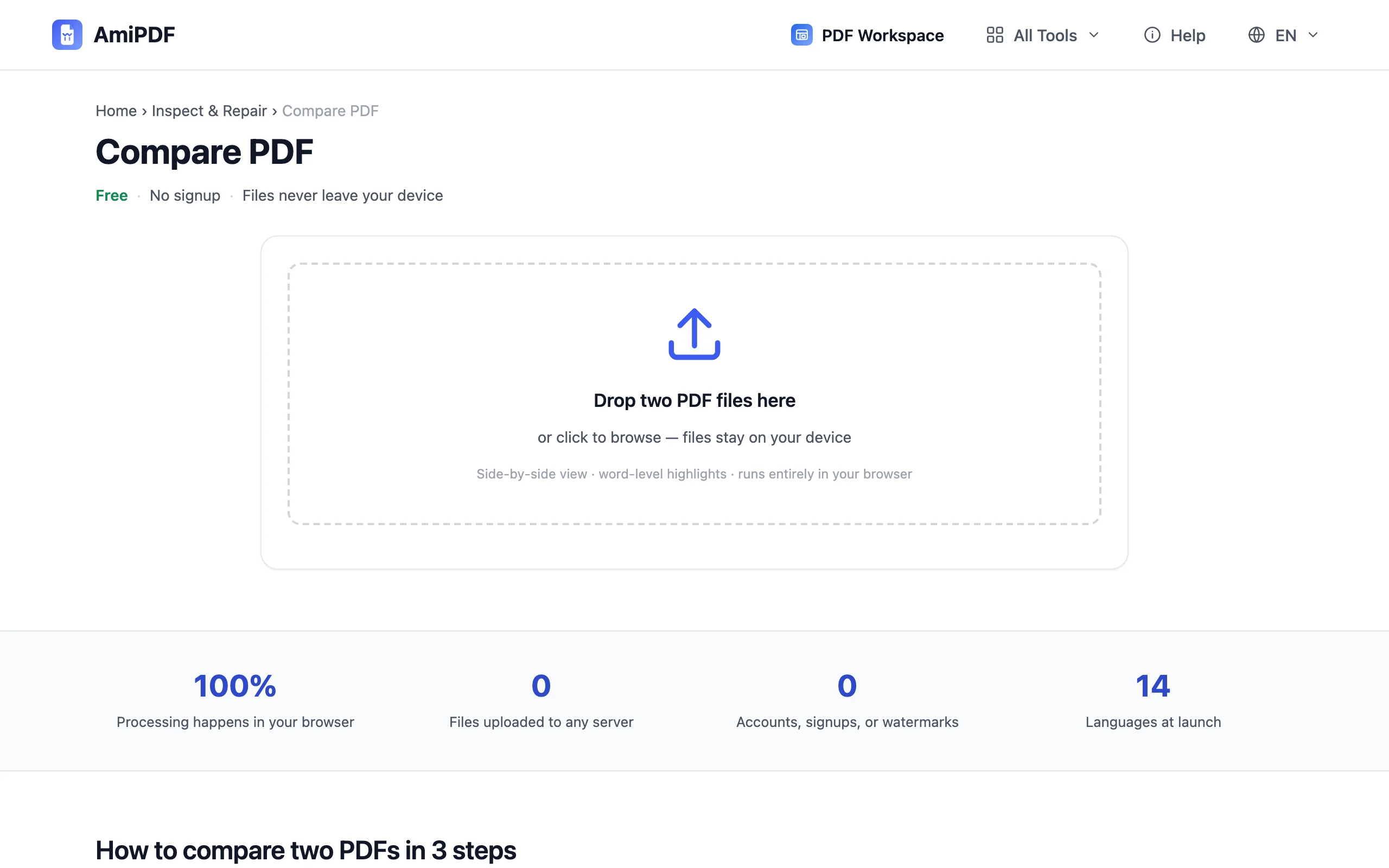
Add the original, then the changed copy
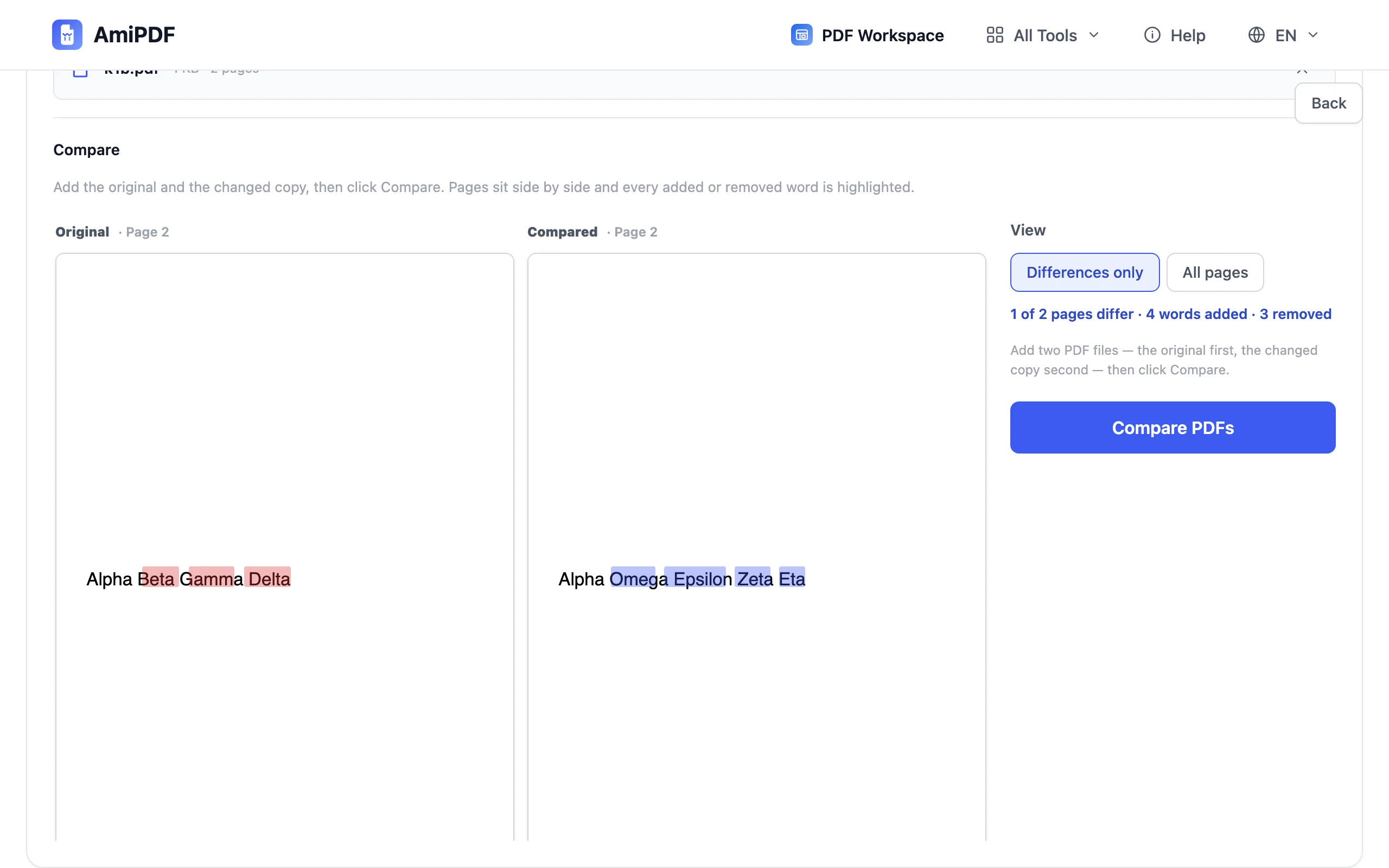
Open the AmiPDF compare PDF tool and drop the original file first, then the new version. Order matters for reading the highlights: words only in the original show in red on the left, words only in the changed copy in blue on the right.
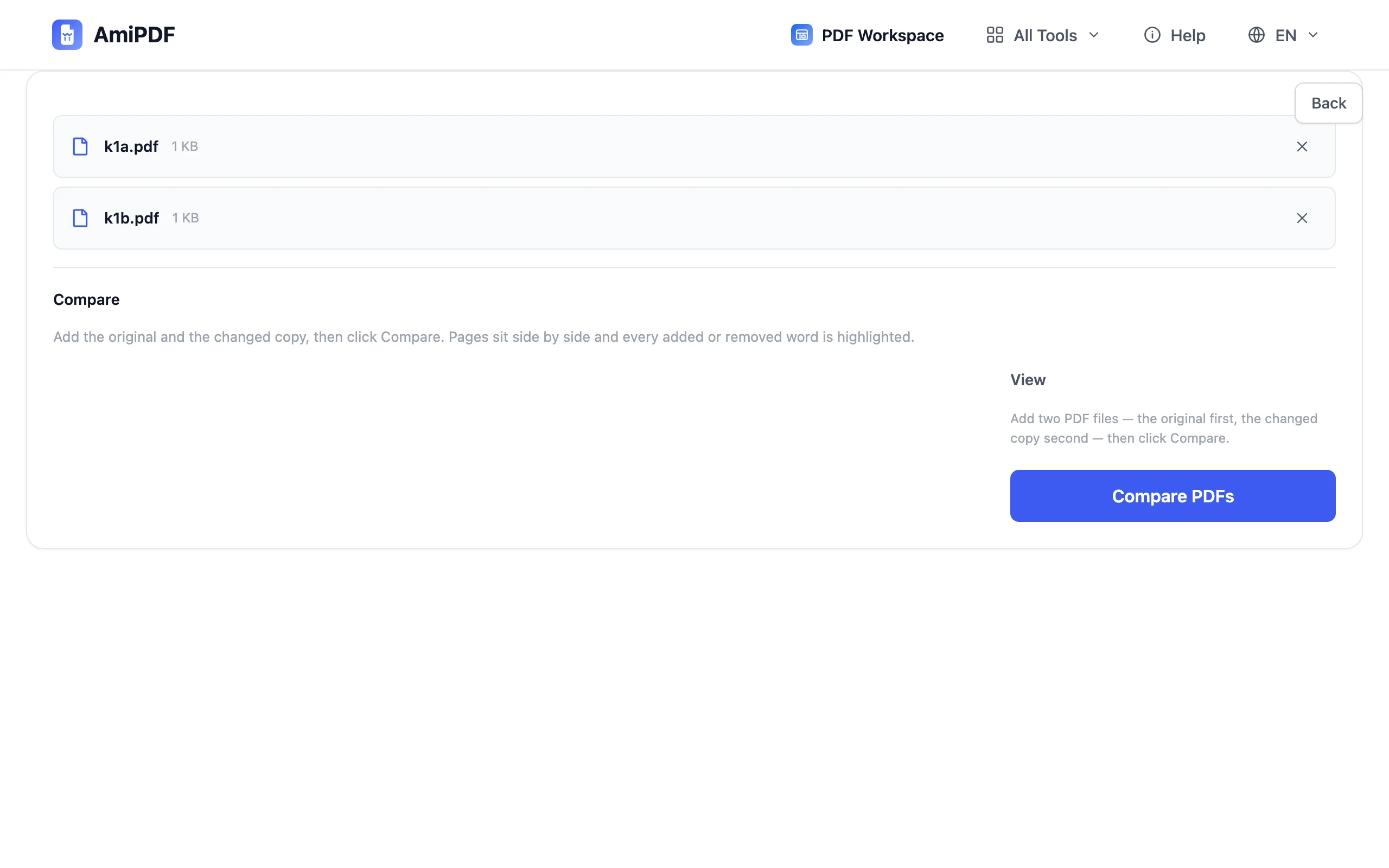
Click Compare
The tool extracts each file's text layer page by page and diffs them word by word. Matching words cancel out; the survivors get highlighted where they sit on the page. A moment later the paired view opens.
Review the differences
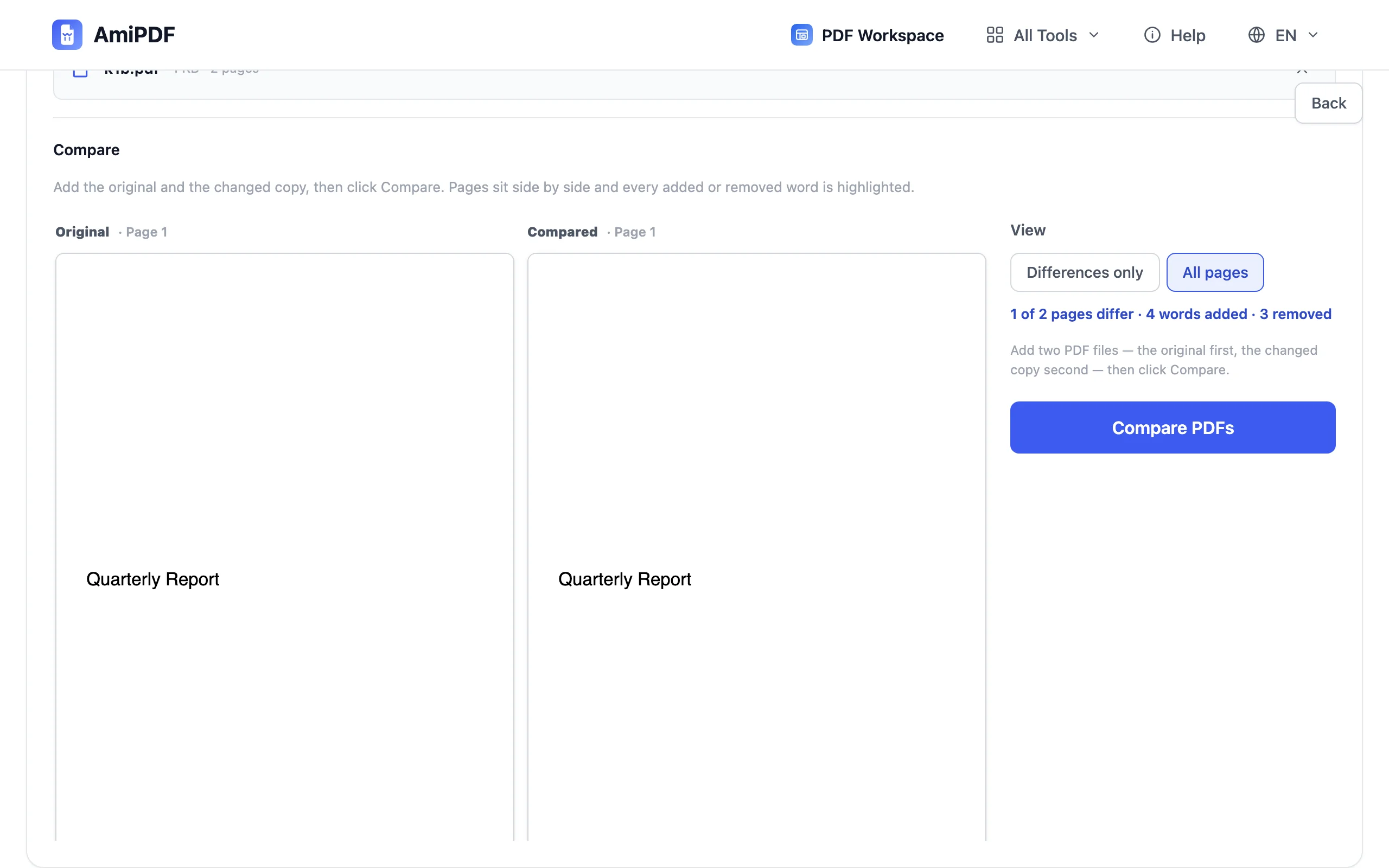
Flip to differences-only to jump between changed pages, or browse all pages when you want the full picture. The summary counts changed pages and altered words, a useful reality check against that «small changes» note.
Decide what to do with the result
If you found a change that matters, send the file back with the page number. If not, sign it. Comparison is read-only: both files stay exactly as they were, nothing merged, edited, or rewritten.
Getting the best results
Works on text PDFs, not raw scans
The diff rides on the text layer. A scanned contract has none until it's OCR'd; run it through the OCR tool first, then compare the searchable copies. Born-digital PDFs (exported from Word, downloaded from portals) work as-is.
Different page counts are handled
Pages pair by number. When one file has a page the other doesn't, that page is marked missing on its empty side, so an inserted or deleted chapter announces itself instead of silently shifting the alignment.
Images and layout need your eyes
The automatic diff covers text. Pages where the wording is identical but a logo, chart, or styling changed still render side by side: the machine flags words, and you flag swapped figures.
Frequently asked questions
How does the comparison actually work?
The text layer of both files is extracted page by page and compared word by word. Words present in both cancel out; words only in the original are highlighted red, words only in the changed copy blue.
Can I compare scanned PDFs?
Not directly — scans are images without a text layer. Run them through OCR first, then compare the searchable copies.
What if the files have different page counts?
Pages are paired by number and any page that exists in only one file is marked as missing on the other side, so insertions and deletions surface clearly.
Does it detect image or layout changes?
The automatic diff covers text. Pages with identical text but changed images or styling still render side by side for a visual check, but they are not flagged automatically.
Are my documents uploaded anywhere?
No. Text extraction, comparison, and rendering all run in your browser — confidential drafts stay on your device.