How to Unlock a PDF
How to unlock a PDF with the password you know: strip the open prompt and the print or copy restrictions locally in your browser. Free, no signup.
Unlock your PDF nowYou know the password. You have typed it a dozen times this week, and so has everyone else who needed the file. What you want now is a copy that stops asking: one that opens on any device, prints when you press print, and lets a paragraph be copied with nothing blocking the way.
That is what it means to unlock a PDF: decrypt the document once with the password you already have, then save a clean copy without the lock. The unlock tool does this in your browser, and the file never leaves your device.
Unlocking, step by step
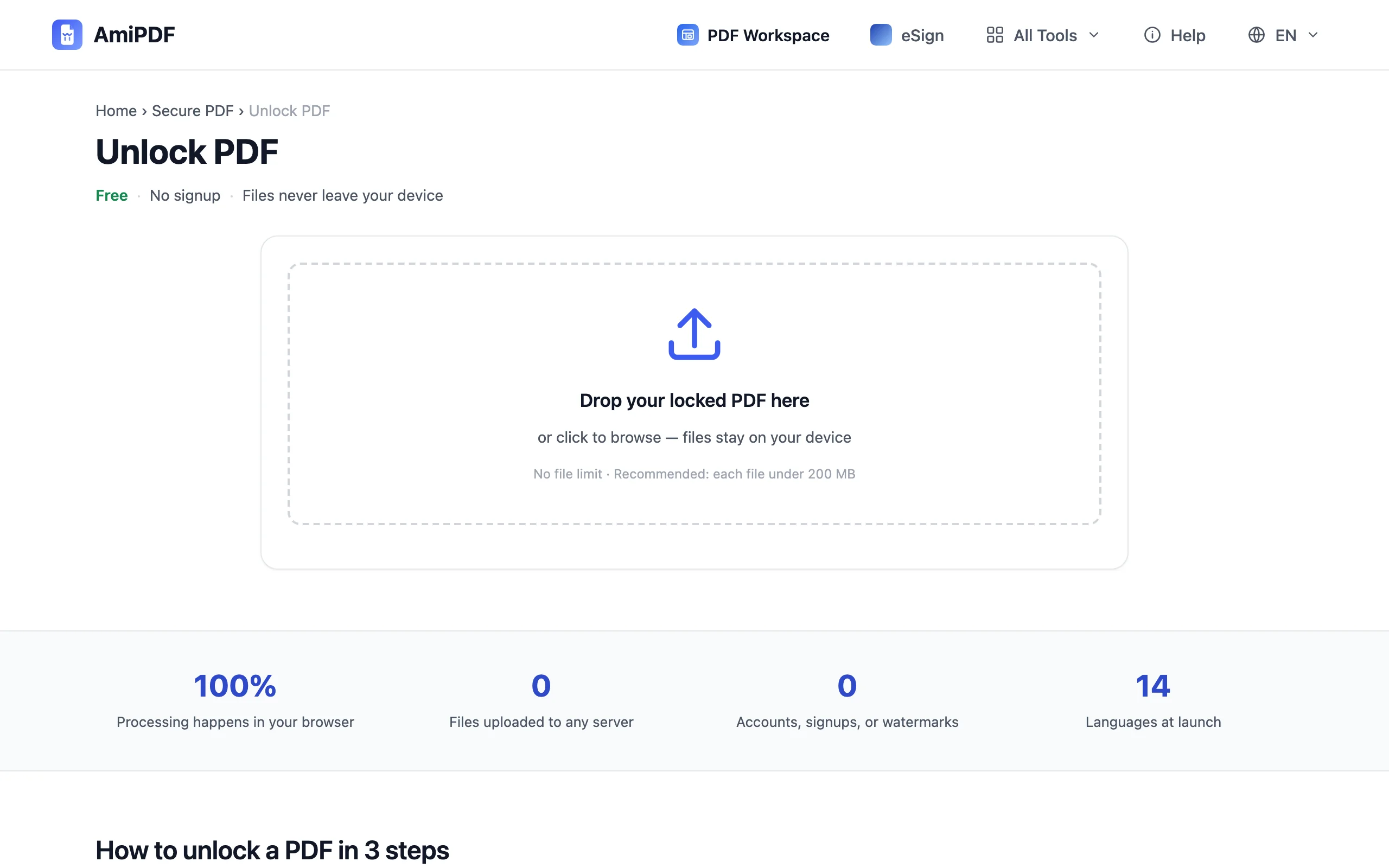
Add the locked PDF
Open the unlock tool and drop the encrypted file. The browser reads the encryption details locally, on your machine; nothing is transmitted to any server.
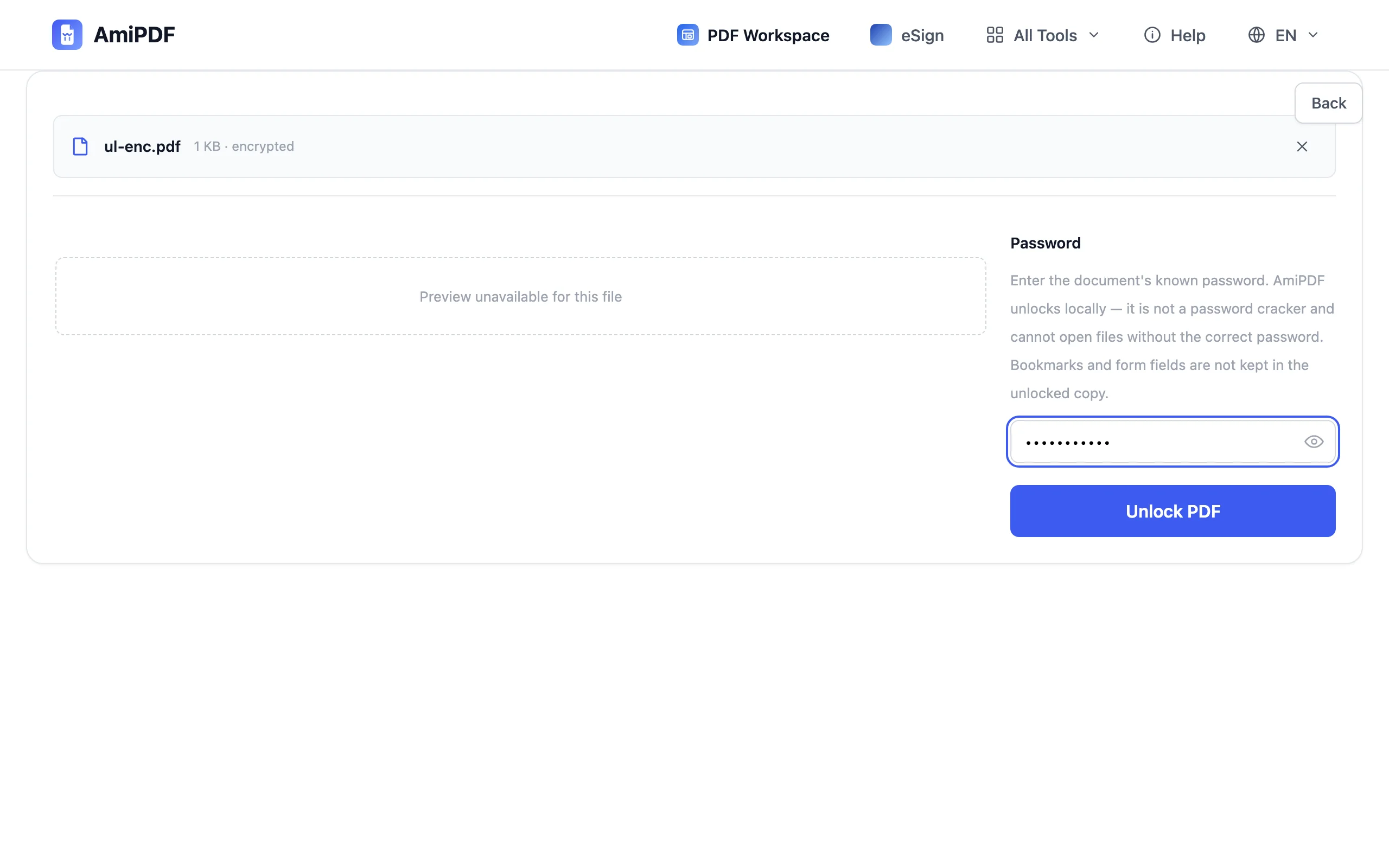
Type the password you know
Enter the password the document was protected with, unless the file never asks for one: documents that open freely but block printing or copying carry a permissions lock only, and it comes off with the field left empty. An eye button beside the field shows what you typed, which saves a retry when a paste goes wrong. The tool decrypts with what you provide and guesses nothing.
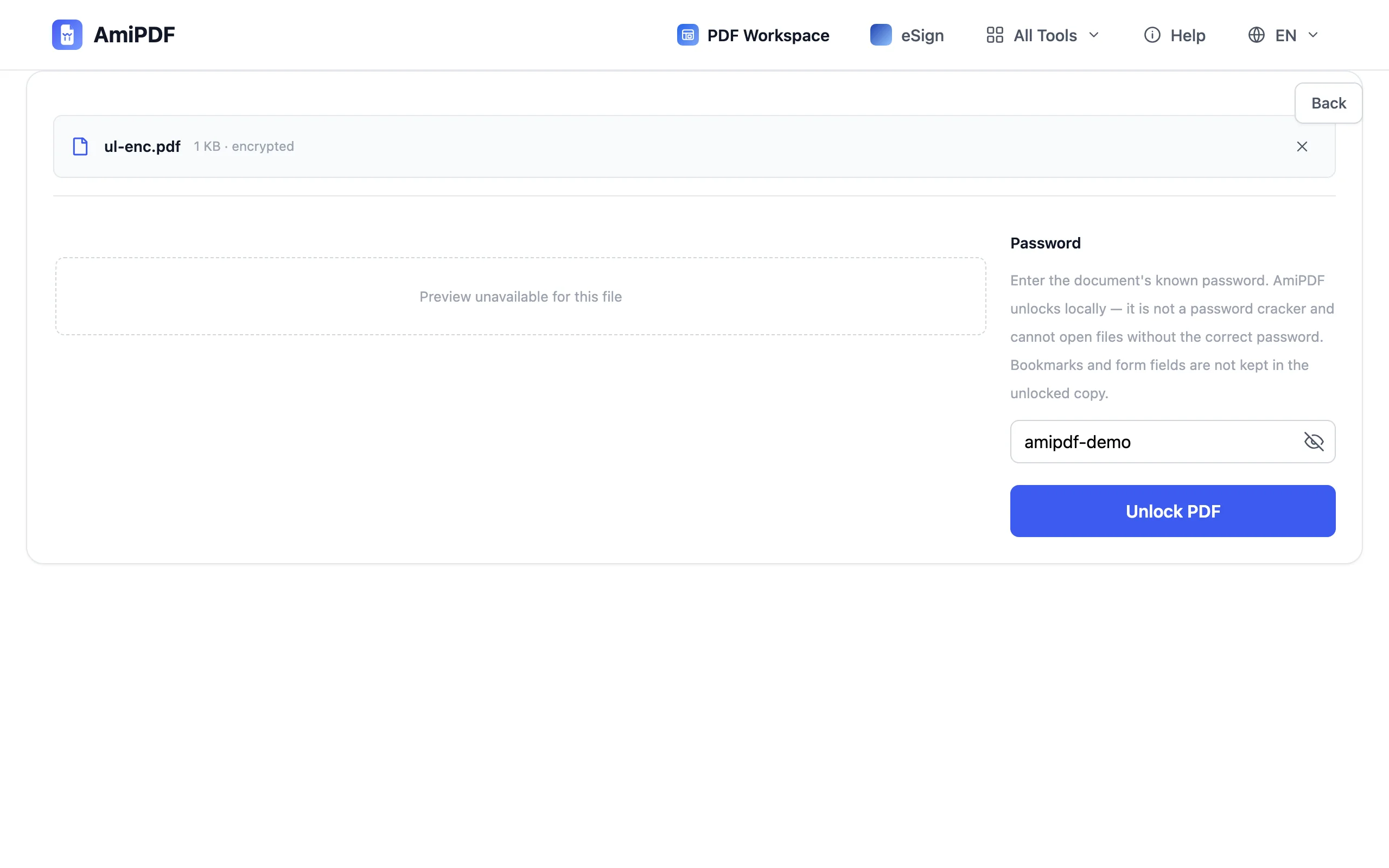
Unlock the file
Click Unlock. The document is decrypted in your browser with the password you entered, and the open password plus any printing or copying restrictions come off together.
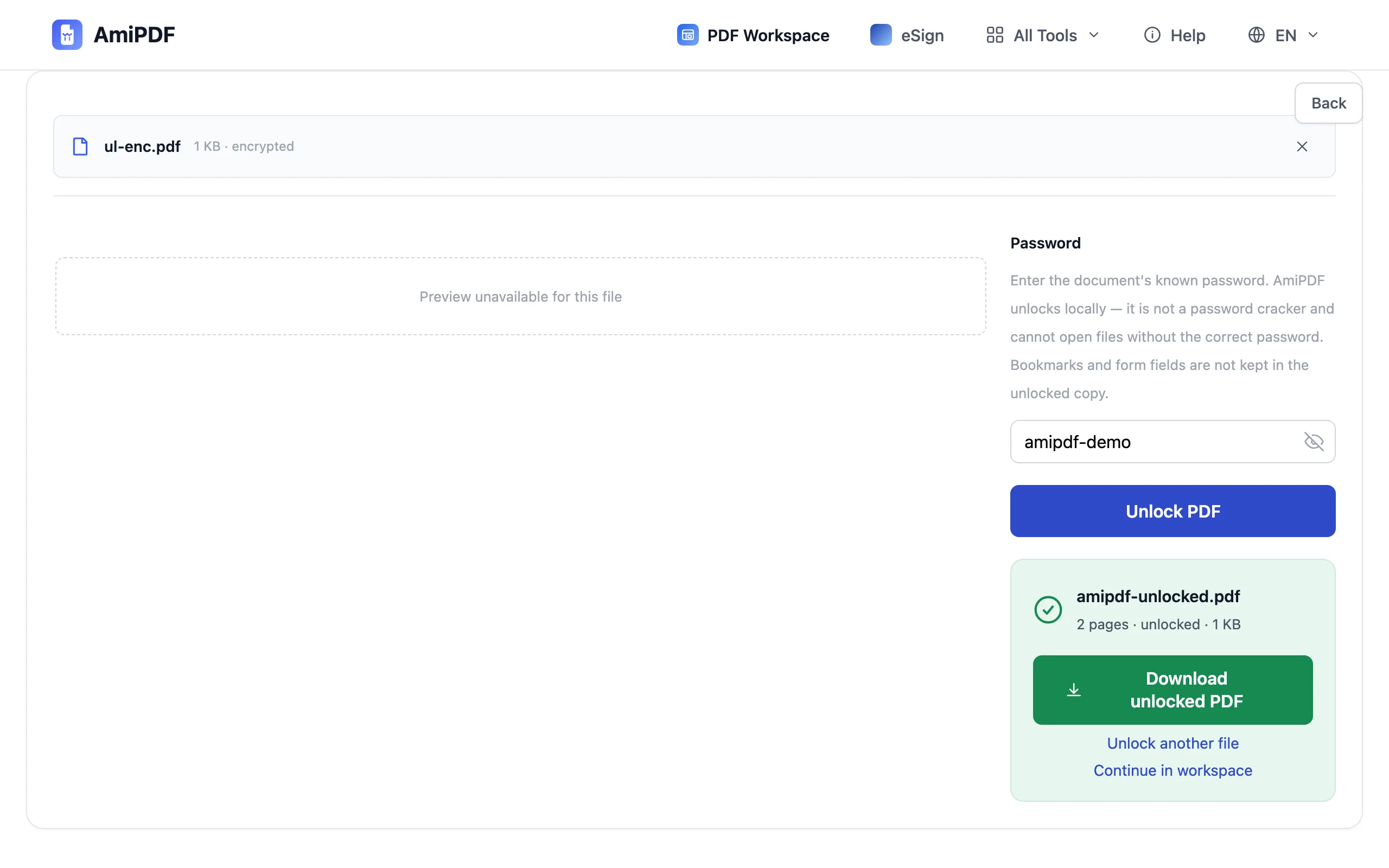
Download the clean copy
The unlocked PDF downloads immediately (amipdf-unlocked.pdf). Reopen it once to see the difference: no password prompt, printing enabled, copying allowed. The original file on your disk keeps its password and stays as it was.
Before and after unlocking
Two passwords, two jobs
A PDF can carry two locks. An open password stops anyone from viewing the file at all; a permissions password leaves it readable but blocks printing, copying or editing. Both fall to the same unlock pass: enter the password you know, or nothing at all when only the permissions lock is there, and the clean copy comes out without either.
What does not come along
Two things stay behind: bookmarks and form fields. A reference document you navigate by its outline, or a fillable form, comes out as a plain PDF, so check whether you rely on either before you unlock.
Lock it again when it travels
An unlocked copy opens for everyone who gets it. If the file still needs protection on its way to someone else, put a fresh password on it before sending: the protect tool wraps the clean copy in a new lock in seconds.
Frequently asked questions
Can a PDF be unlocked without the password?
Not when the file asks for a password to open. The content is encrypted, and that password is the key; a service promising to open such a file without it is really guessing, which works only on weak passwords. The exception is a file that opens freely but blocks printing or copying: no password exists to enter, and it unlocks with an empty field.
Does the unlocked copy drop the password for everyone?
Yes. The clean file has no password at all, so it opens for anyone you hand it to. That is the point of unlocking, and a reason to think twice before forwarding it widely.
What if the PDF has no encryption at all?
The tool says so right after the upload and points to the protect tool instead. Note the line between the two cases: a document that opens without a password but blocks printing or copying is still encrypted, and it unlocks here; a document with no encryption at all has nothing to remove.