How to Redact a PDF
A step-by-step guide to redacting a PDF: draw boxes over sensitive text or search-mark every match, true removal not a cover-up, in your browser.
Redact your PDF nowThe deposition exhibit goes to opposing counsel, the medical record to the insurer, the bank statement to the landlord, each with a few details the recipient must not see. The famous way to get this wrong is drawing a black rectangle over the text. It looks covered; it isn't. The words still sit in the file's text layer, and anyone who selects, copies, and pastes, or simply searches, reads every «hidden» name and account number. Real redaction removes the text. This guide shows how to redact a PDF with AmiPDF's PDF redaction tool: mark what must disappear, then export pages re-rendered without it. The words cease to exist in the output: copy, paste, and search all come back empty. Everything runs in your browser; the uncensored original never uploads.
Redacting a PDF, step by step
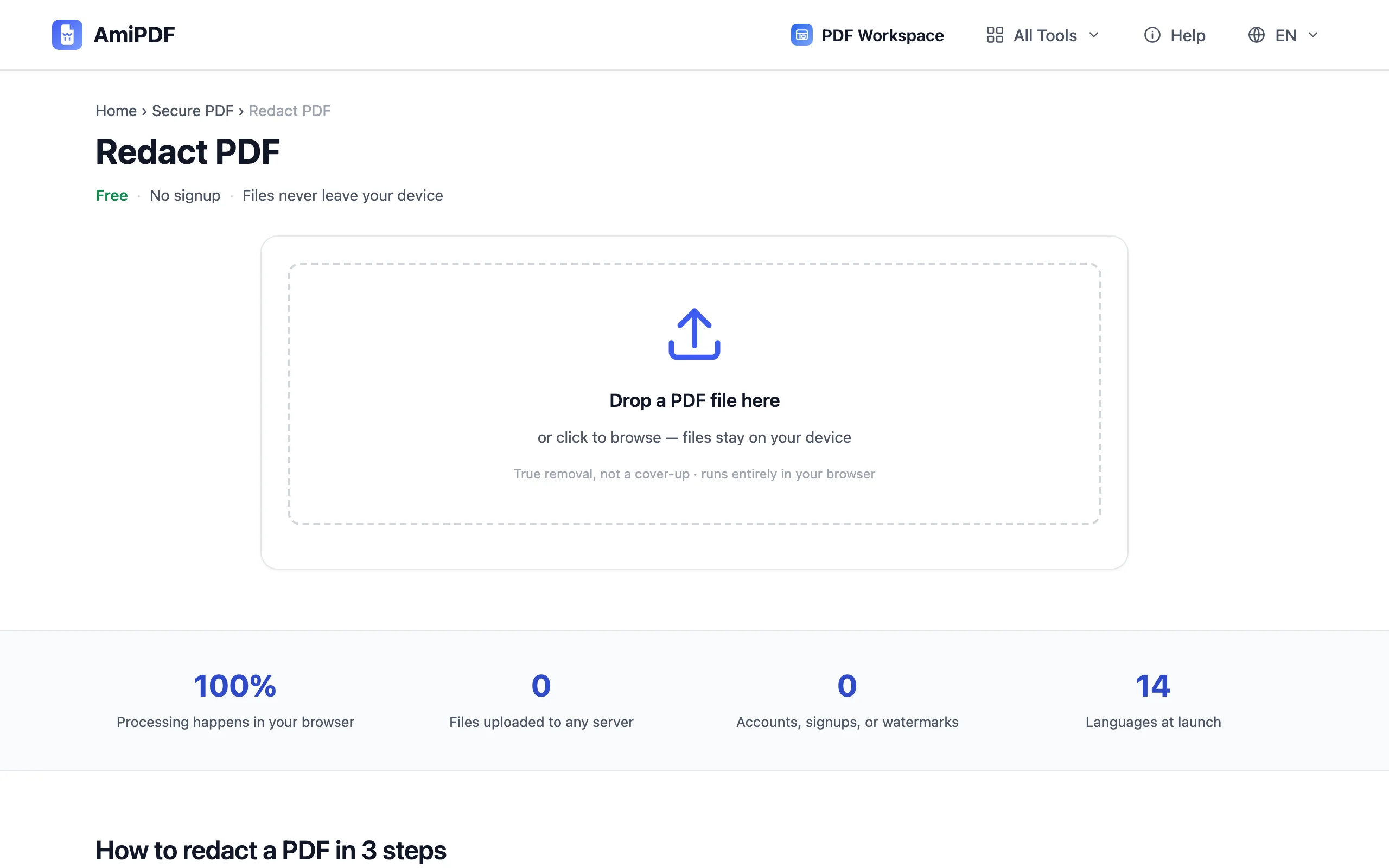
Open the document
Go to the AmiPDF redact PDF tool and drop in the file. It renders locally; the uncensored version never leaves your device at any point in the process.
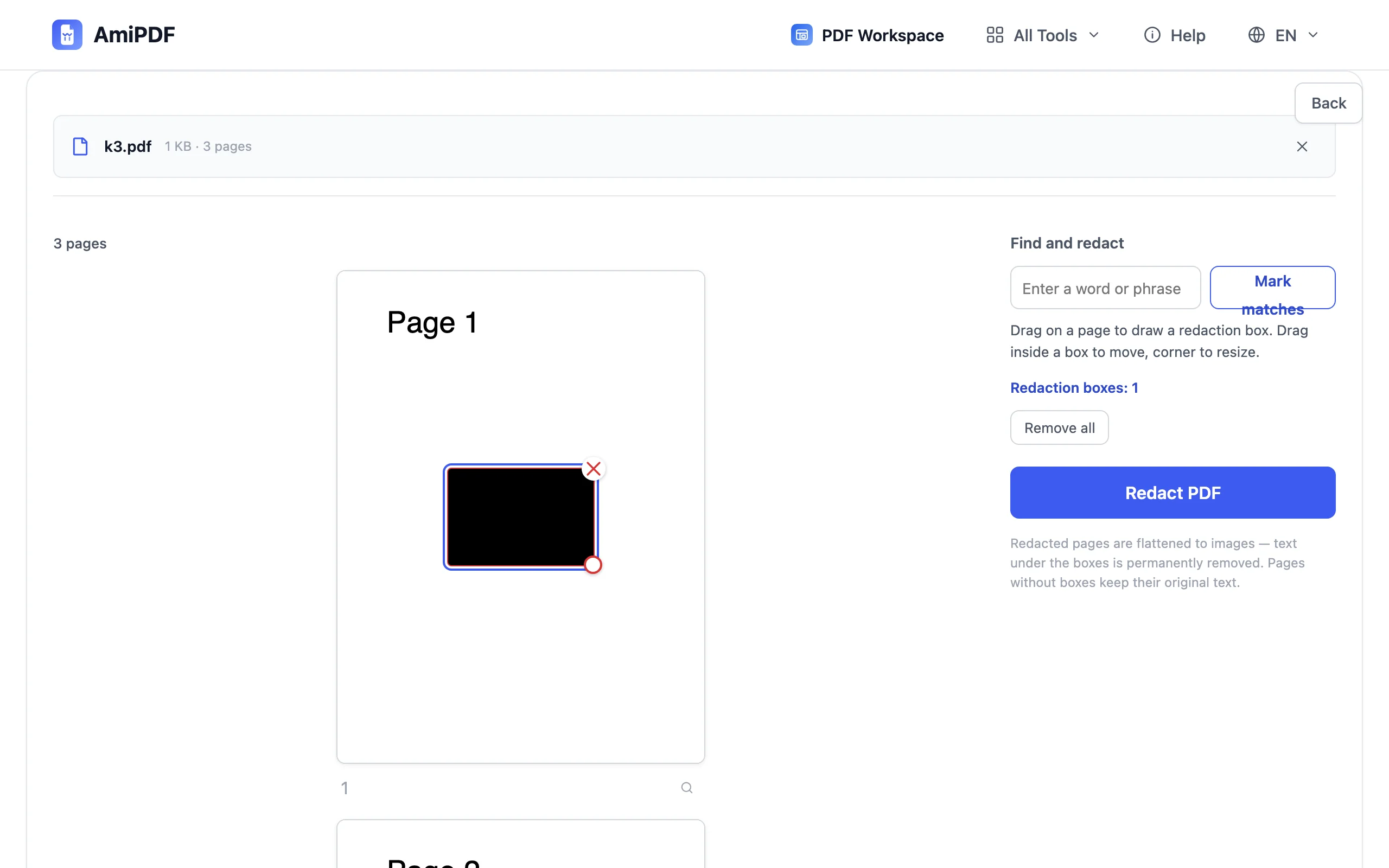
Mark what must disappear
Two ways to mark. Drag boxes over sensitive passages by hand. Or type a word (a name, an account number, a clinic) and click Mark matches: every occurrence, on every page, gets a box in one stroke. Both kinds are reviewable before anything happens.
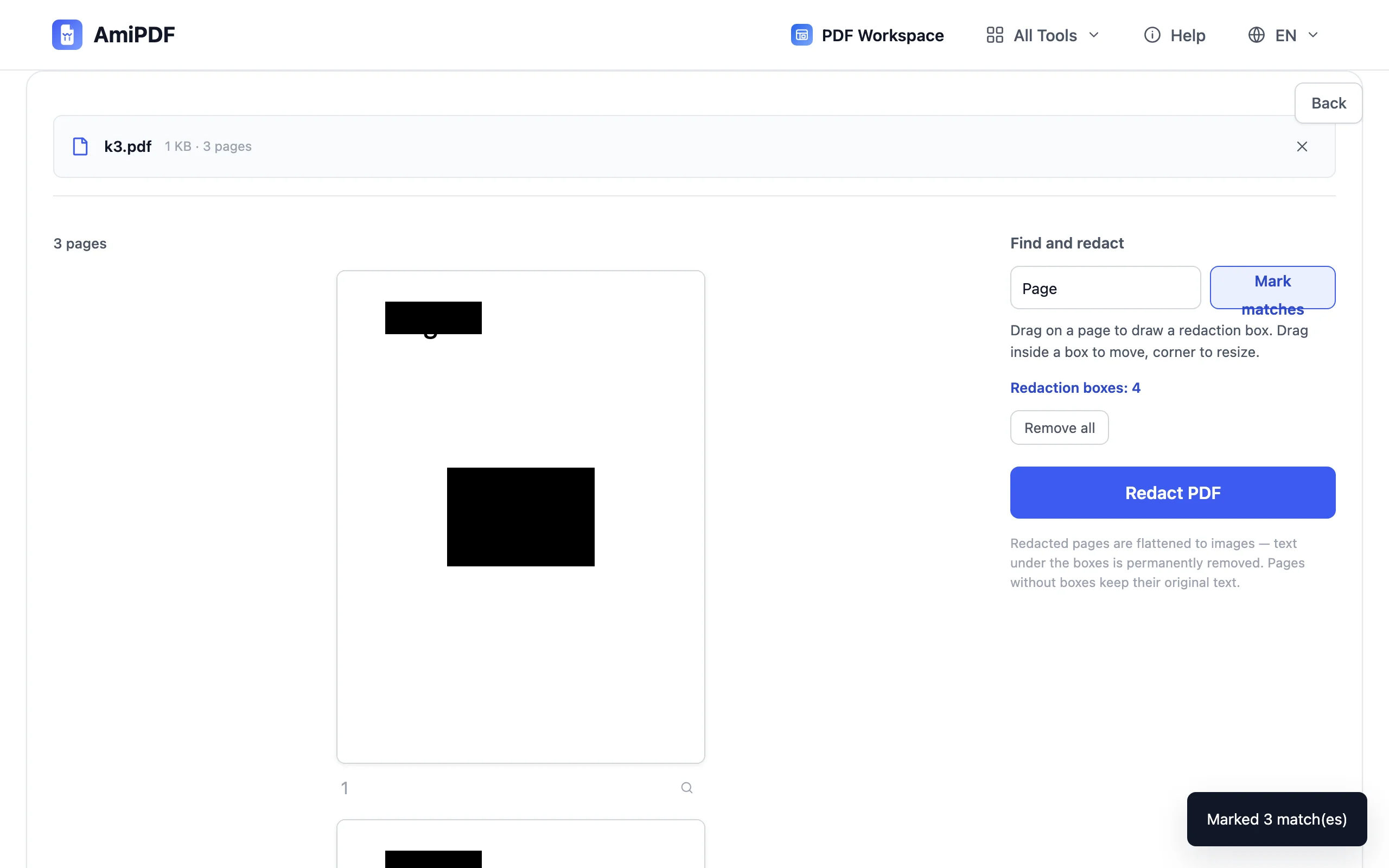
Review the marked boxes
Check each box before exporting: move it, resize it, or delete the ones that caught a false positive. Search-mark makes this fast: a hundred hits arrive pre-boxed, and you approve rather than draw each one.
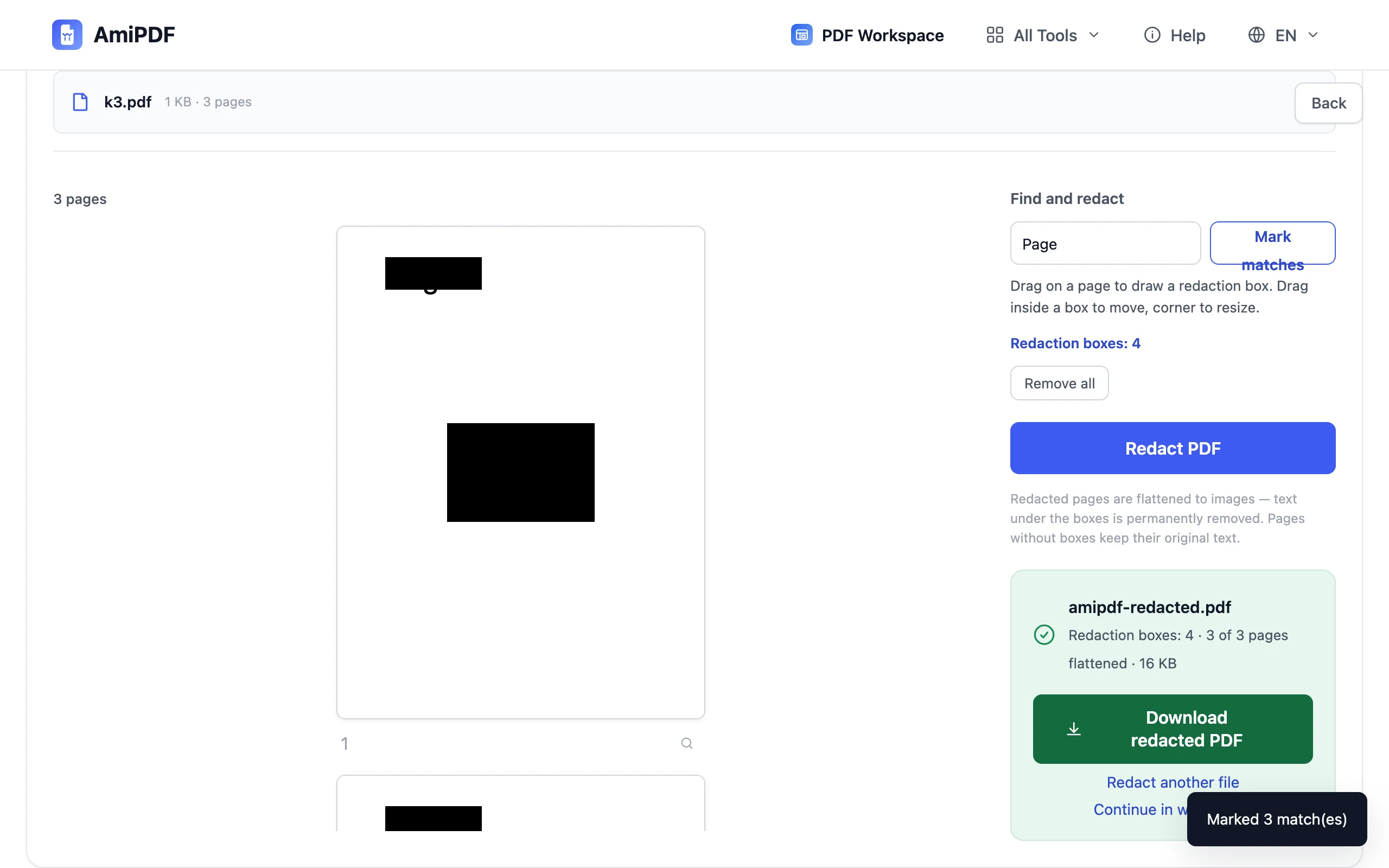
Redact and download
Click Redact PDF. Marked pages are flattened, re-rendered with the redacted areas painted solid and the underlying text gone from the file. Pages without redactions are copied losslessly: selectable text, vectors, metadata intact. Download and share.
Getting the best results
Search-mark first, draw second
For names and numbers that repeat, search-and-mark catches instances your eyes miss: page 14's footnote, the header on page 27. Draw boxes for what can't be typed: signatures, faces, stamps, handwriting.
Scans need the manual route
Automatic search rides the text layer, which scanned images lack. Two options: draw boxes over the scan directly, or run it through the OCR tool first and search-mark the searchable copy, then verify the flattened result visually.
Keep the original away from the share folder
The redacted download is a new file; the source keeps existing wherever you put it. The classic leak is emailing the wrong twin; name the files so a tired Friday can't confuse them.
Frequently asked questions
Is the text really removed or just covered?
Really removed. Redacted pages are re-rendered as images with the marked areas painted solid — the original text, its hidden copies, and the text layer cease to exist in the output. Copy-paste and search find nothing.
Why do redacted pages become images?
Because keeping a text layer is what makes cover-up redaction recoverable. Flattening is the only construction that removes the words instead of promising to hide them.
Does it work on scanned PDFs?
Yes, with manual boxes — draw them over the scanned content. Automatic search-and-mark needs a text layer, which scans acquire only after OCR.
What happens to pages without redactions?
They are copied losslessly — selectable text, vectors, and metadata stay exactly as they were. Only pages you actually redacted are flattened.
Is my document uploaded anywhere?
No. Marking and exporting run entirely in your browser; the uncensored original never leaves your device.