How to Merge PDF Files Without Uploading Them
Merge PDFs with zero uploads: combining runs entirely in your browser and files never leave your device. Free, no signup, no limit on file count.
Merge your PDFs nowMost online PDF mergers work the same way: your files travel to a server, get combined there, and come back. For a recipe collection nobody minds. For contracts, ID scans, medical records or anything with someone's signature on it, «the server deletes files later» is a promise you have to take on faith. AmiPDF's merge tool takes a different route: the merging itself runs in your browser. The page loads from the web like any site, but from the moment your files are read in, the combining happens on your machine and the file bytes are never transmitted anywhere. No account, no queue, no file-count limit.
Merging PDFs locally, step by step
Open the merge tool
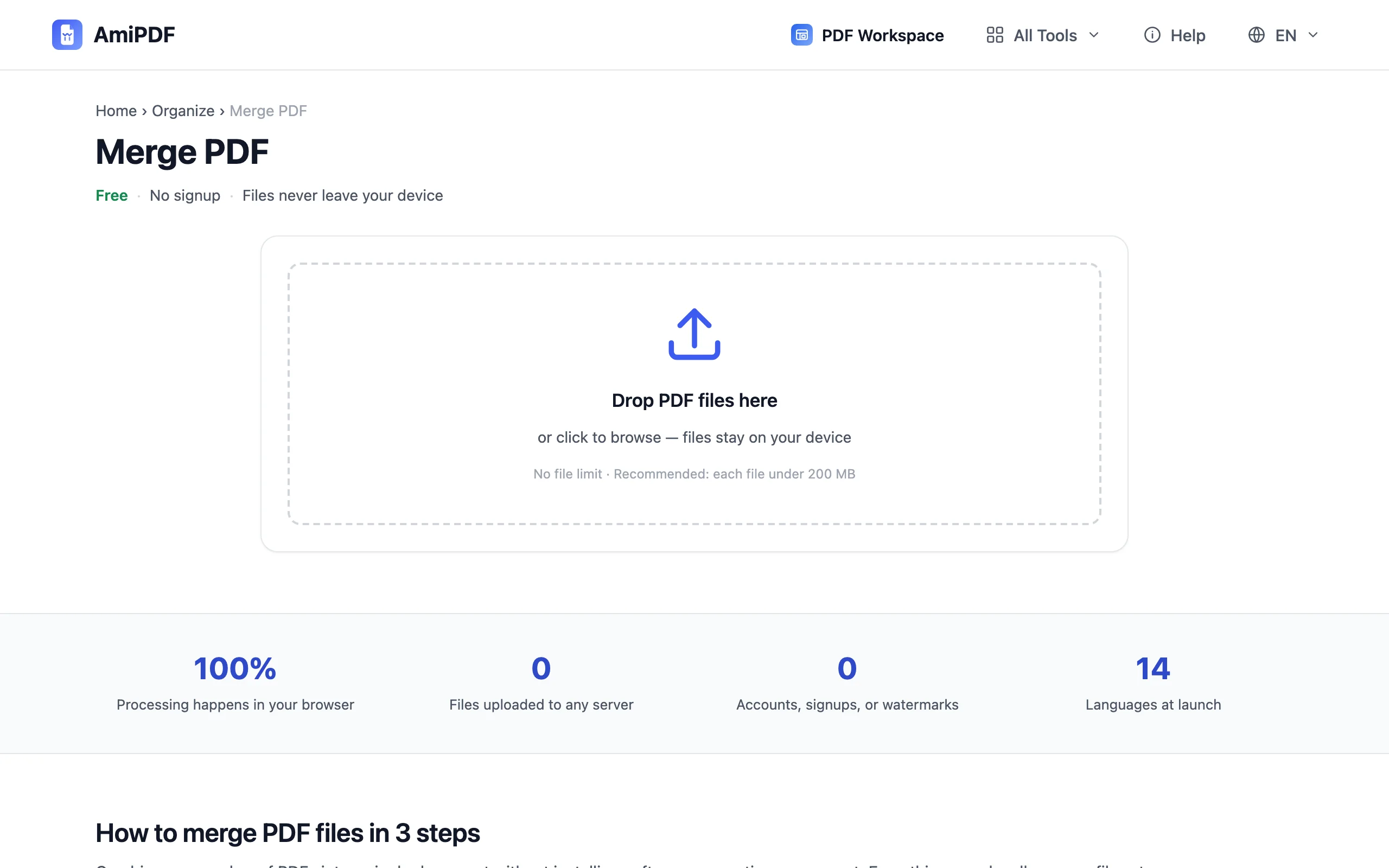
Go to the AmiPDF merge PDF tool. There is no login wall and no trial counter; the tool is the whole page.
Add your PDFs and set the order
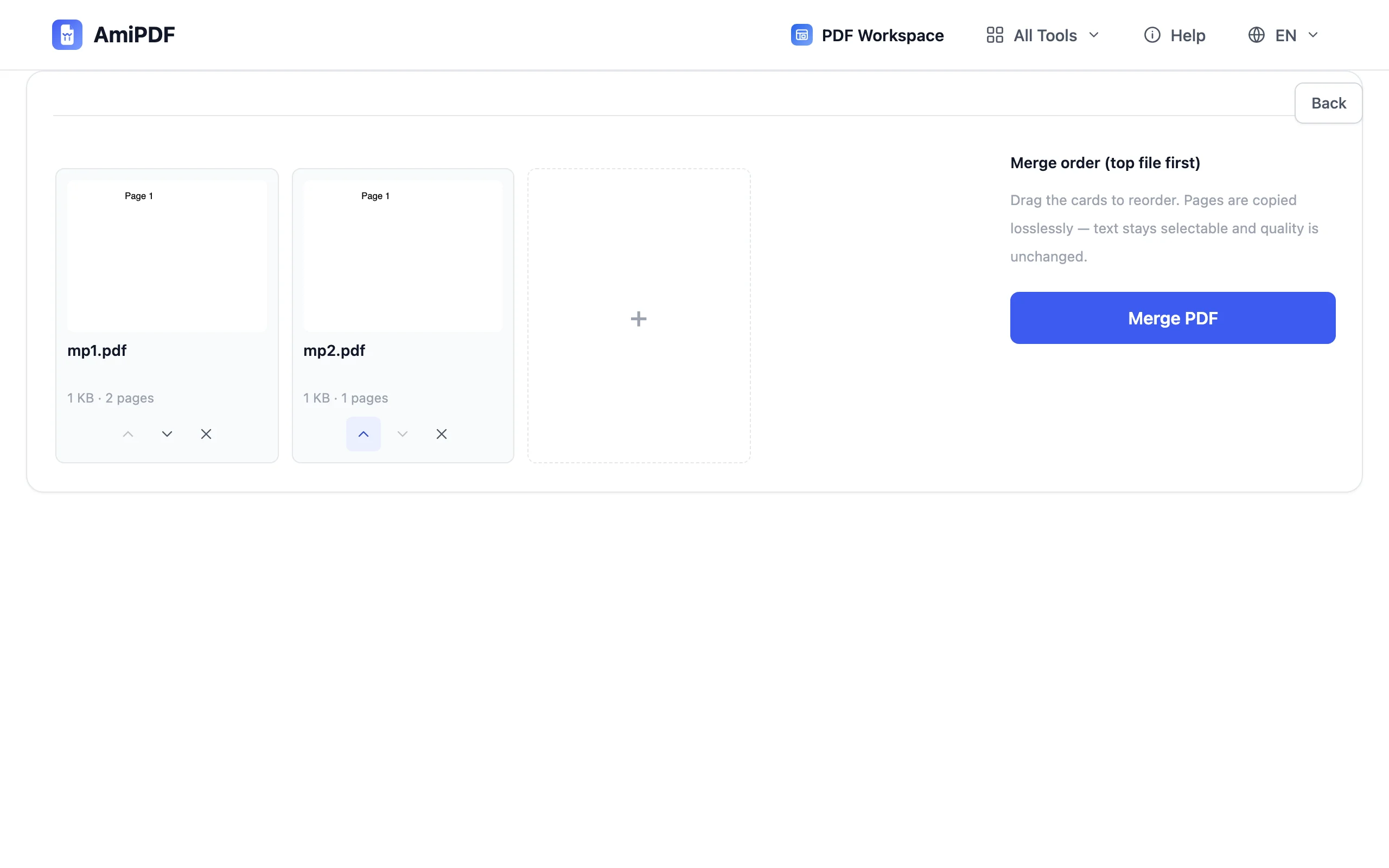
Drop two or more PDFs onto the upload area; there is no limit on how many files you can combine in one go. The files line up in a list; use the arrows to move any document up or down until the sequence matches the order you want in the final PDF. The list order is the page order.
Merge, right in your browser
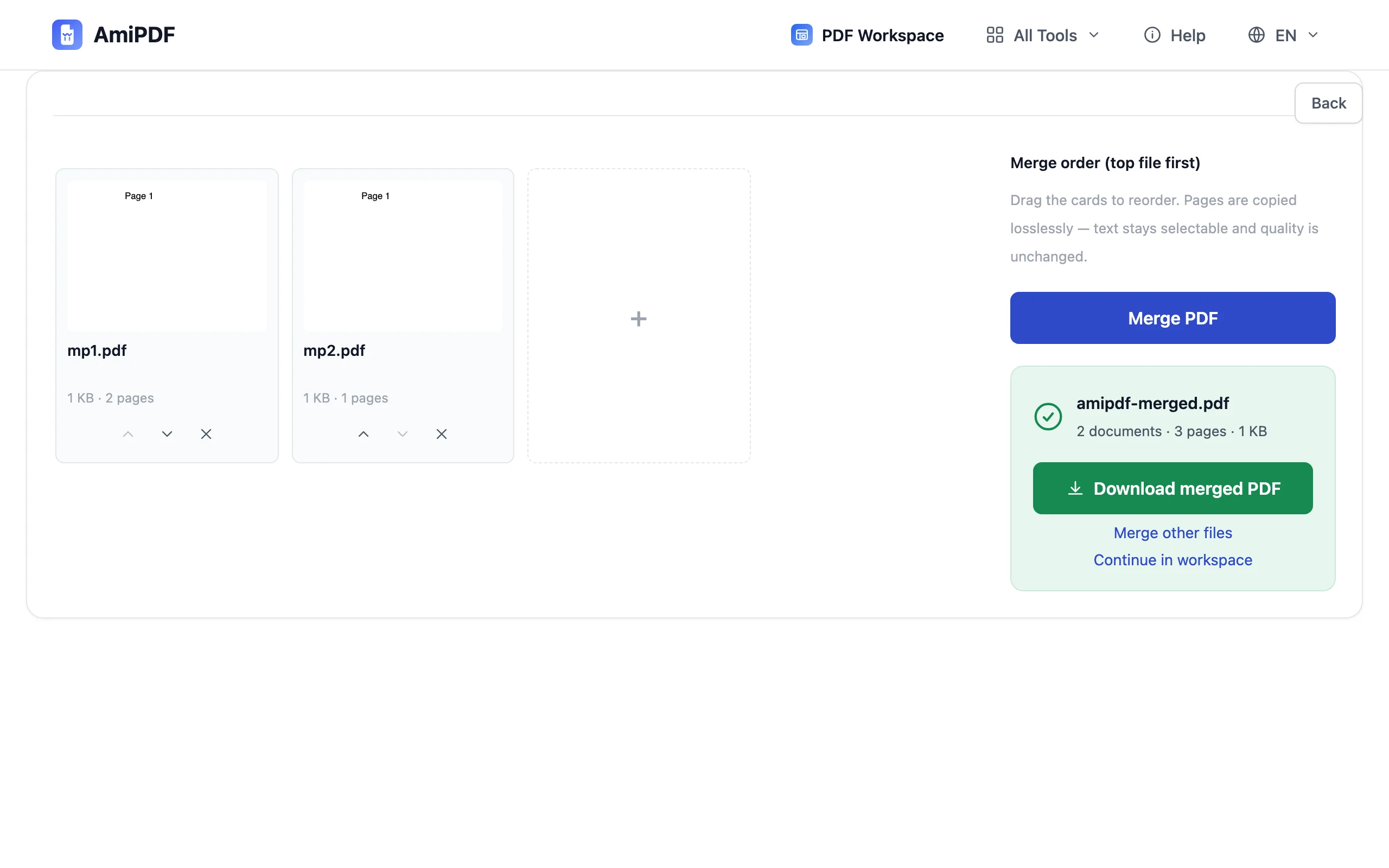
Click merge and the combining happens on your machine, and you can watch it work. The result is lossless: pages are copied as-is, not re-encoded or re-compressed.
Download the combined PDF
Save the merged file and open it to confirm everything landed in the right order. No watermark, no signup step, no queue; the document goes straight from your browser to your disk.
Working with local merging
What «no upload» actually means
The tool page itself loads from amipdf.com like any website, and that part needs a connection. What stays local is your content: the PDFs are read, combined and written by your browser, and the file bytes are never sent to a server.
Merging is lossless
Pages keep their exact quality: no recompression, no downscaling, no watermark stamped on the output. A merged contract looks identical to its parts.
Reorder individual pages after merging
After merging, use Organize PDF to reorder, rotate or drop individual pages on a visual grid; it also runs in your browser.
Frequently asked questions
Do my PDFs really never leave my device?
Correct — the merging runs entirely in your browser. The website itself loads normally, but the files you add are read, combined and saved locally on your machine.
Is there a limit on the number of files?
No. Merge as many PDFs as you like in one pass — the only practical ceiling is your device's memory.
Do I need an account?
No signup, no email, no trial limit. Open the page and merge.