How to Rotate a PDF and Save It
How to rotate a PDF and save the new orientation in the file: 90, 180 or 270 degrees, all pages or a range like 4-9. Free, local, no signup.
Rotate your PDF nowThe rotate button in a PDF viewer fixes the view for you and nobody else. Send the file on, and the recipient sees the sideways landscape table exactly as it was: the turn lived in the viewer's memory, not in the document.
Knowing how to rotate a PDF so the change sticks comes down to one distinction: the turn has to be written into the file, not just the view. The rotate tool does this in your browser, keeps the file on your device, and shows every page in a live preview grid before you commit.
Rotating pages, step by step
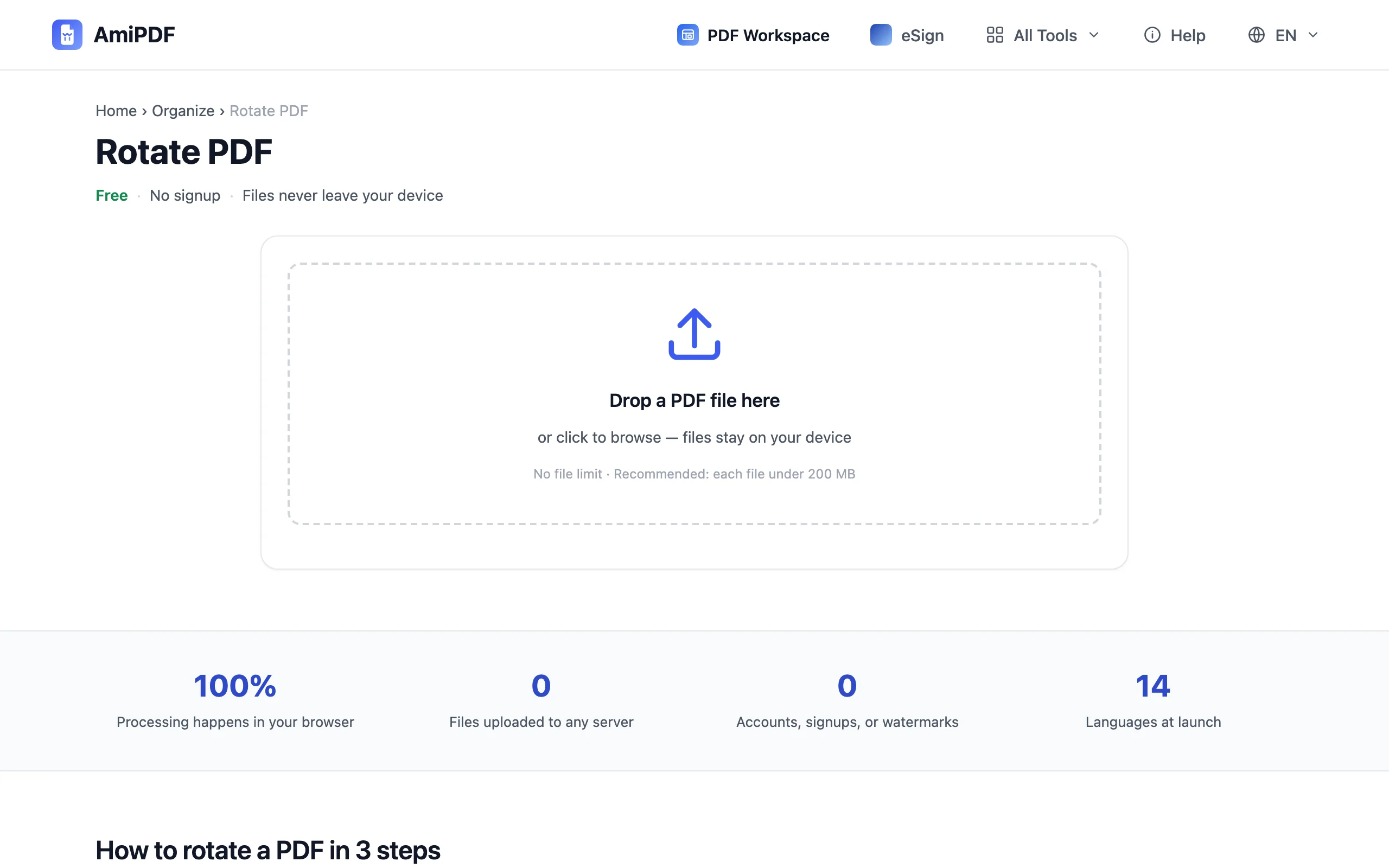
Add the PDF and look at the grid
Go to the AmiPDF rotate tool and drop the file. Every page appears as a thumbnail in a grid, drawn with its current orientation. Parsing happens on your machine; the file is not uploaded anywhere.
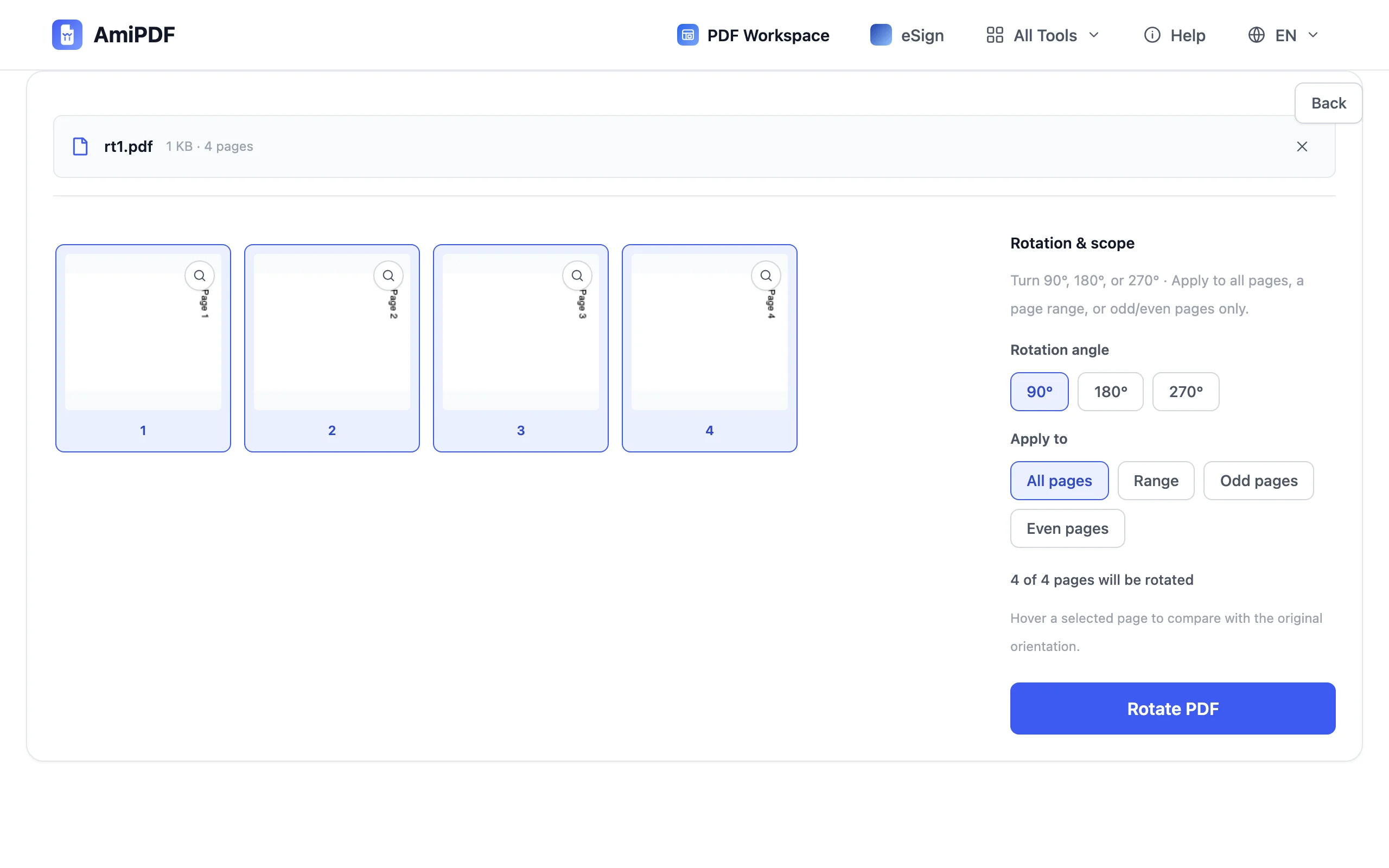
Pick the angle
Choose 90, 180 or 270 degrees. Sideways scans usually need 90; pages that came out fully upside-down need 180. Set the angle first, and the thumbnails of the pages you select next will show the turn.
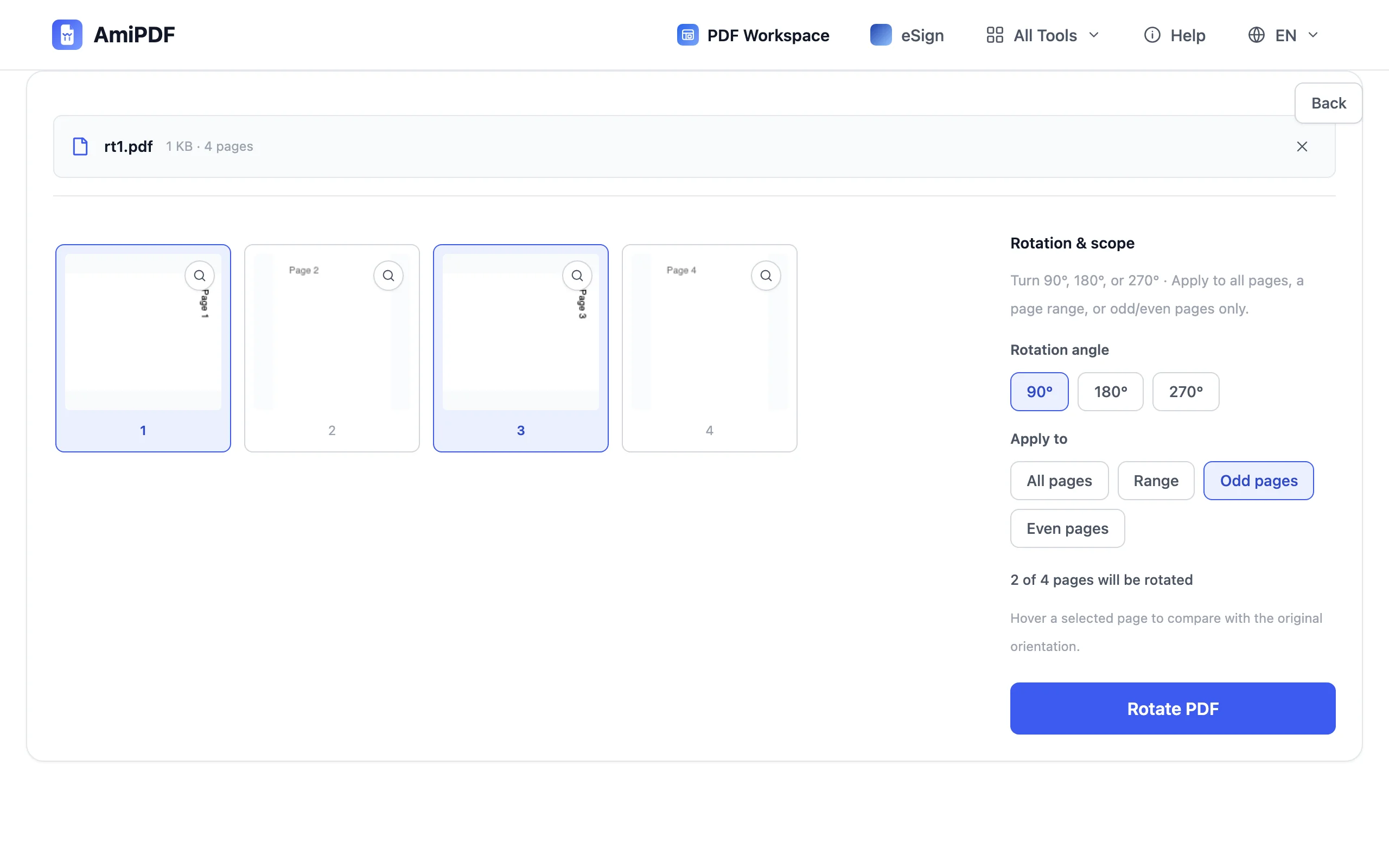
Choose the pages
Four scope buttons cover the common cases: All pages, a typed Range like 4-9, Odd pages only, or Even pages only. Double-sided scans that arrive half upside-down are the classic case for odd or even. Clicking thumbnails directly picks individual pages instead. The status line above the grid keeps the count, such as 12 of 40 pages, and hovering a selected page shows the original orientation for comparison.
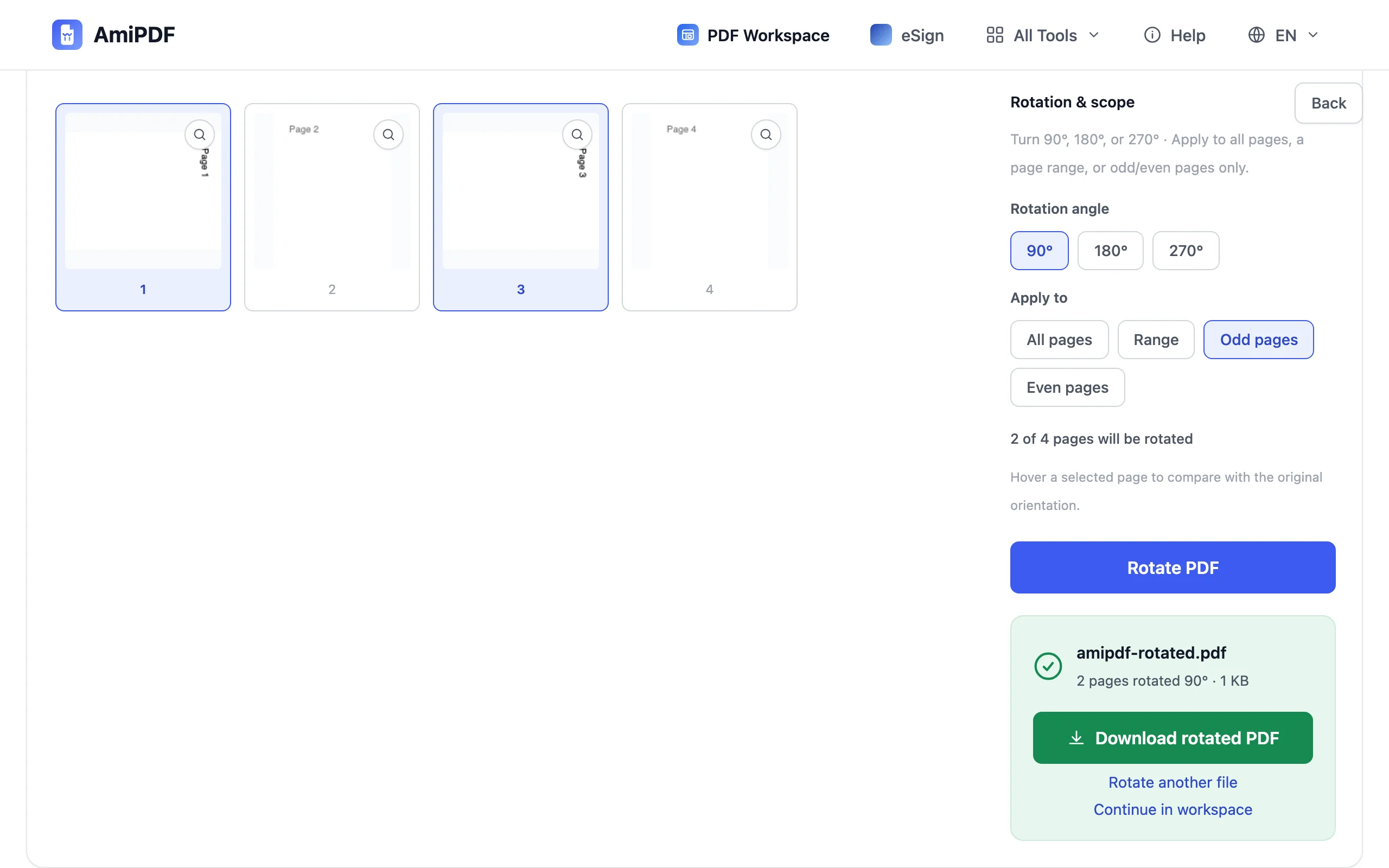
Rotate and download
Click Rotate PDF. The document is rebuilt with the new orientation stored inside each rotated page, and the result downloads immediately. Open it in any viewer on any device: it stays the way you set it.
Details worth knowing
Why the viewer button lied to you
Most viewers offer two different rotations. The toolbar button turns the page on your screen only; reopen the file and the old orientation is back. A permanent rotation has to be saved into the page itself, which is what a rotate-and-save tool writes. That distinction is why «rotate PDF and save it that way» became a search phrase of its own.
Scan jobs rarely err once
A feeder that pulled one page sideways usually pulled several, and duplex jobs mix two orientations in a single file. Scroll the whole grid before you rotate: fixing three pages now beats discovering the fourth after the file has gone out.
Rotate before merging
If sideways pages are headed into a larger document, rotate them first, then combine. Assembling straight pages from the start is simpler than repairing a merged file afterwards; the merge tool takes the corrected files as they are.
Frequently asked questions
Can I rotate a PDF in Adobe Reader and save the change?
No. The free Reader turns the view, not the page; reopen the file and the old orientation is back. Writing the new orientation into the file takes a tool that re-saves the document, like the one in the steps above.
Will the rotated pages print correctly?
Yes. The orientation is stored as part of each page, so printers and print dialogs follow it. A page you turned to portrait prints portrait, on any printer.
Is my original file changed?
No. The rotated document is a new file that downloads separately (amipdf-rotated.pdf); the original on your disk keeps its orientation.