How to Compress a PDF to 100KB
Shrink a PDF under a hard size cap (100KB, 200KB, 500KB or 1MB) using three compression levels and a before-and-after size report. Free, runs locally.
Compress your PDF nowGovernment portals, job applications and visa forms routinely demand PDFs under 100 KB, 200 KB or 500 KB. No tool hits an exact byte count, but you do not need one: you need to get under the cap. AmiPDF's PDF compressor shows the before-and-after size before you download anything, so you can step down a level and retry until the file fits. Everything runs in your browser; the file never leaves your device.
Compressing to a target size, step by step
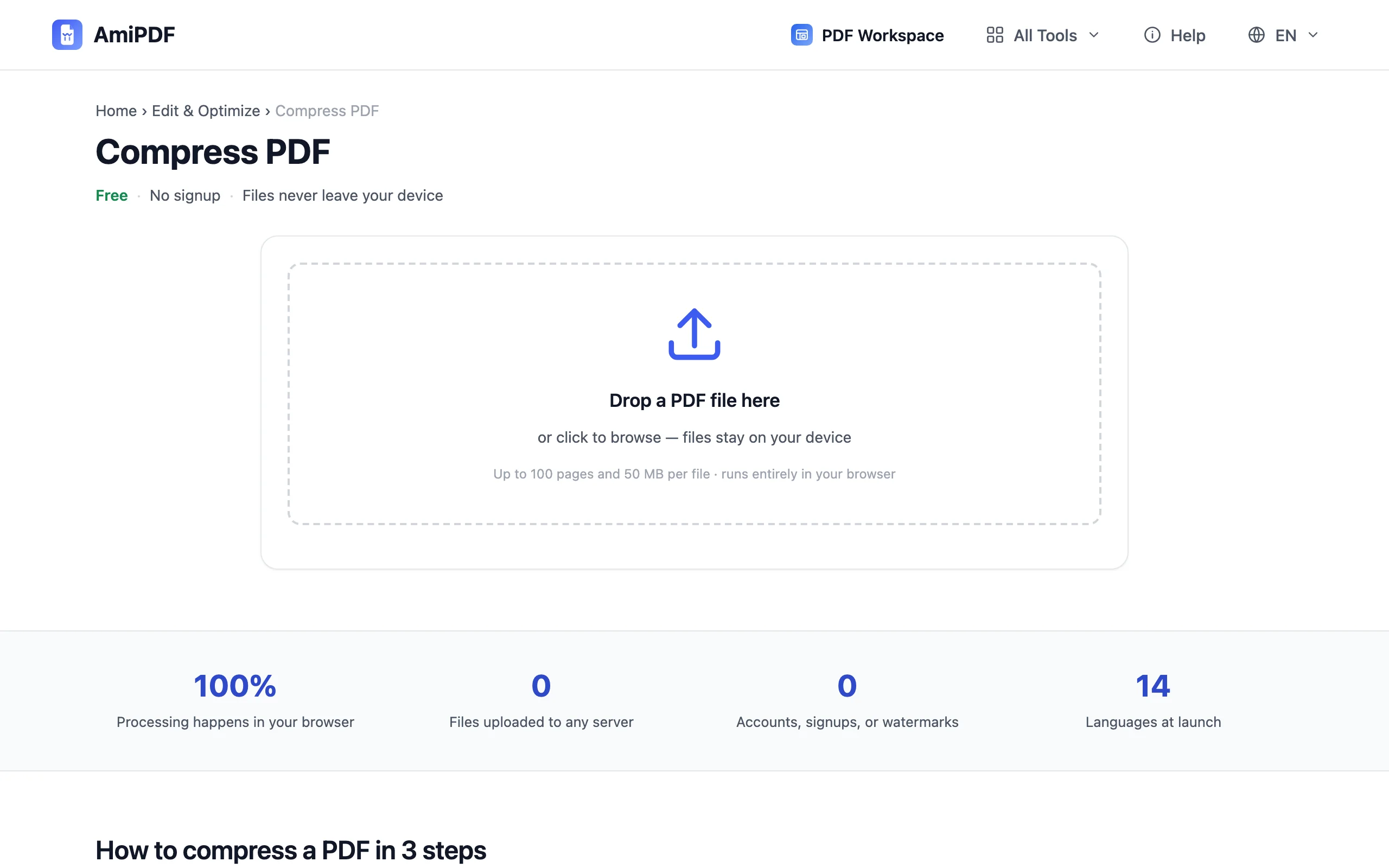
Open the compressor
Go to the compress PDF tool and check the actual limit first: the portal's upload page usually states it. «100 KB» and «1 MB» are different targets: the first only fits a few light pages, the second is comfortable. Knowing the number tells you when to compress and when to split instead.
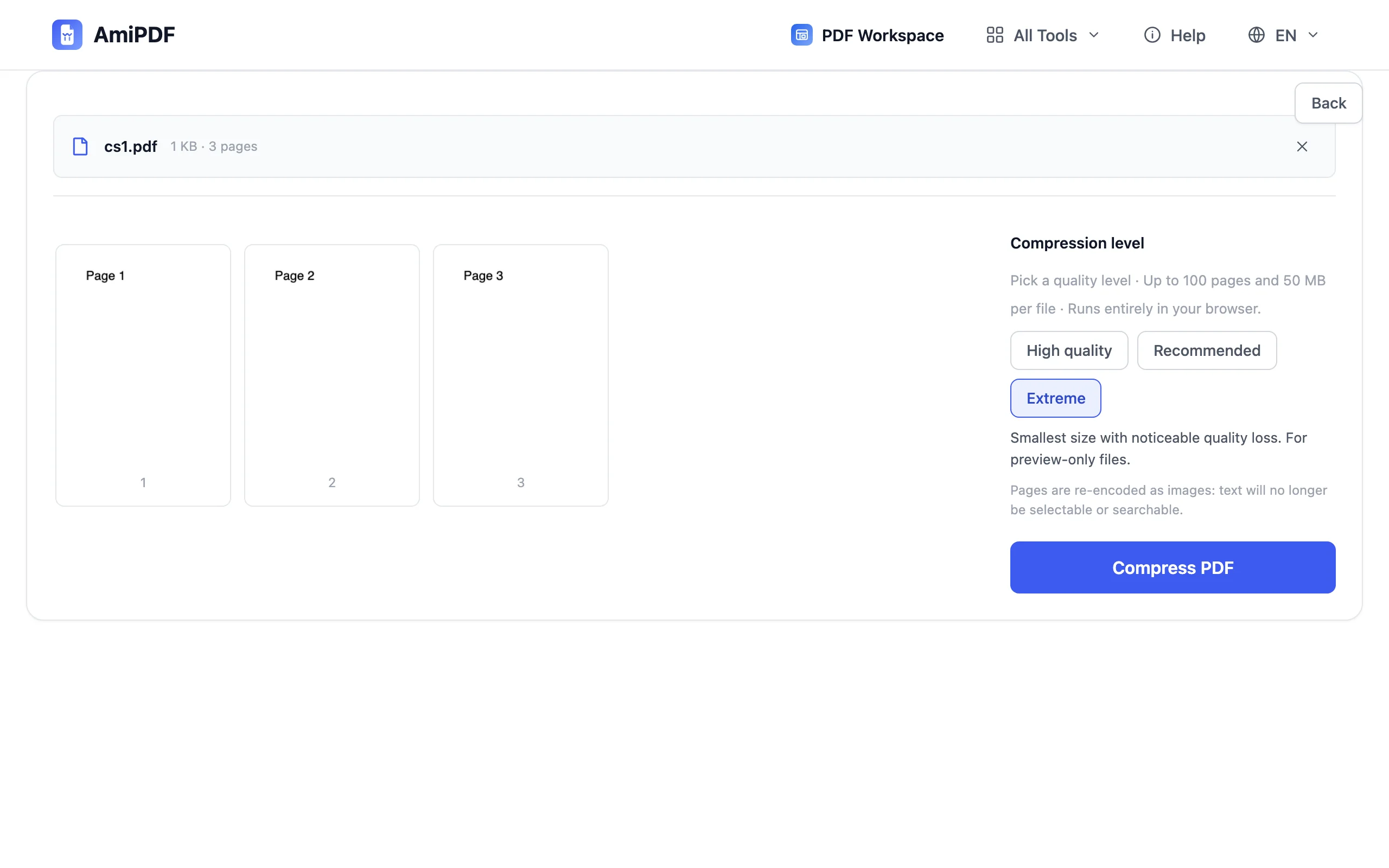
Add your PDF and pick a level
Drop your file in; documents up to 100 pages and 50 MB are accepted. If it is bigger, split it first with the splitter: a 50-page scan will never fit under 100 KB, but its individual parts can. Start at Recommended for a first pass.
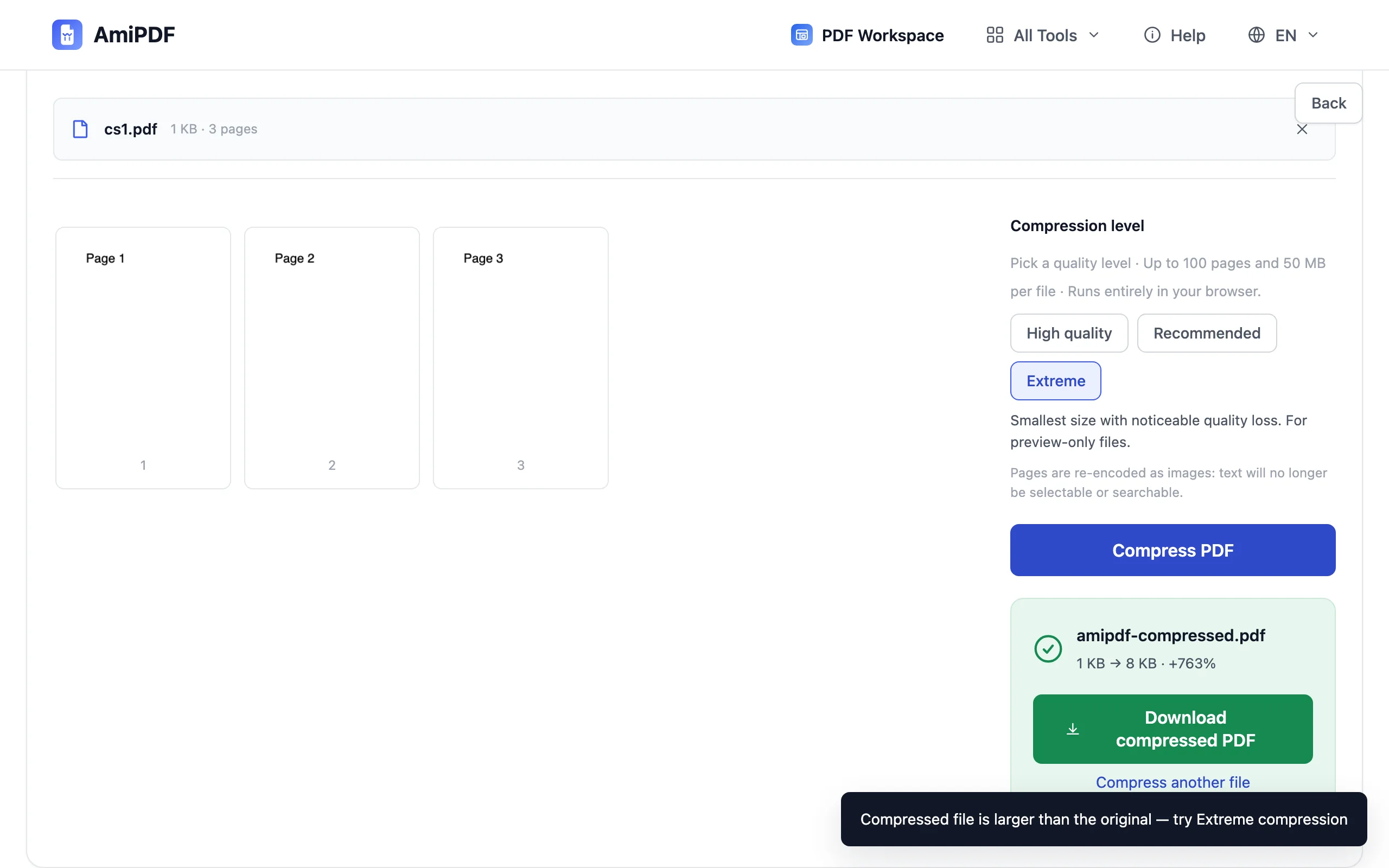
Compress and read the size report
Click compress and check the before → after size report; it is shown before you download anything. If the result is under your cap, you are done. If it is still above, run it again at Extreme: the smallest output, with visible quality loss that is fine for a preview copy a portal just needs to store.
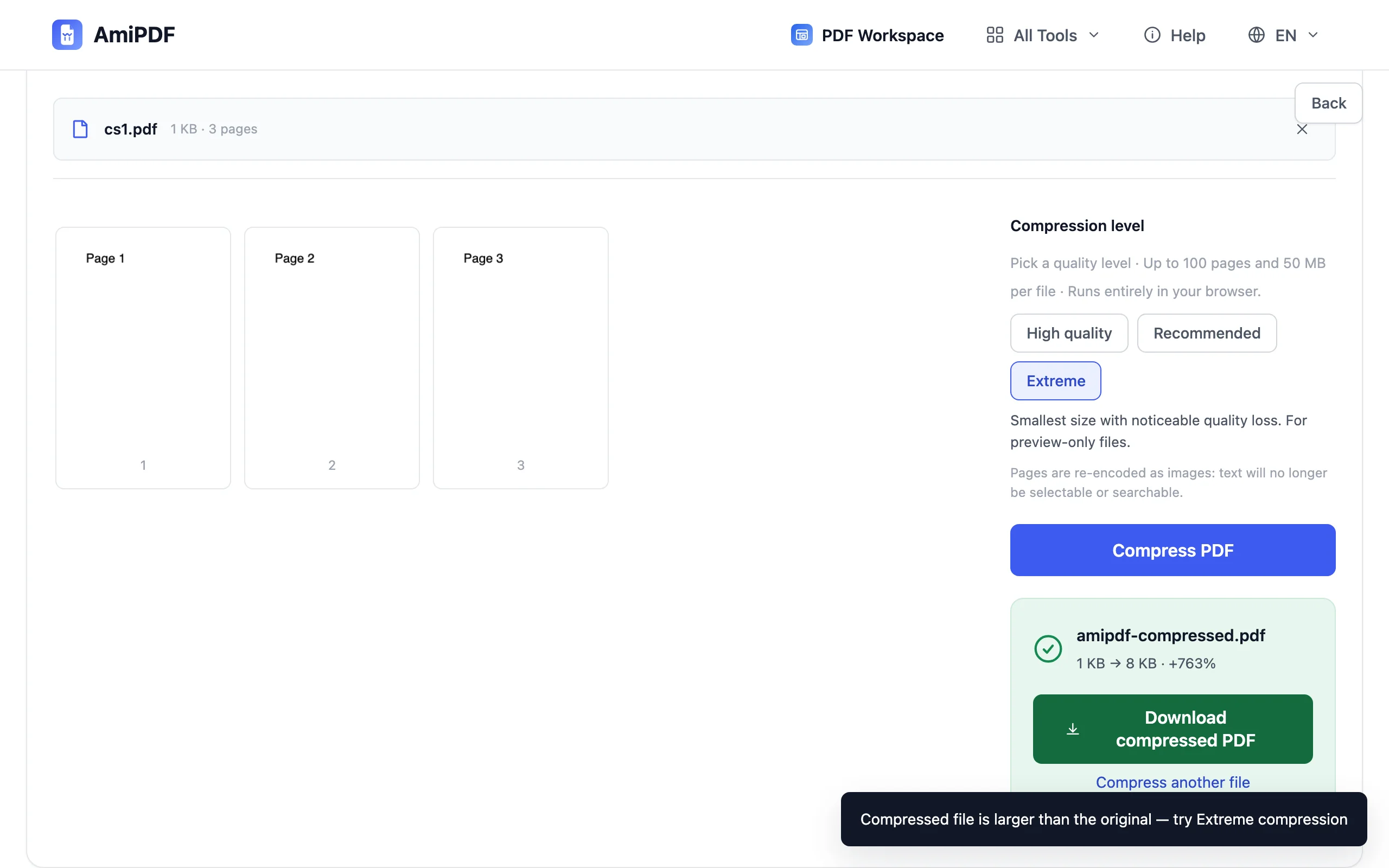
Download and verify
Save the compressed copy and check it against the cap you were aiming for. Each retry is fast because the file is already smaller from the first pass, so one step down at a time beats jumping straight to extreme and losing quality you did not need to give up.
Hitting tight caps
Know what 100 KB realistically holds
100 KB is a small budget: a few pages of clean text, or one modest scan. If your document is a 30-page scanned contract, split it into parts that each fit the cap rather than compressing until the text is unreadable.
Re-compress the output, not the original
Iterating on the already-compressed file is faster than re-uploading the original each time, and each pass squeezes a smaller file. One step down per pass; jumping straight to extreme wastes the levels in between.
Keep the original
Compression re-encodes pages as images: text stops being selectable and searchable. Send the compressed copy to the portal, keep the original for yourself. The details are in How to Compress a PDF.
Frequently asked questions
Can I set an exact target like 100 KB?
There is no exact-size dial — the tool offers three quality levels and shows the real result before download. In practice that is enough: compress, read the report, step down one level if you are still over the cap.
Why is my file still over the cap at extreme level?
The file simply carries too many pages or pixels for that budget. Split it into smaller parts with the splitter, then compress each part. Repeated re-compression alone will not get a large file under a 100 KB limit.
Will the text stay selectable after compressing?
No — pages are re-encoded as images, so text becomes part of the picture. Keep the uncompressed original whenever you need to search or copy text.