How to Watermark a PDF with an Image
A step-by-step guide to watermarking a PDF with an image: add a logo in PNG, JPG or WebP, set size, opacity, rotation and position, then download. Free, all local.
Watermark your PDF nowA spec sheet leaves the office, a portfolio proof leaves the studio, and a plain «DRAFT» across the page never says whose work is inside. A logo settles the question on every page at once.
This guide covers watermarking a PDF with an image in AmiPDF: one logo, stamped on the pages you choose, with size, opacity, rotation and position under your control. The same steps apply to any image, from a company mark to a badge designed in another tool.
Everything runs in the browser. The PDF and the logo stay on the device, there is no signup, and the result is a normal PDF that prints and forwards like any other. Open the watermark tool and follow along.
Watermarking a PDF, step by step
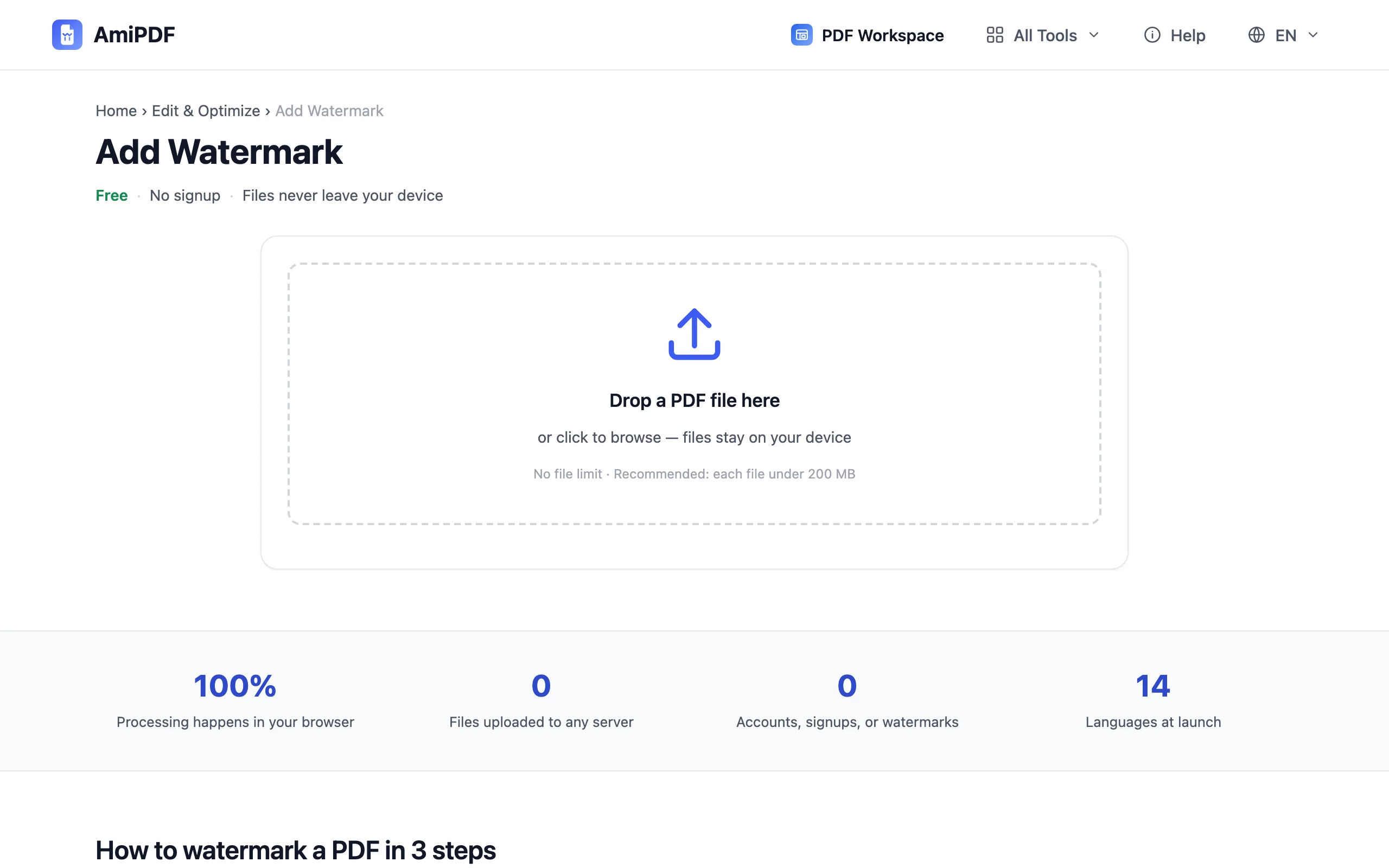
Open the tool and add your PDF
Go to the AmiPDF watermark tool and drop the document onto the upload area. Thumbnails of every page appear in a grid; the same grid is where page selection happens later. One PDF per run, any page count.
Switch to Image and choose your logo
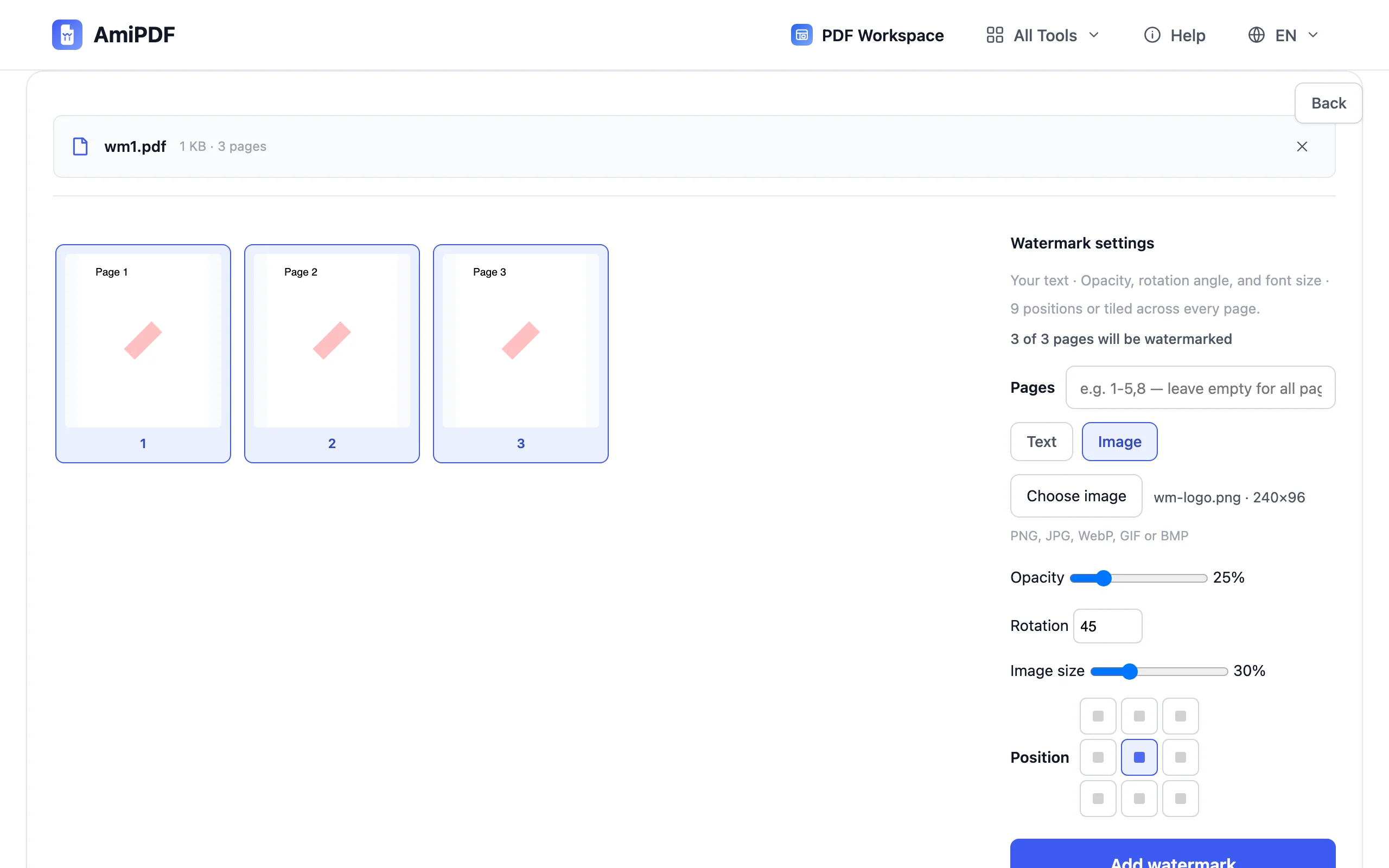
Above the text field, the Text | Image toggle sets the watermark type. Pick Image, click Choose image and select the file. PNG, JPG, WebP, GIF and BMP all work; the file name and pixel size show up next to the button once the image loads.
Set size, opacity, rotation and position
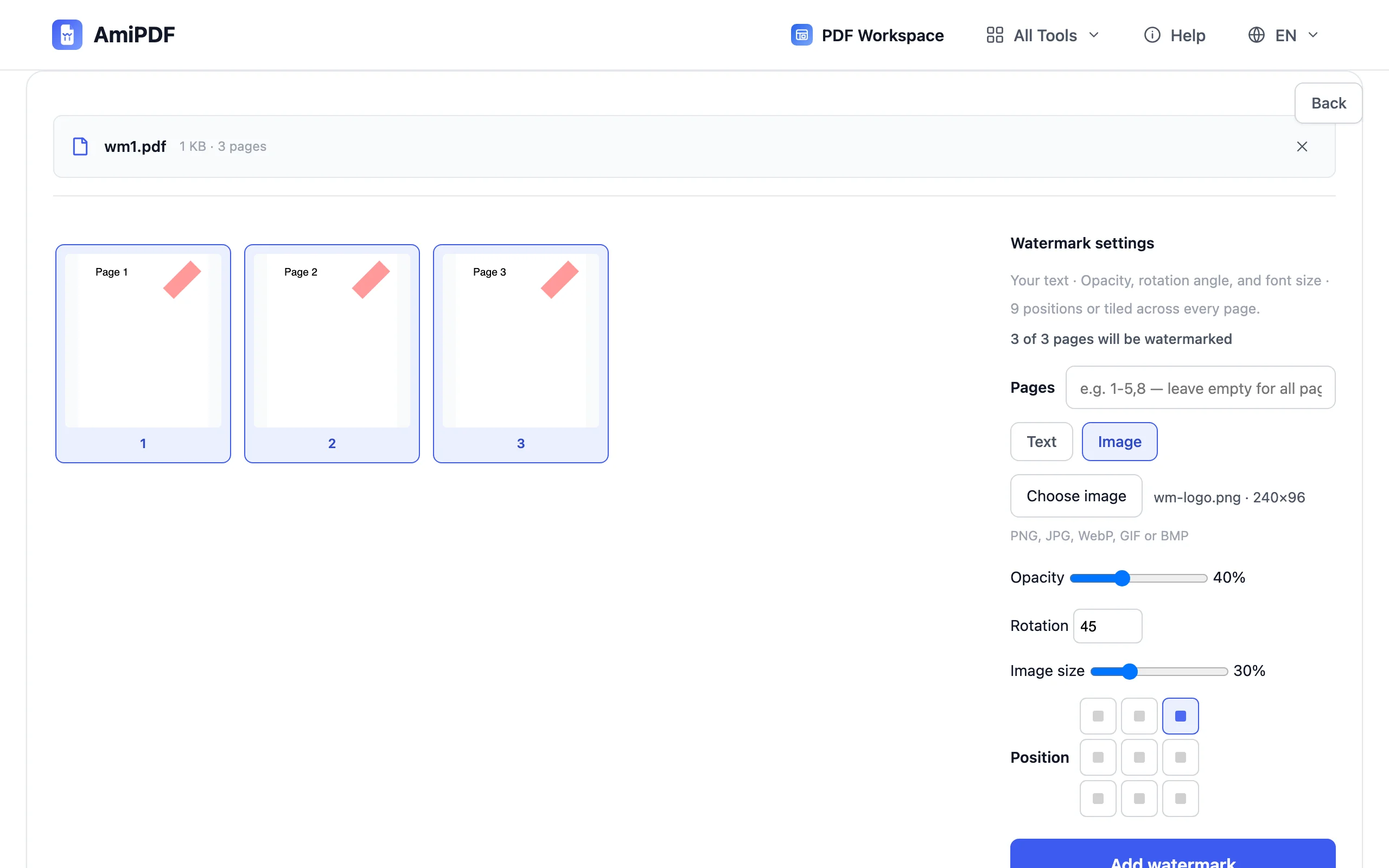
Image size is a percentage of the page width, from 5% to 100% with 30% as the starting point, so the logo scales proportionally even across pages of different sizes. Opacity runs from 5% to 100%, rotation from -90° to 90°, and the nine-cell grid moves the stamp from any corner to the center. Each change repaints the thumbnails immediately; the preview is the exact layout that gets stamped.
Pick the pages and download
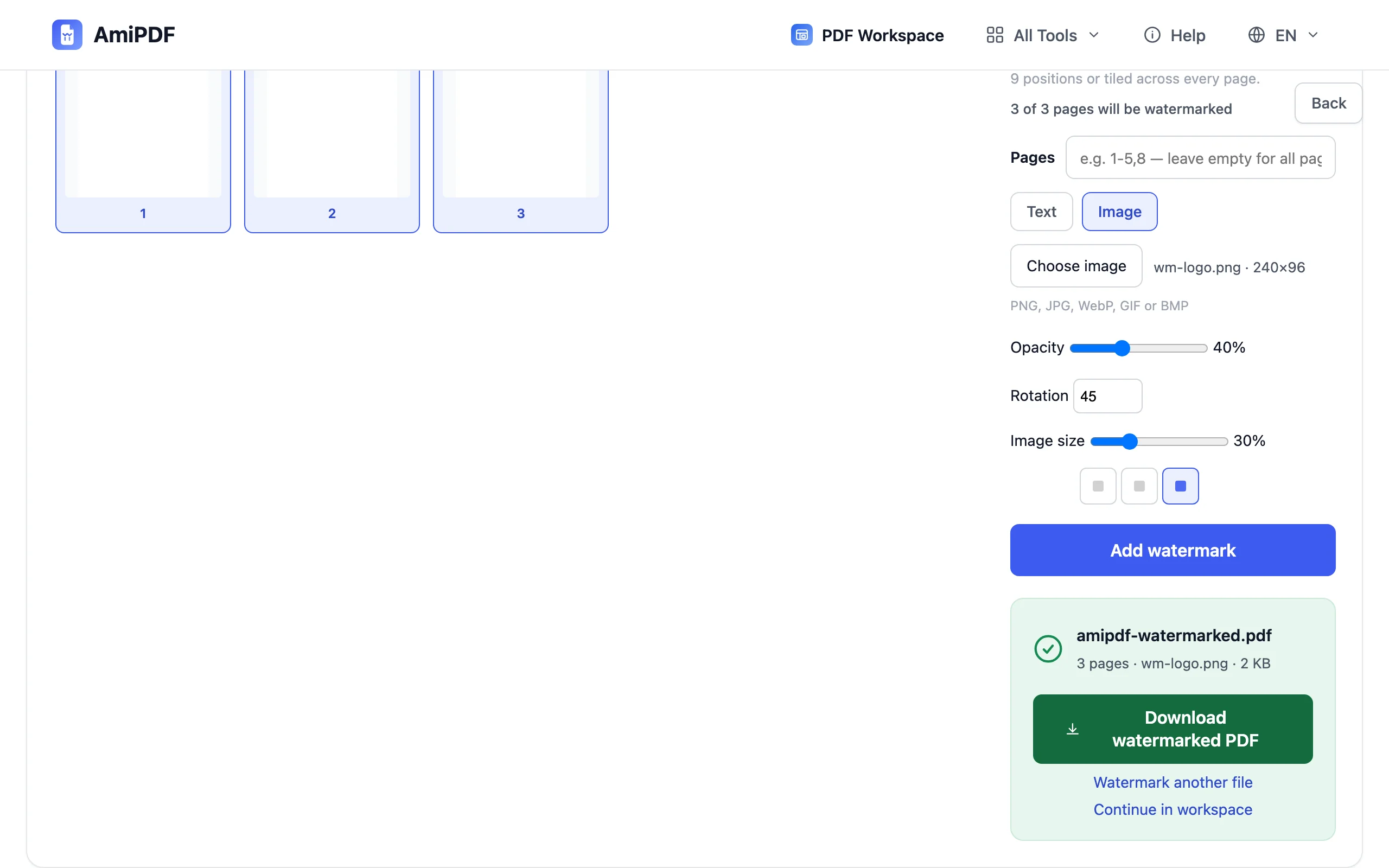
Click thumbnails to toggle pages, or type a range such as 1-5,8 into the pages field; an empty field means the whole document. Press Add watermark, then download the result. The summary line reports the stamped page count, the image file name and the output size.
Getting the best results
Use a PNG with a transparent background
PNG keeps transparency, so the logo sits on the page with no frame. A JPG logo arrives with its white rectangle baked in, which reads as a box on colored or scanned pages. WebP with transparency behaves like PNG.
Size against the page, not the pixels
The size slider is a share of each page's width. A logo set to 30% takes 30% of the width on every page, so A4 pages, letter pages and odd-sized scans all get a proportional mark without per-page fiddling.
Large photos are handled for you
Images longer than 2000 pixels on any side are downscaled automatically when loaded, so a logo exported straight from a phone camera will not bloat the output PDF.
Text and logo together takes two passes
Each run stamps one watermark type. Run the tool once in Text mode and once in Image mode on the same file to combine a «CONFIDENTIAL» line with a logo.
Frequently asked questions
Will the logo hide the text underneath?
Only if you let it. Opacity starts at 25%, which keeps body text readable under a center placement, and the live preview shows the overlap before anything is stamped. Corners at low opacity are the usual choice for dense documents.
Can I remove the watermark afterwards?
No. The stamp becomes part of each page in the output file, the same way a printed letterhead is part of the paper. Keep the original PDF and re-stamp it whenever the branding changes; each run starts from the file you give it.
Does one run handle several PDFs?
One file per run. For a folder of documents, merge them first with the merge tool if the same stamp belongs on everything, or repeat the run per file when the marks differ.
Is the logo uploaded anywhere?
No. Decoding, scaling and stamping all happen in the browser; neither the image nor the PDF is sent anywhere.