How to Convert JPG to PDF
A step-by-step guide to converting JPG to PDF: combine photos into one document, set page size and margins, original quality, in your browser.
Convert your JPGs now«Please submit as a single PDF.» The expense receipts are JPGs. The signed form was photographed, not scanned. The property photos, the ultrasound printout, the whiteboard from the workshop. Cameras produce JPGs, and institutions accept PDFs. Between the two sits a boring, frequent task: convert JPG to PDF without losing quality and without the photos ending up on someone's server. This guide walks through it with AmiPDF's JPG to PDF converter. Your photos are embedded as-is, with no recompression and no resizing. You pick the page size and margins, and the whole conversion runs locally in your browser.
Converting JPG to PDF, step by step
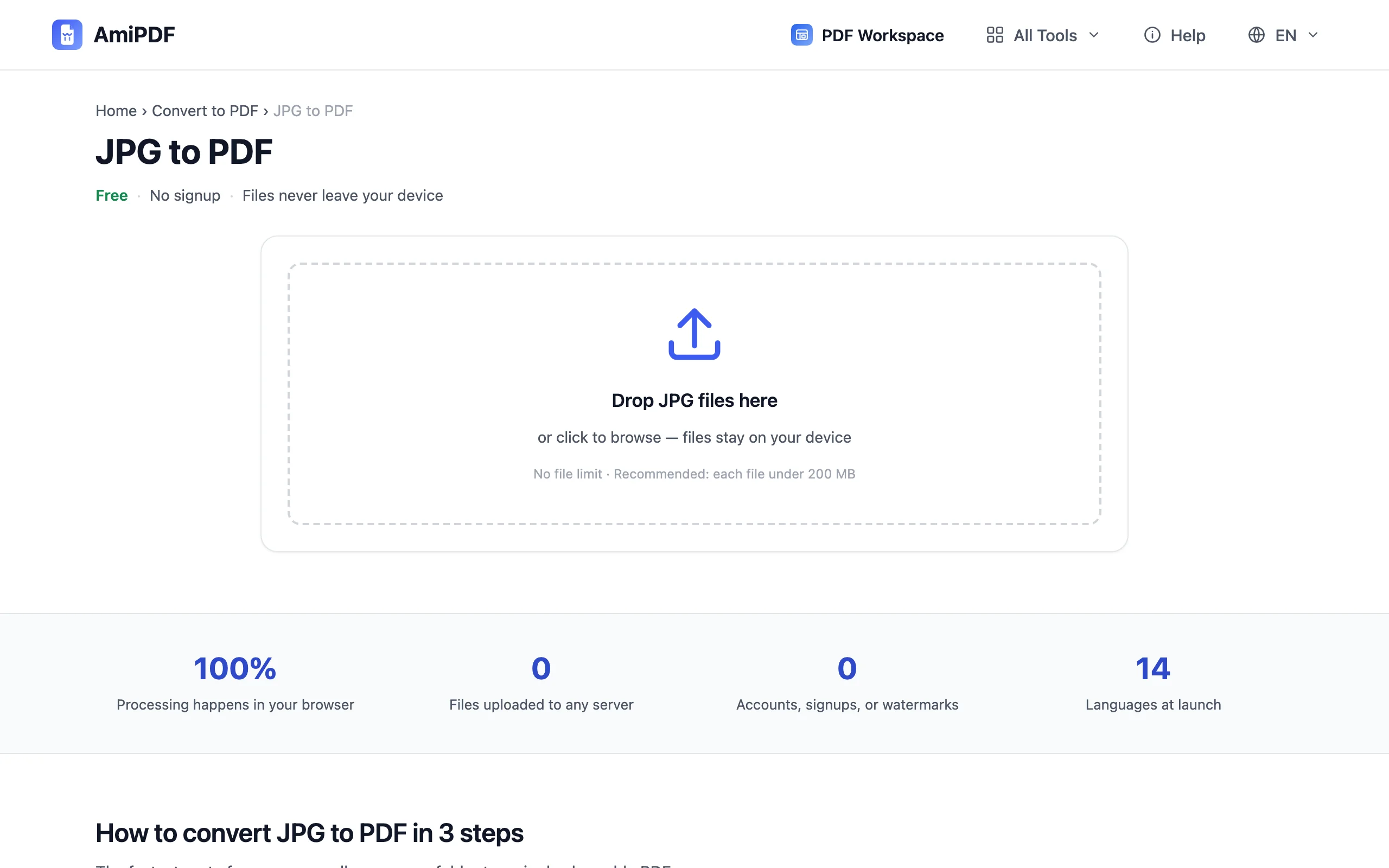
Add your JPG files
Open the AmiPDF JPG to PDF tool and drop your files in; photos, scans, and screenshots all qualify. JPEG files with the .jpeg extension are the same format and work identically.
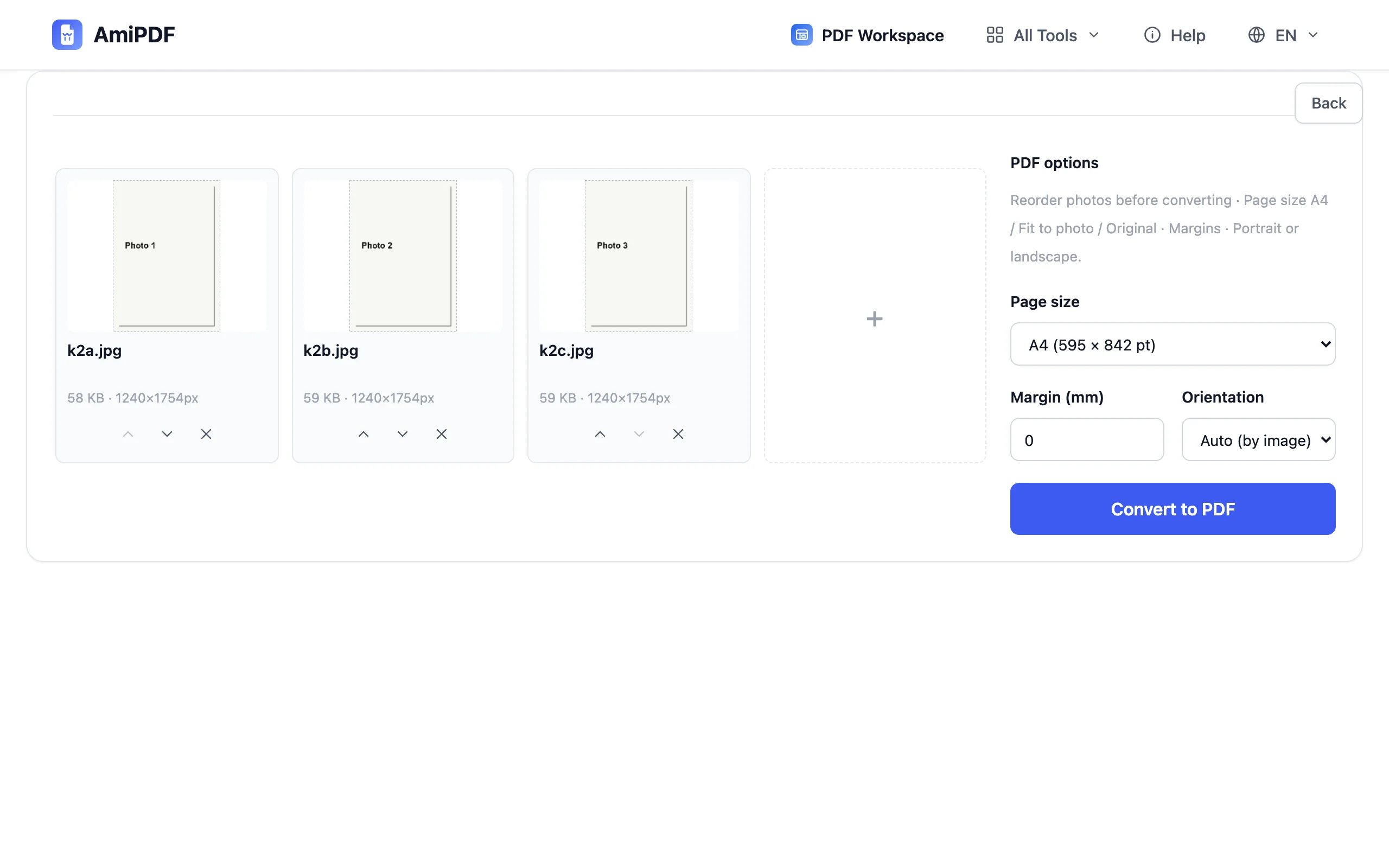
Arrange the order
Drag the thumbnails until the sequence is right: receipt before receipt, page 1 before page 2. Order is the detail reviewers notice first, and fixing it here takes seconds instead of a re-shoot.
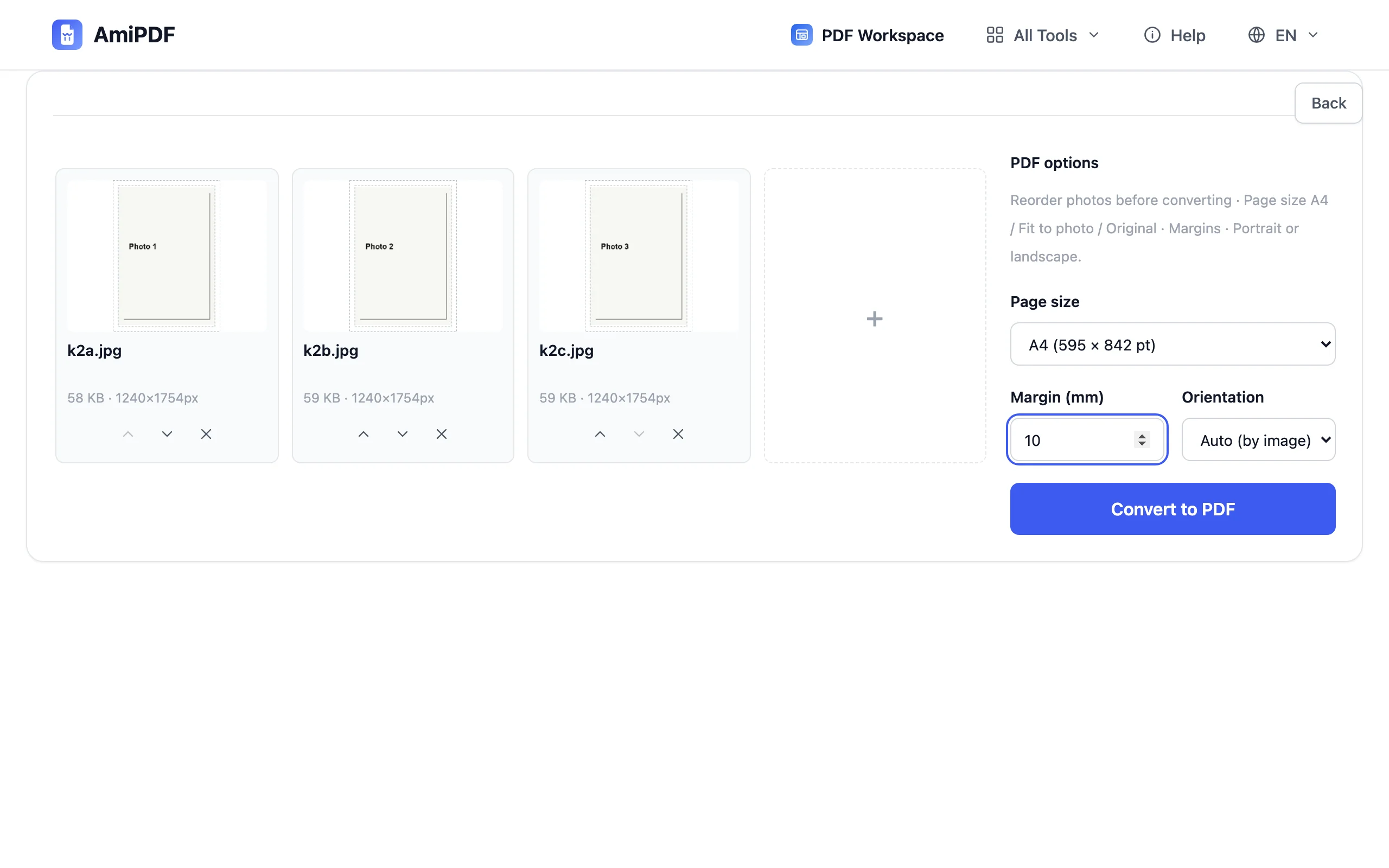
Set page size and margins
Choose A4 portrait or landscape for printing, with adjustable margins. Fit-to-photo sizes each page to the image, the photo-book look. Original keeps the photo's exact dimensions for faithful copies.
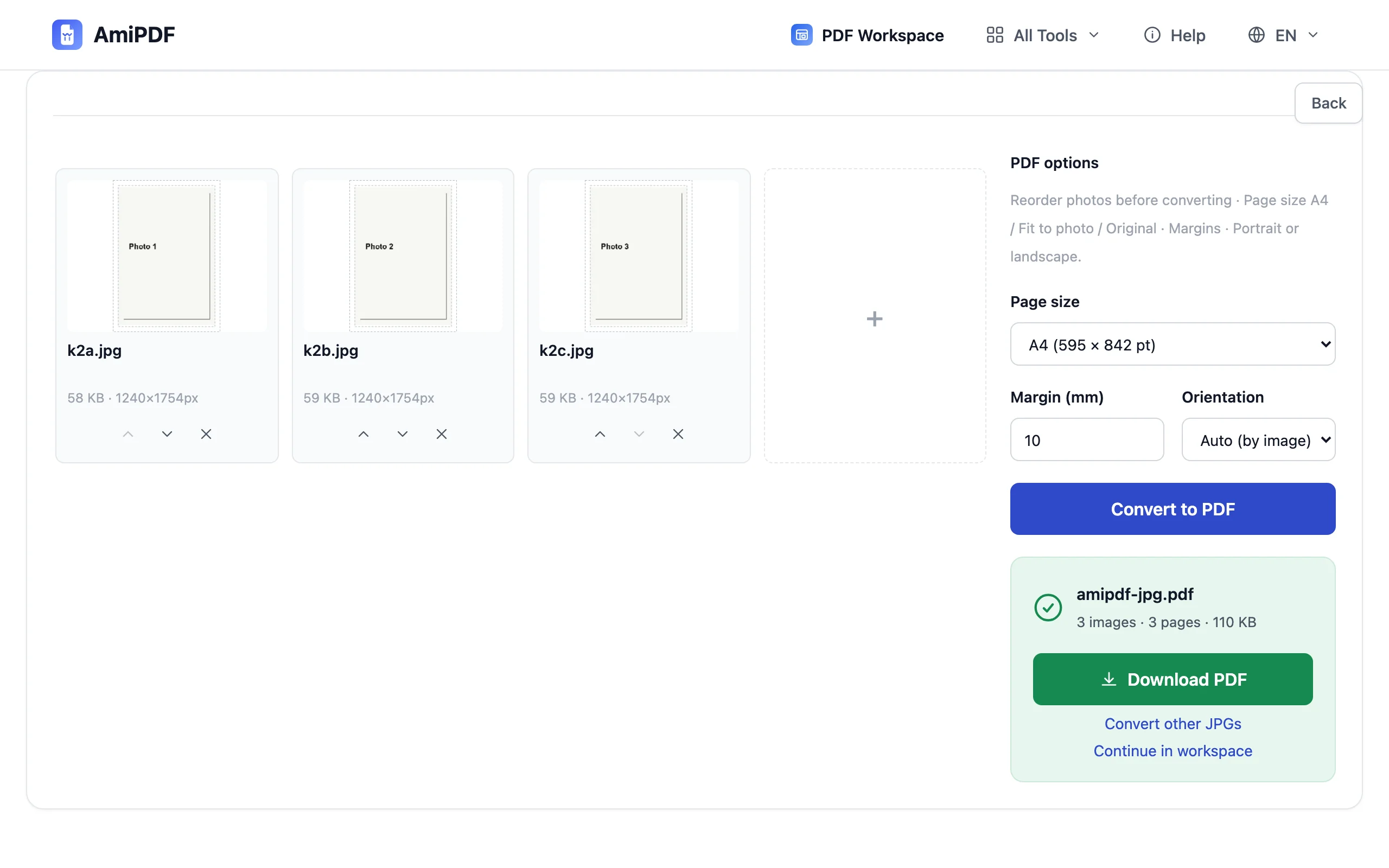
Convert and download
Click Convert to PDF. One photo lands per page, assembled into a single document, and the file downloads immediately: no watermark, no signup, nothing in the file but your photos.
Getting the best results
Rotate sideways photos before converting
Photos are embedded exactly as stored. Some cameras save orientation only as EXIF metadata, which certain PDF viewers ignore, so the photo appears rotated even though your gallery shows it upright. Rotate those shots in your gallery app first; photos that stand upright in the gallery stand upright in the PDF.
One photo per page keeps documents readable
Receipts and forms stay scannable when each gets its own page instead of sharing a sheet. If the recipient prints the file, page-per-photo also keeps their margins sane.
PNG, WebP, or mixed batches
This tool is tuned for JPG. For PNG, WebP, GIF, or BMP files, or a mixed batch, the Image to PDF tool runs the same engine with the wider net.
Frequently asked questions
Does converting JPG to PDF reduce image quality?
No. The JPG data is embedded into the PDF without recompression; the bytes your camera produced are the bytes in the document.
Can I combine multiple JPGs into one PDF?
Yes, that's the main use. Drop them all, order them, and the output is a single PDF with one photo per page.
Why did a photo come out sideways in the PDF?
It was stored sideways with the correct orientation only in EXIF metadata, which some viewers ignore. Rotate it in your gallery app and convert again — upright-in-gallery photos stay upright.
Can I set the page to A4 for printing?
Yes. Pick A4, portrait or landscape, and adjust the margins — the layout comes out ready for a standard printer.
Do my photos get uploaded?
Never. The conversion runs locally in your browser; the network tab stays quiet while you work.