How to Convert Photos to PDF
How to convert photos to PDF: combine JPG, PNG, WebP, GIF and BMP into one document in your chosen order, A4 or fit-to-image pages. Free.
Convert your photos nowA camera is the scanner most people actually carry. The result is a folder of photos with machine names like IMG_4471, attached one by one to a message thread and arriving out of order on the other side.
To convert photos to PDF, all you need is the photos and a browser. The image to PDF tool collapses the pile into one document: every photo becomes a page, the order is fixed by you, and the recipient opens a single file on any device. The photos never leave your machine.
From photos to pages, step by step
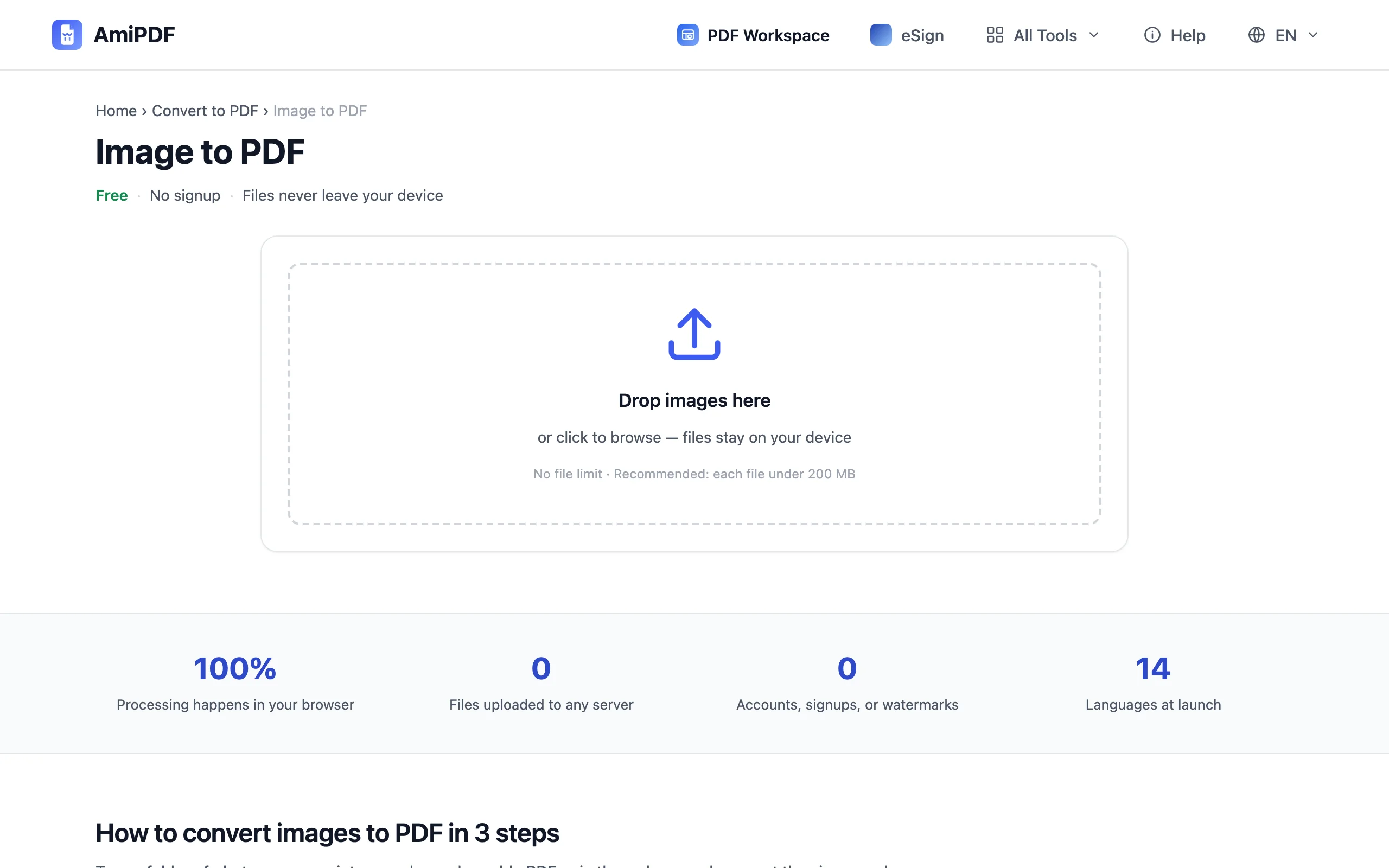
Add the photos
Open the image to PDF page and drop the photos in, or browse for them. JPG, PNG, WebP, GIF and BMP are all accepted, mixed batches included: a PNG screenshot can sit between phone photos without a detour through another converter.
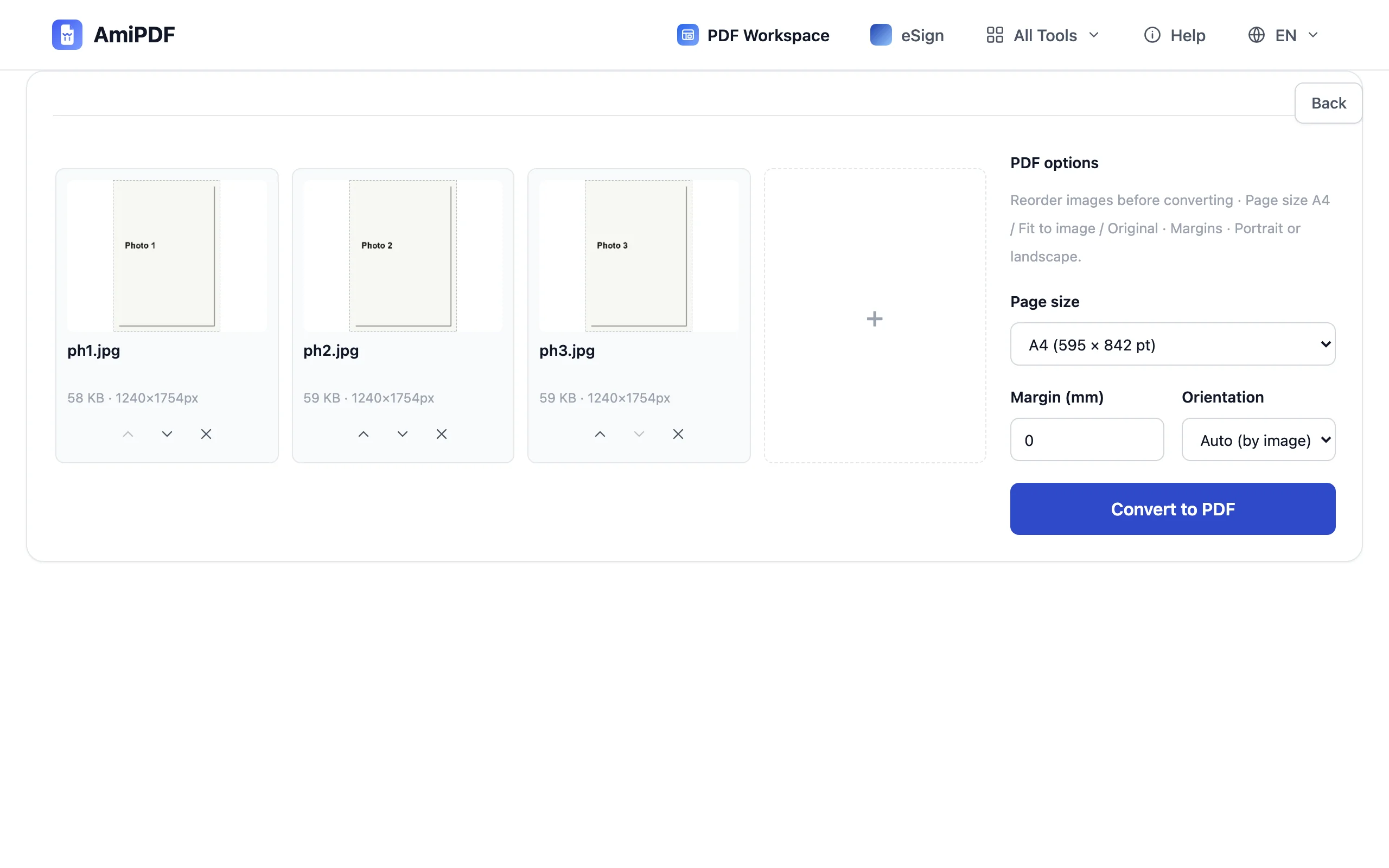
Put them in order
The photos land as a list of cards. Drag a card to a new position, or nudge it with the arrow buttons; the sequence you settle on is the page order of the PDF. Getting it right here costs seconds and beats reordering pages after the fact.
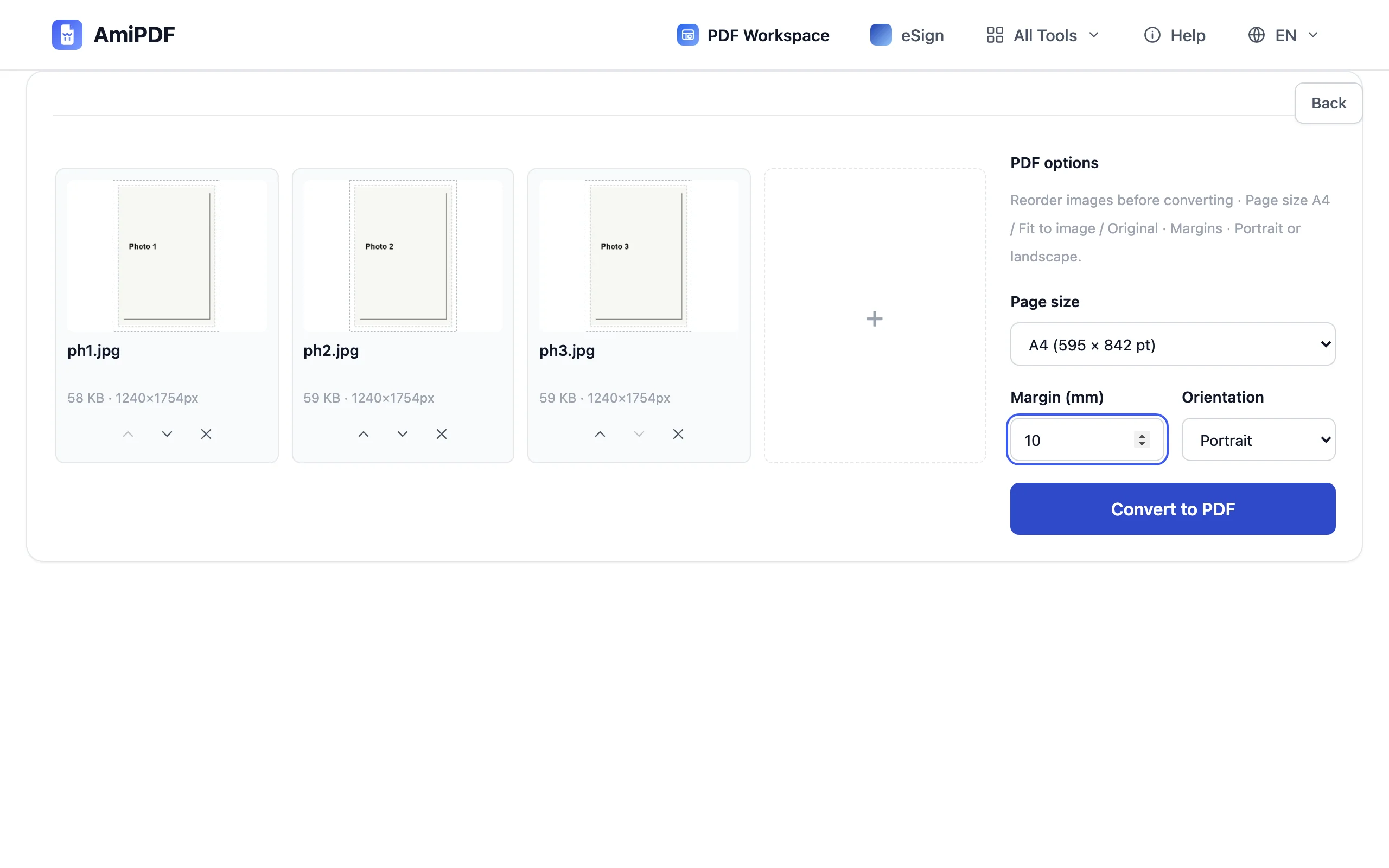
Choose the page format
Three page sizes cover the usual needs. A4 turns every photo into a standard document page with margins; Fit to image hugs each photo tightly; Original keeps each photo's own pixel dimensions. Set portrait or landscape to match the majority of your shots, and adjust the margins if you went with A4.
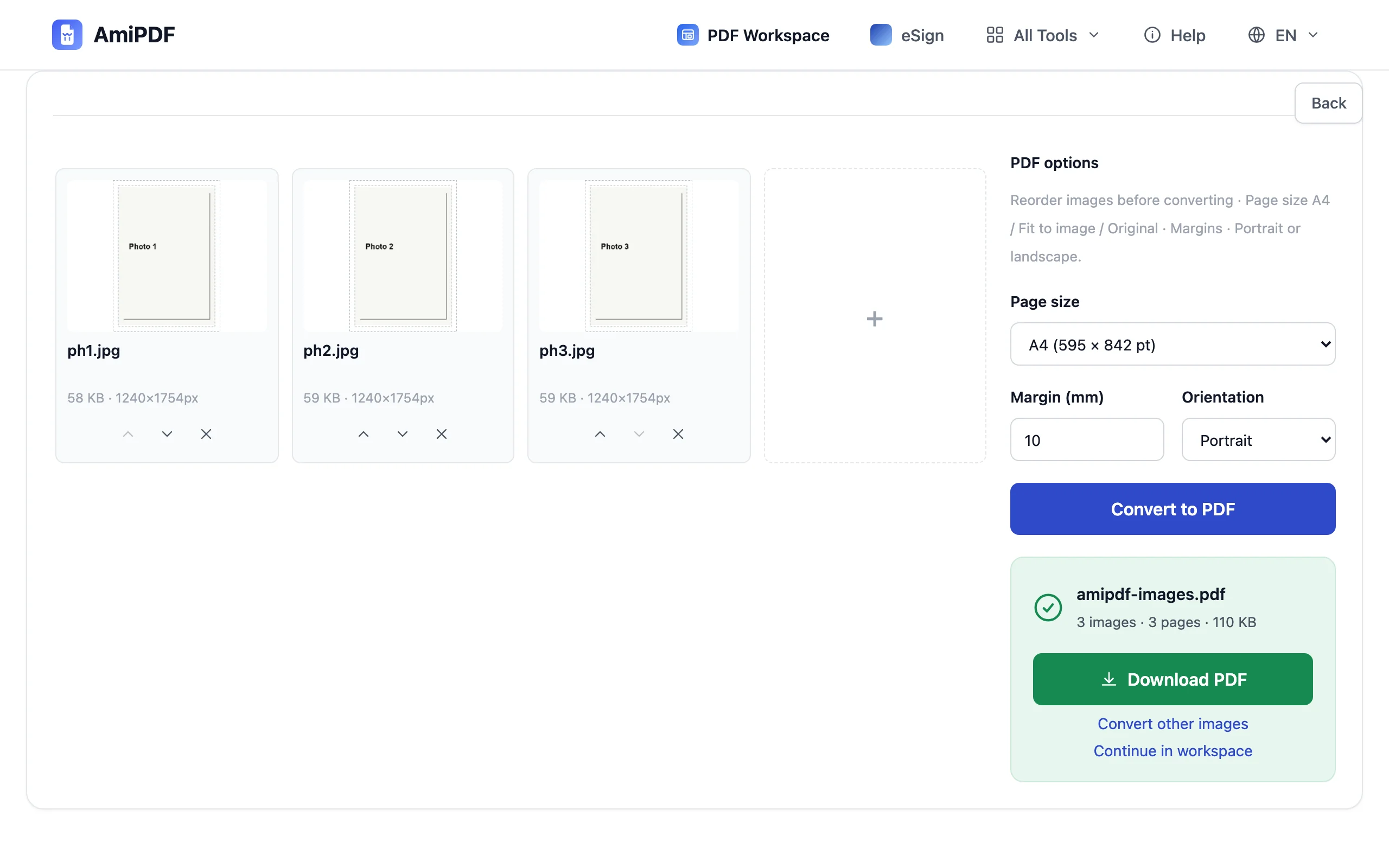
Convert and download
Click Convert. Each photo becomes one page, in the order you set, and the finished PDF downloads straight away. Check the page count against the photo count before you send the document anywhere.
Photos that make clean pages
Shoot for the page, not the screen
Photos destined for a PDF behave like scans: fill the frame with the paper, keep the light even, and shoot straight on instead of at an angle. A photo taken like that needs no fixing later, and the text on receipts and forms stays readable at normal zoom.
A4 for paperwork, fit for photo sets
Documents that someone might print, such as forms or signed pages, sit best on A4 with margins. Photo collections read better with Fit to image or Original size, where white borders do not frame every shot. One setting applies to the whole batch, so sort mixed material by what the recipient will do with it.
Photos into a PDF that already exists
The converter takes images, not existing PDFs. When new photos must join an existing document, convert them into a small PDF first, then join the two files with a PDF merger.
Frequently asked questions
My iPhone photos are HEIC. Can I use them?
Not as they are; the converter reads JPG, PNG, WebP, GIF and BMP. In Settings > Camera > Formats, the Most Compatible option shoots JPG going forward, and existing HEIC photos need a one-step conversion to JPG before they go in.
How large should the photos be for printing?
Modern phone photos sit far beyond what a printed page needs. As a floor, about 2,000 pixels on the long edge covers an A4 page at print quality; below that, pages still look fine on screen but soften on paper.
Can I turn a single photo into a PDF?
Yes. Drop one photo and convert; the result is a one-page PDF. There is no minimum batch.